Via Pro User’s Guide – TouchChat 45
To switch to a different voice:
Any time you want to switch to a different voice, do the following:
1. Choose Menu > Settings.
2. Scroll to the Speech section. The Voice setting shows VocaliD Voice.
3. Tap Voice to open a list of available voices.
4. Tap or download the voice you want and tap Done.
Dedicated Devices: Adjusting Your VocaliD Voice
Your VocaliD voice was set up and downloaded prior to purchase.
To adjust the voice:
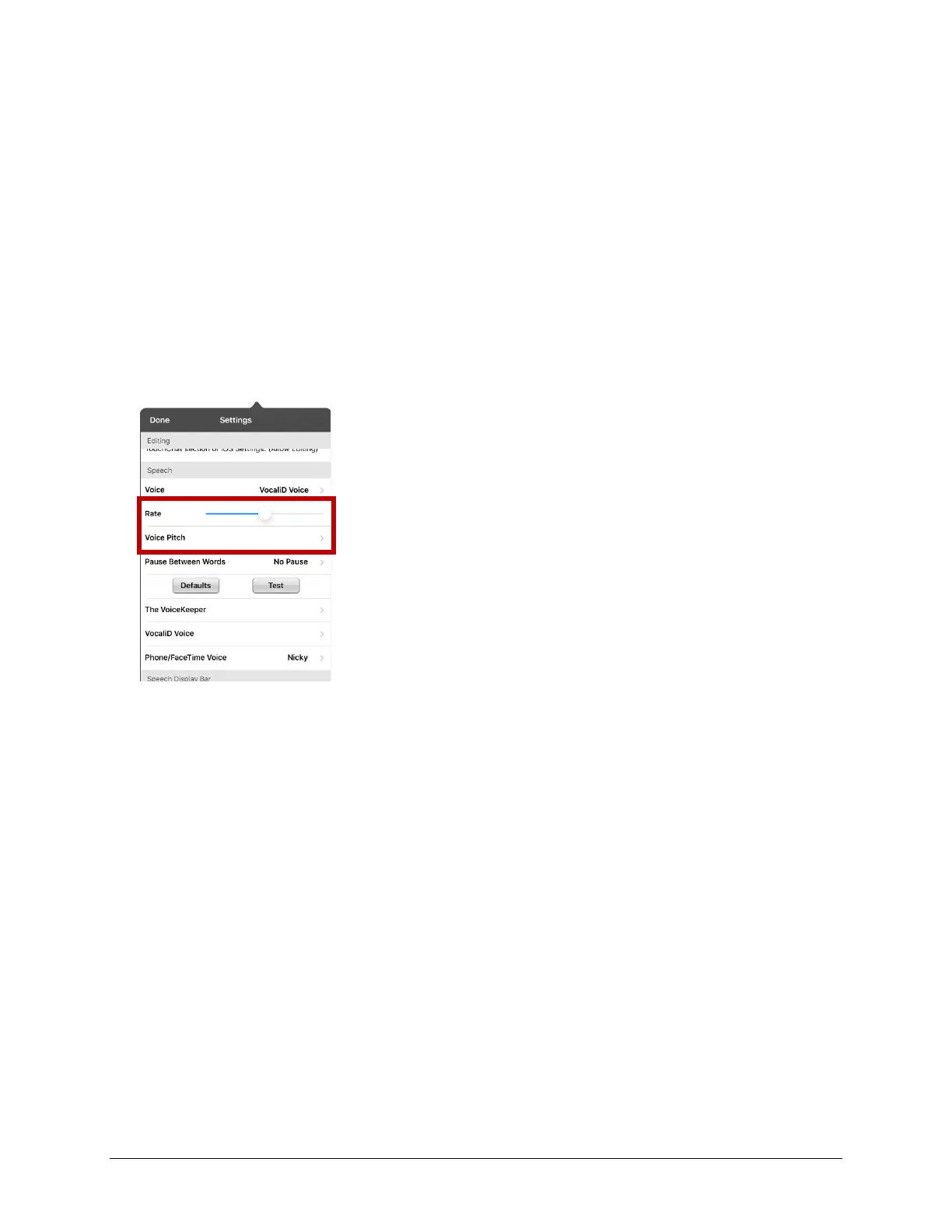
1. Try out the voice. To change the voice rate and pitch, select Menu > Settings and scroll to the
Speech section.
To change the rate: Move the slide bar.
To change the pitch: Tap Voice Pitch to open a list of pitch levels. Select the pitch you want: Lowest,
Lower, Low, Normal, High, Higher, or Highest.
2. Test the voice again and adjust the rate and pitch as needed.
To switch to a different voice:
Any time you want to switch to a different voice, do the following:
1. Choose Menu > Settings.
2. Scroll to the Speech section. The Voice setting shows VocaliD Voice.
3. Tap Voice to open a list of available voices.
4. Tap or download the voice you want and tap Done.



 To Next Page