Via Pro User’s Guide – TouchChat 53
Adding or Changing a Button Action
To add a button action:
1. Tap Menu, tap Edit Page, tap the button you want to modify, and tap Edit This Button.
2. Scroll to the Button Actions section.
3. Tap Add.
4. Scroll through the list of actions and tap the action you want. It will be added below the existing
action for the button.
5. Tap Save and Done.
To change a button action:
1. Tap Menu, tap Edit Page, tap the button you want to modify, and tap Edit This Button.
2. Scroll to the Button Actions section.
3. Tap the existing action. The list of available actions will be displayed, with the existing action
selected.
4. Tap the new action you want. The new action will replace the old action under Button Actions.
5. Tap Save and Done.
Removing and Action or Changing the Order of Actions
1. Tap Menu, tap Edit Page, tap the button you want to modify, and tap Edit This Button.
2. Scroll to the Button Actions section.
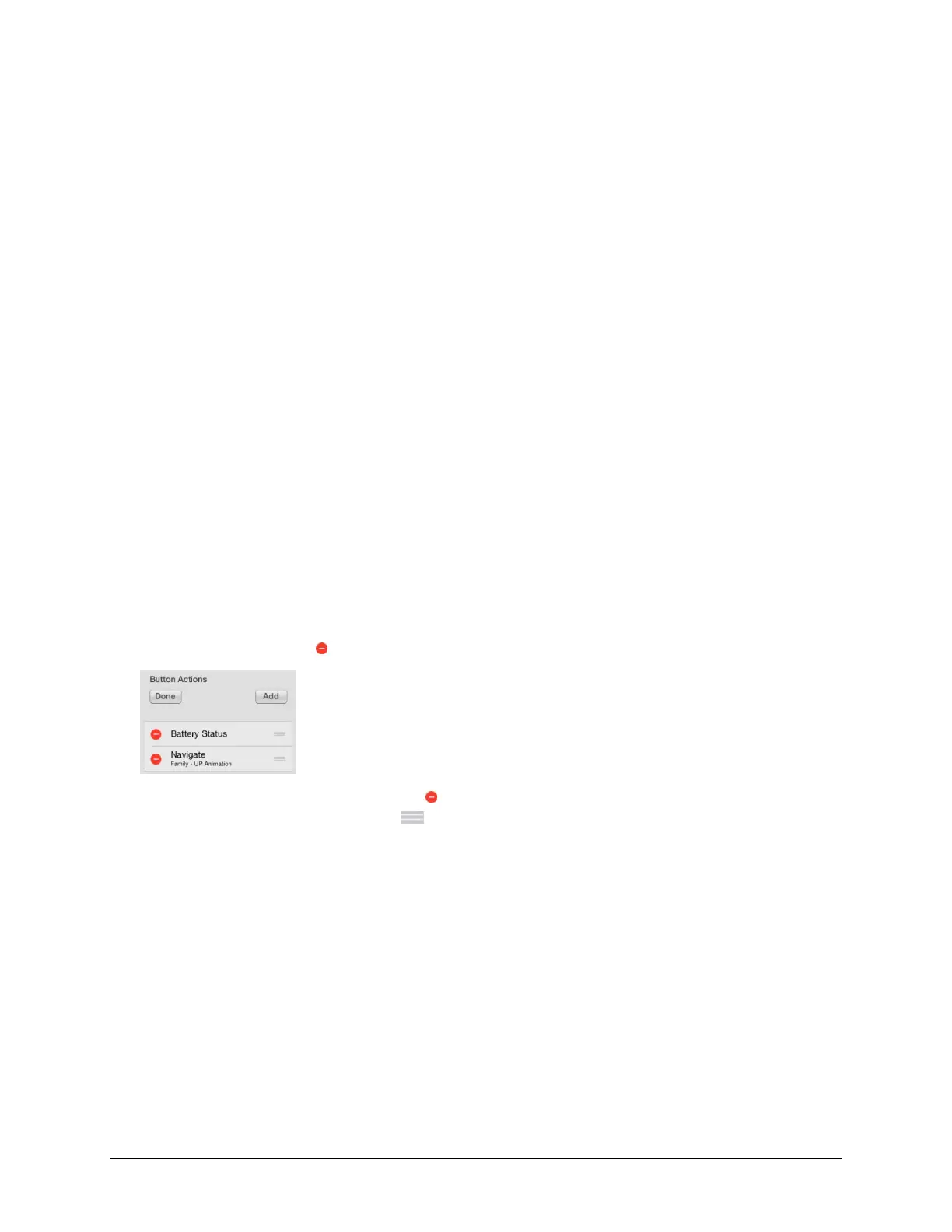
3. Tap Edit. The delete icon will appear in front of each action linked to the button.
4. To remove an action, tap the delete icon and then tap Delete. To rearrange the order of the
actions, touch and hold the gray bars to the right of an action and drag the action into the
correct position.
5. Tap Done.
6. Tap Save and Done.



 To Next Page