Via Pro User’s Guide – TouchChat 39
Adjusting the Voice
Adjusting the Rate of Speech
In the Speech section, use the Rate slide bar to modify the rate of speech.
Adjusting the Pitch and Adding a Pause
To adjust the pitch, select Voice Pitch and then choose Lowest, Lower, Low, Normal, High, Higher, or
Highest. Note: This option is not available for all voices.
To add a delay between individual words, select Pause Between Words and choose 1 Second, 2
Seconds, or 3 Seconds. If you don’t want a delay between words, choose No Pause. Note: This option is
not available for all voices.
Testing Your Speech Settings
To hear how the selected voice sounds at the current settings, select Test. If necessary, adjust the
speech settings and select Test several times.
If you decide to restore all speech settings to their default values and start over, select Defaults. A
message warns that all speech settings will return to their default values. If you want to restore the
default settings, select Continue. If you want to keep the current settings, select Cancel.
When you finish changing speech settings, choose Done.
Adding Voices in Additional Languages
1. Choose Menu > Settings.
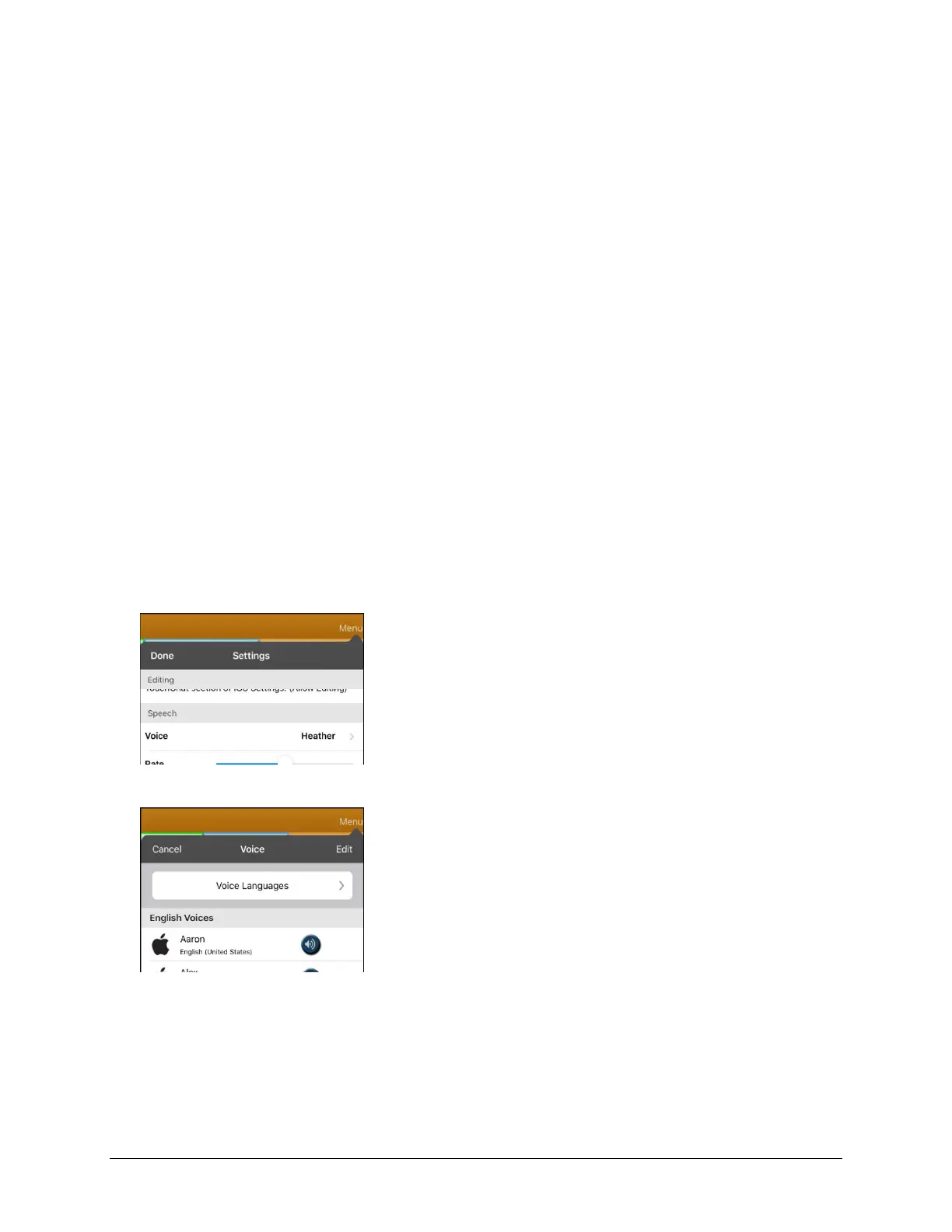
2. Scroll down to the Speech section. The Voice setting displays the voice currently selected.
3. Tap Voice to open a list of available voices. Voices are listed by language.



 To Next Page