Via Pro User’s Guide – TouchChat 26
Open System Devices: Opening, Minimizing, and Closing the
TouchChat App
To open the TouchChat app:
1. Swipe up from the bottom of the screen to display the App Switcher.
2. Swipe to the right to see your apps.
3. Tap the TouchChat app to open it.
To return to the TouchChat app from another app:
1. Swipe your finger to the right at the bottom of the screen to see the apps you previously used.
2. Release your finger when you see the TouchChat app.
To close the TouchChat app:
1. Swipe up from the bottom of the screen to display the App Switcher.
2. Swipe up on the TouchChat app.
Finding the TouchChat Version
1. Tap Vocab.
2. Tap Choose New Vocab.
3. The software version is displayed at the bottom of the screen.
Working with TouchChat Menus
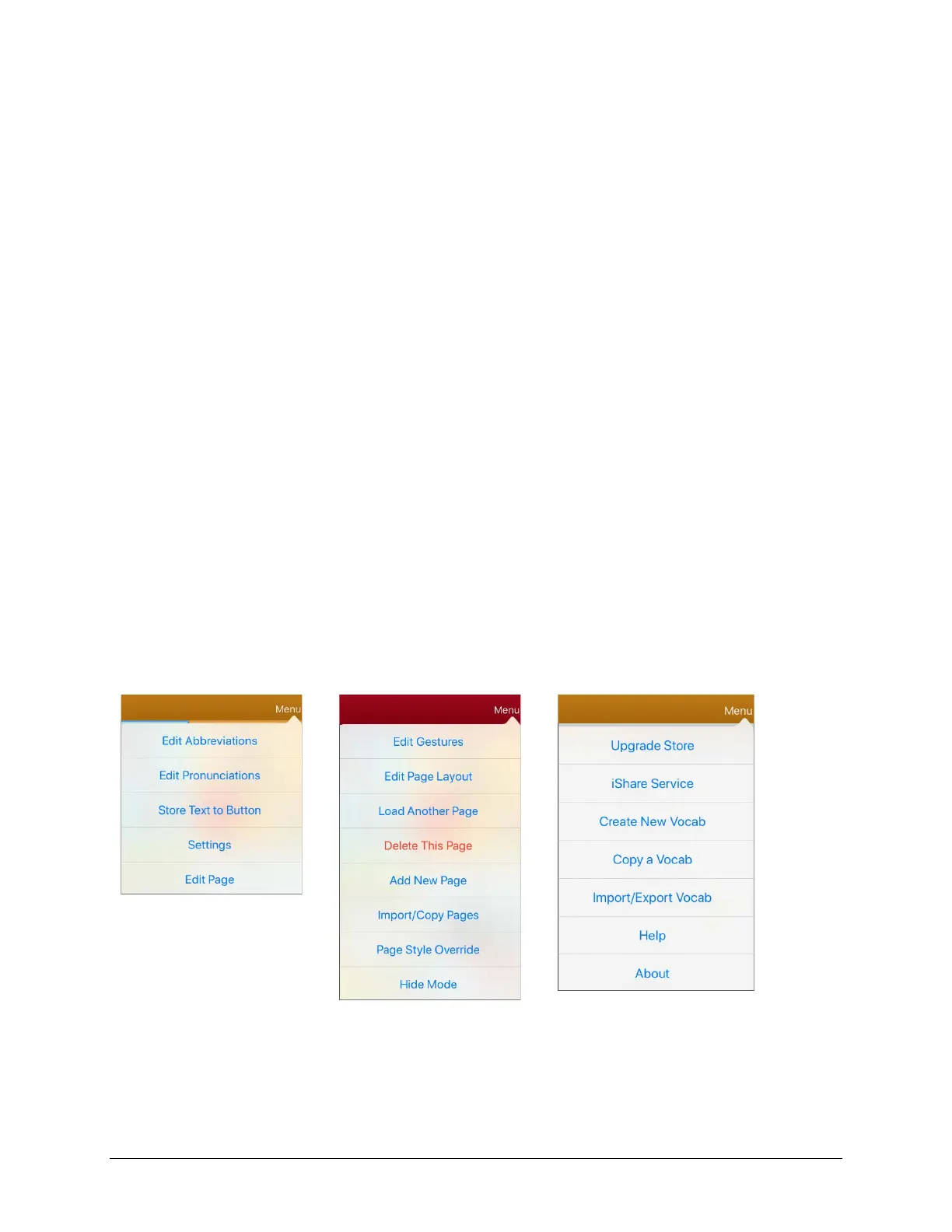
To access the TouchChat menus, tap Menu. Menu options depend on where you are in the application
and whether Edit Mode is turned on. For example:
Menu options with
Edit Mode turned off
Menu options with
Menu options after choosing Vocab >
Choose New Vocab > Menu



 To Next Page