Via Pro User’s Guide – TouchChat 63
Resizing a Button
1. Tap Menu and select Edit Page.
2. Tap the button you want to resize and select Change Button Size.
3. Select the number of rows and columns you want.
4. Tap Save.
Changing a Button Style
1. Tap Menu and select Edit Page.
2. Tap the button you want to modify and select Edit This Button.
3. Scroll to the area you want to edit.
4. Edit the font, font size, text color, body color, border color, and/or border width as needed.
5. Tap Save.
Changing a Button’s Basic Colors
1. Tap Menu and select Edit Page.
2. Tap the button you want to modify and select Edit This Button.
3. Scroll to the color settings and select Text Color, Body Color, or Border Color.
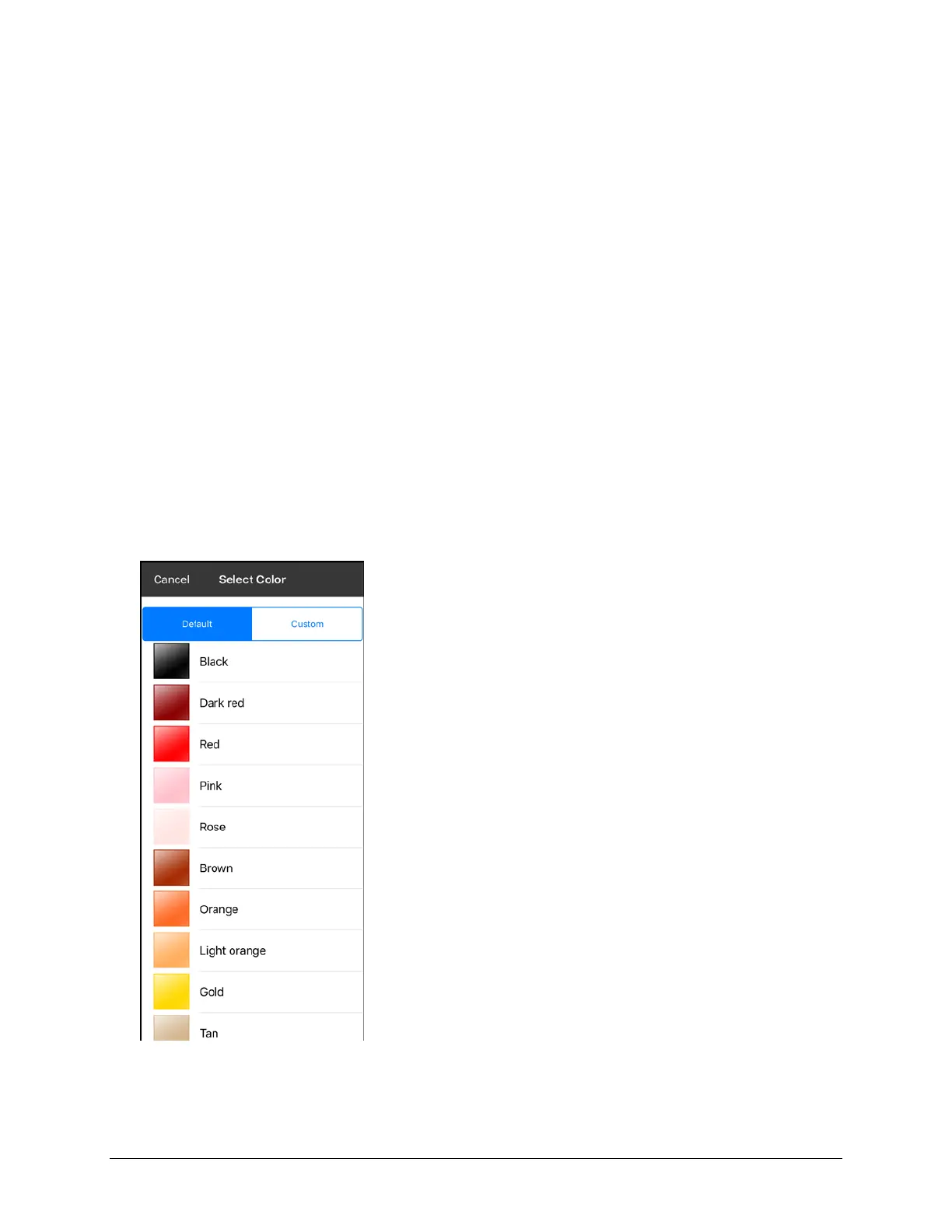
4. The Select Color window opens to the Default tab.
5. Select the color you want and tap Save.



 To Next Page