Via Pro User’s Guide – TouchChat 44
Open System Devices: Setting up Your VocaliD™ Voice
1. Enable a Wi-Fi connection.
2. Choose Menu > Settings.
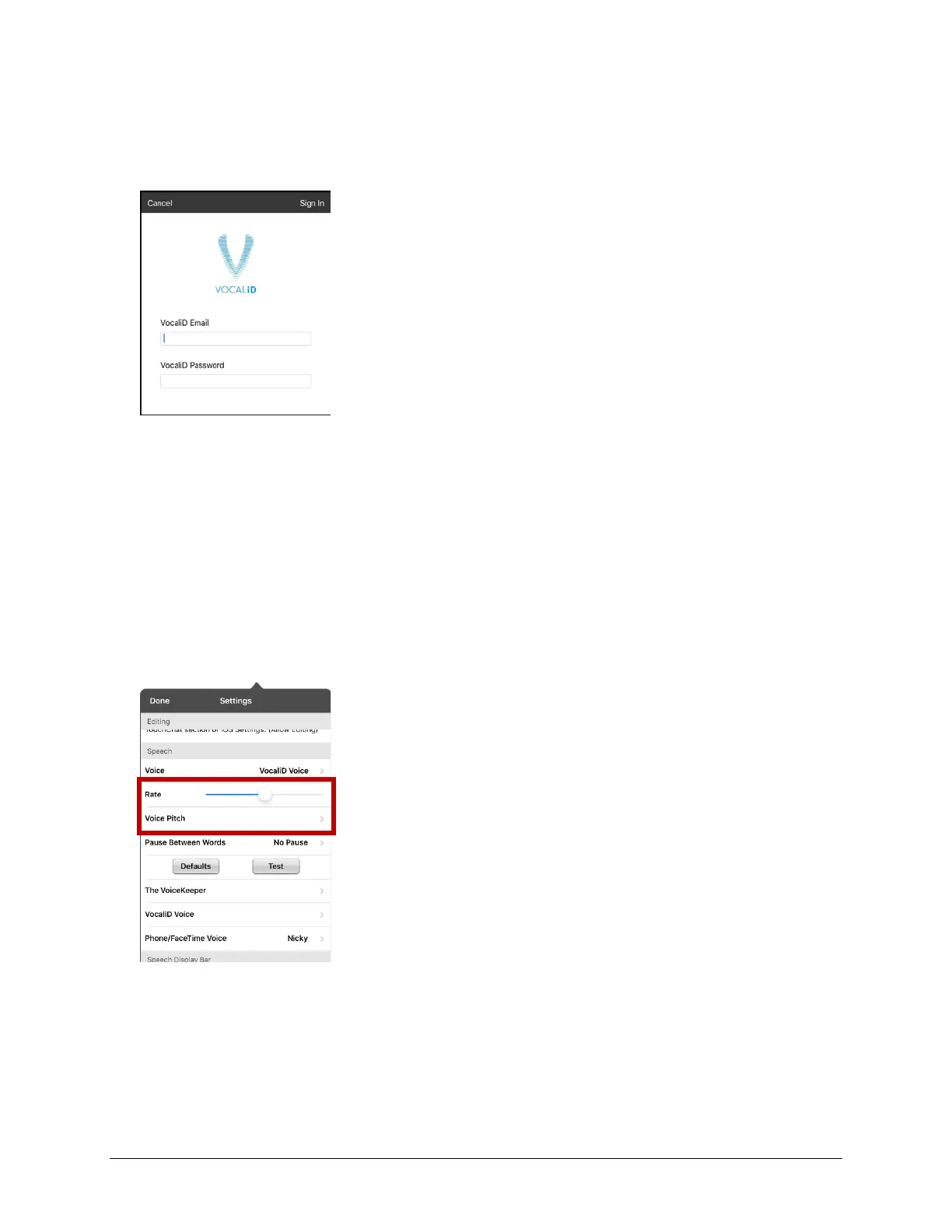
3. Scroll to the Speech section and tap Install VocaliD Voice. A VocaliD login screen is displayed.
4. Enter your VocaliD email address and VocaliD password.
5. Tap Sign In in the upper right corner to display a Download Voice prompt.
6. Tap Download Voice. “Downloading Voice” will be displayed.
7. When the download is complete, “New Voice Installed” will be displayed.
8. Tap Okay.
9. Tap Done. The downloaded VocaliD voice is now your primary voice.
10. Try out the voice. To change the voice rate and pitch, select Menu > Settings and scroll to the
Speech section.
To change the rate: Move the slide bar.
To change the pitch: Tap Voice Pitch to open a list of pitch levels. Select the pitch you want: Lowest,
Lower, Low, Normal, High, Higher, or Highest.
11. Test the voice again and adjust the rate and pitch as needed.



 To Next Page