Via Pro User’s Guide – TouchChat 58
Adding an Image to a Button: Search
1. Tap Menu and tap Edit Page.
2. Tap the button to which you want to add the image.
3. Tap Edit This Button.
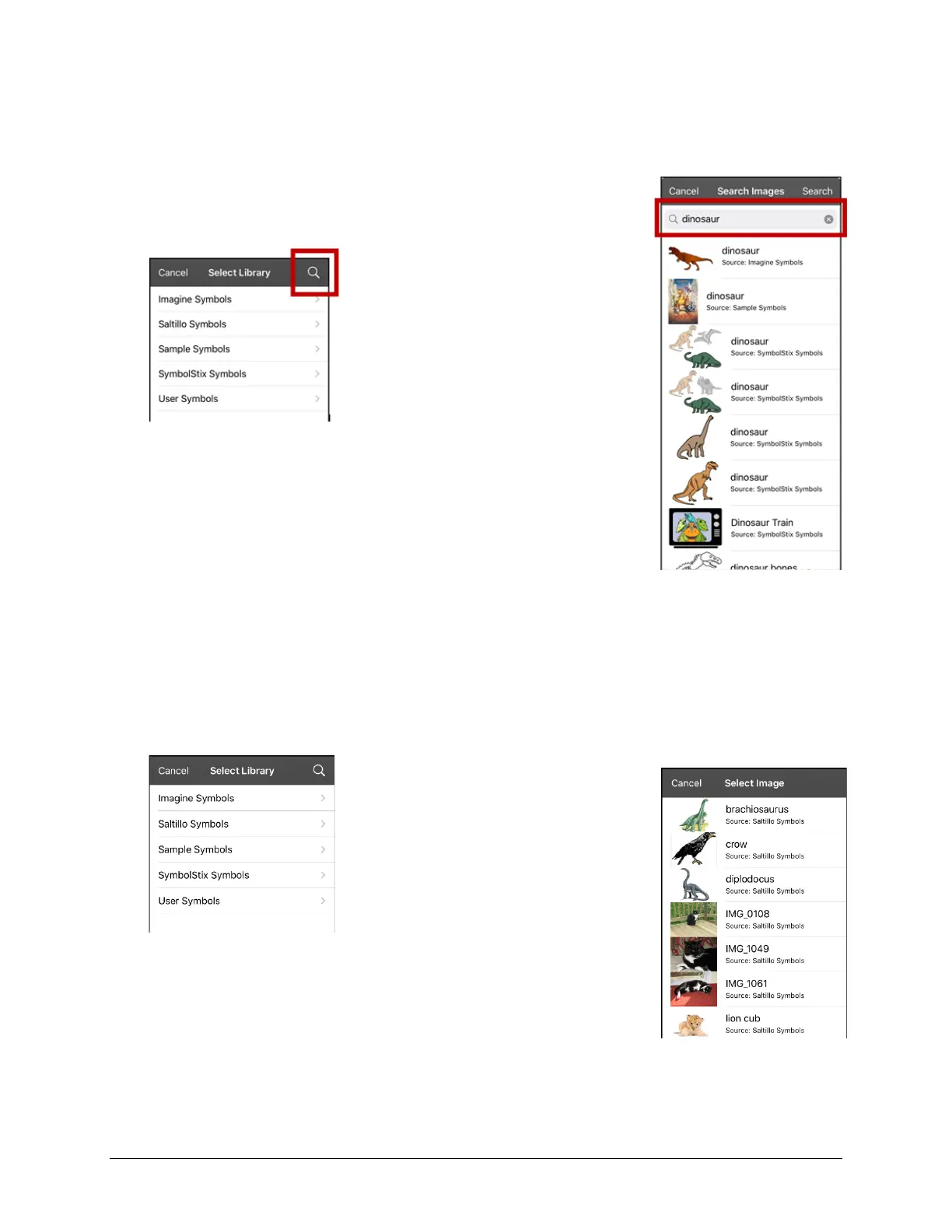
4. Tap Select Image.
5. Tap the magnifying glass icon at the top right.
6. Enter an image name or description.
7. Tap Search on the keyboard. Image names will be listed with
preview images.
8. Select the image you want.
9. Tap Save. Tap Done to exit edit mode.
Adding an Image to a Button: Select Categories
1. Tap Menu and tap Edit Page.
2. Tap the button and select Edit This Button.
3. Tap Select Image.
4. Tap an image category and subcategory (when available).
5. Image names will be listed with preview images.
6. Scroll through the images and select the one you want.
7. Tap Save. Tap Done to exit edit mode.



 To Next Page