82
LCD
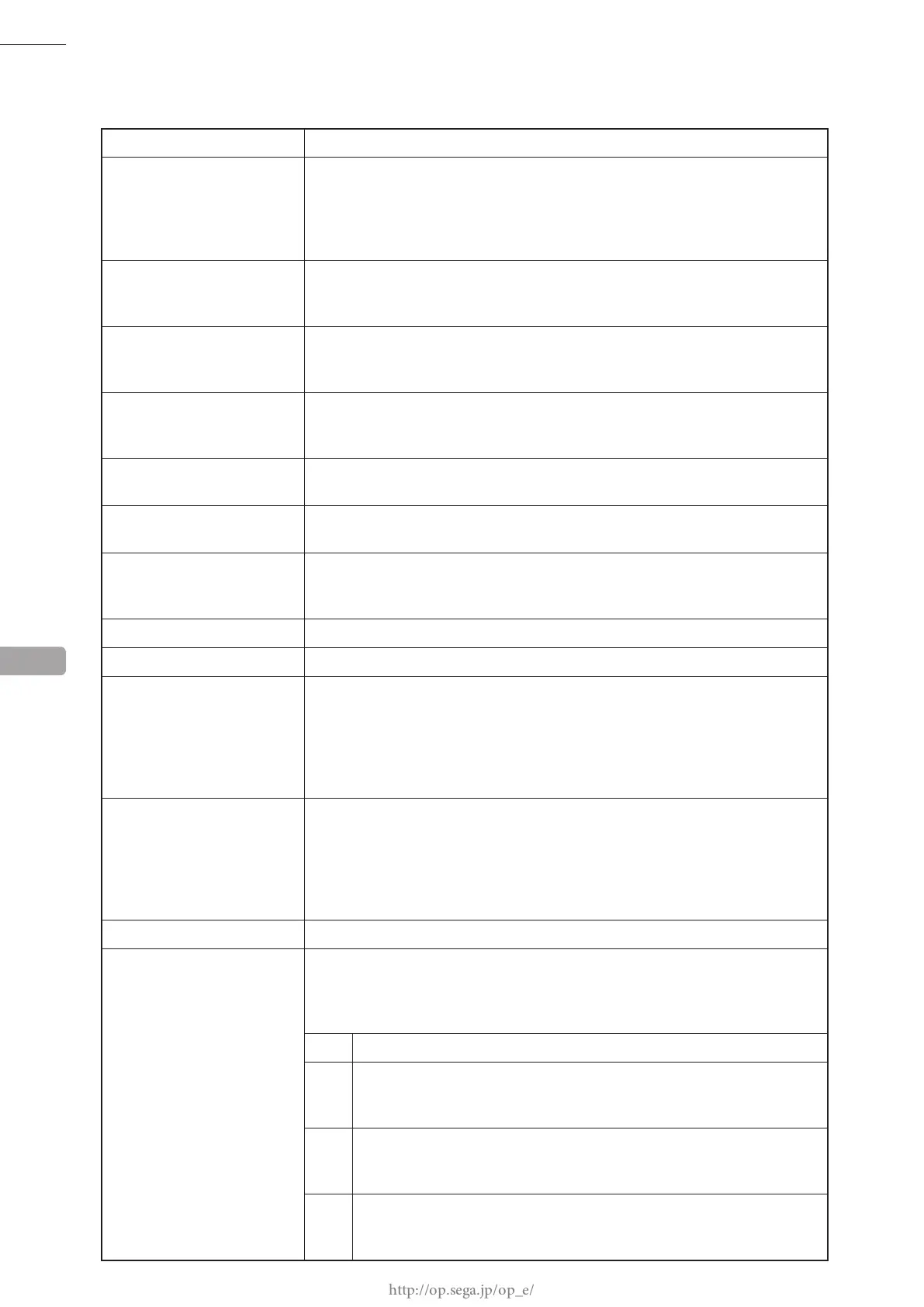
MENU ITEMS
PICTURE Adjust brightness of the screen.
BRIGHT Adjust black level (BRIGHT.)
Changing the screen's brightness alters how dark areas of the image stand out.
(Setting values: -50 to +50)
NOTE: Improperly setting the black level will severely degrade the screen's
performance. We recommend leaving this at its factory default setting.
CONTRAST Adjust the screen's brightness (CONTRAST.)
Changing contrast alters the color thickness (brightness) of the image.
(Setting values: 0 to 100)
SHARPNESS Adjust the screen's sharpness (SHARPNESS.)
Changing sharpness alters the strength of image contours.
(Setting values: 0 to 3)
W/B (A/B) Adjust the screen's white balance (W/B.)
NOTE: Improperly setting the white balance will severely degrade the screen's
performance. We recommend leaving this at its factory default setting.
R-DRIVE
(G-DRIVE, B-DRIVE)
Adjust the white balance of bright images.
(Setting values: -50 to +50)
R-CUTOFF
(G-CUTOFF, B-CUTOFF)
Adjust the white balance of dark images.
(Setting values: -50 to +50)
SCREEN Adjust the position of the screen (POSI.)
It may be necessary to adjust this setting after changing the game software.
NOTE: Adjustable range for screen position varies according to MODE settings.
H. POSI Adjust horizontal position of the screen. (Setting values: -50 to +50)
V. POSI Adjust vertical position of the screen. (Setting values: -50 to +50)
CLOCK Adjust the screen's sampling clock (CLOCK.)
It may be necessary to adjust this setting after changing the game software.
(Setting values: -50 to +50)
NOTE: Improperly setting the clock will cause screen jitter and/or a moiré
pattern to appear, severely degrading the screen's performance. We
recommend leaving this at its factory default setting.
PHASE Adjust the sampling phase of the screen (PHASE.)
It may be necessary to adjust this setting after the changing game software.
(Setting values: -50 to +50)
NOTE: Improperly setting the phase will cause screen jitter to appear, severely
degrading the screen's performance. We recommend leaving this at its
factory default setting.
FUNCTION Adjust other functions.
MODE Change the aspect ratio of the screen.
Widescreen (W) displays across the entire screen, while Normal (N*) displays at
the aspect ratio of the input signal, the only exception being 640 x 400 resolution.
NOTE: Operate this product at the "N1" setting.
W Displays across to the entire screen.
N1 Displays vertically across the entire screen and displays at the aspect
ratio of the input signal. Horizontal on-screen display is positioned in the
center.
N2 Displays horizontally across the entire screen and displays at the aspect
ratio of the input signal. Vertical on-screen display is positioned in the
center.
N3 Displays in dot-by-dot. On-screen display is positioned in the center.
(Except these resolutions: 640 x 480, 800 x 600, 1024 x 768, 1280 x
1024.)
13







 To Next Page