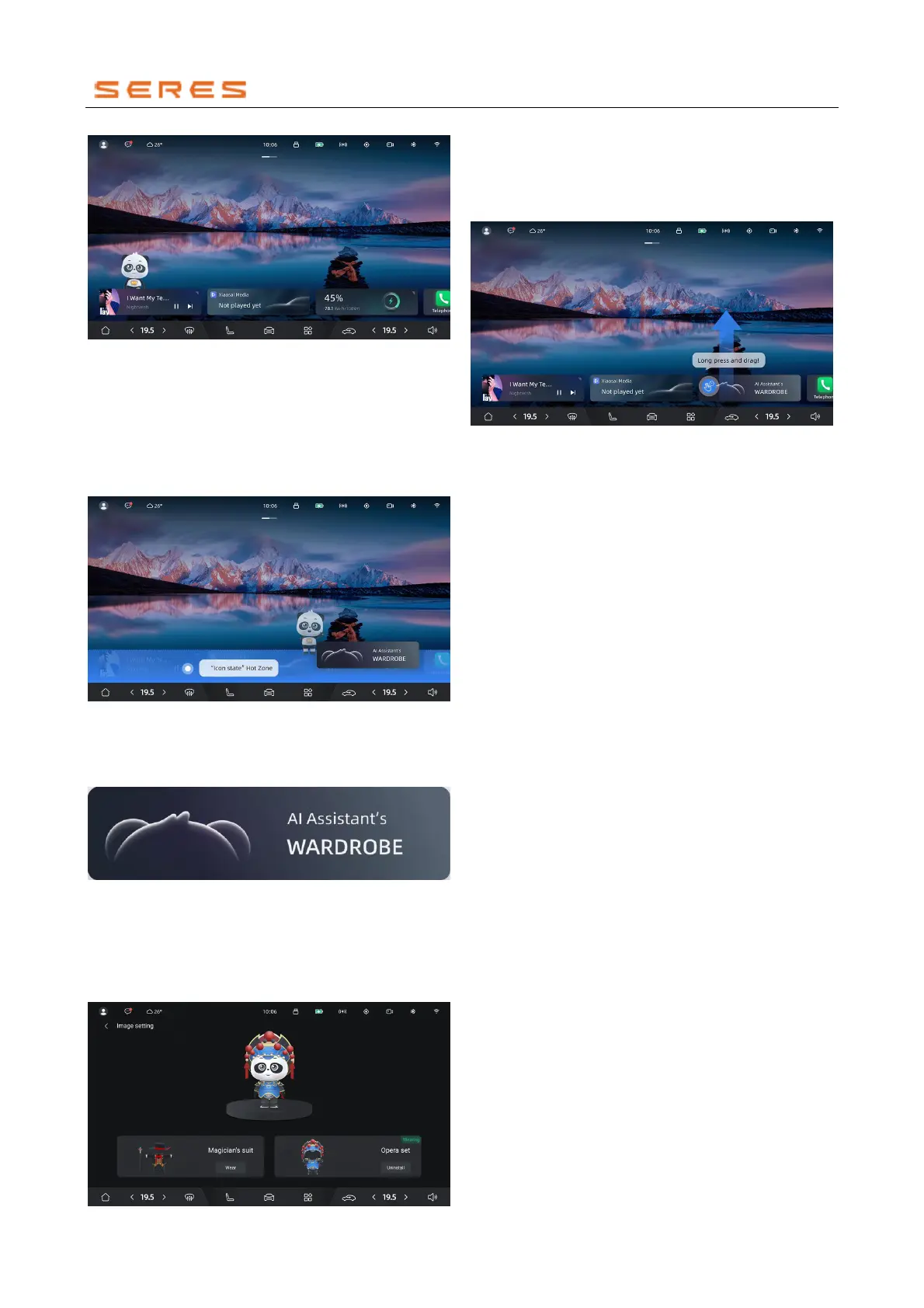
* The image is for reference only; please refer to the actual
product
● The Virtual Assistant has a "binding relationship" with
the component. When the desktop is switched, the
Virtual Assistant moves with the component.
Icon Form
● Drag the Virtual Assistant to the "Icon Form" hot zone
and release your finger to switch to the desktop icon
form.
* The image is for reference only; please refer to the actual
product
● After switching, the Virtual Assistant is no longer
displayed in a 3D full-body form but transforms into an
icon for display.
* The image is for reference only; please refer to the actual
product
● Clicking on this icon will navigate to the Virtual
Assistant customization page.
● On the Central Control screen, enter System
Settings > Display > Image Settings to also access the
Virtual Assistant customization page.
* The image is for reference only; please refer to the actual
product
● To restore the Virtual Assistant to the 3D full-body
form, you need to long-press the icon to activate it and
then drag it out of the "Icon Form" hot zone.
* The image is for reference only; please refer to the actual
product



 To Next Page