Central Control Screen
Introduction to the Central Control Screen
The SAI OS operating system installed on the vehicle's central control screen serves as a unified platform for vehicle
intelligence, connectivity to the internet, and collaborative human-machine driving. Using the central control screen, you
can quickly configure or operate vehicle functions, view and retrieve vehicle information, customize vehicle settings, and
enjoy an enhanced driving experience with a variety of ecosystem resources.
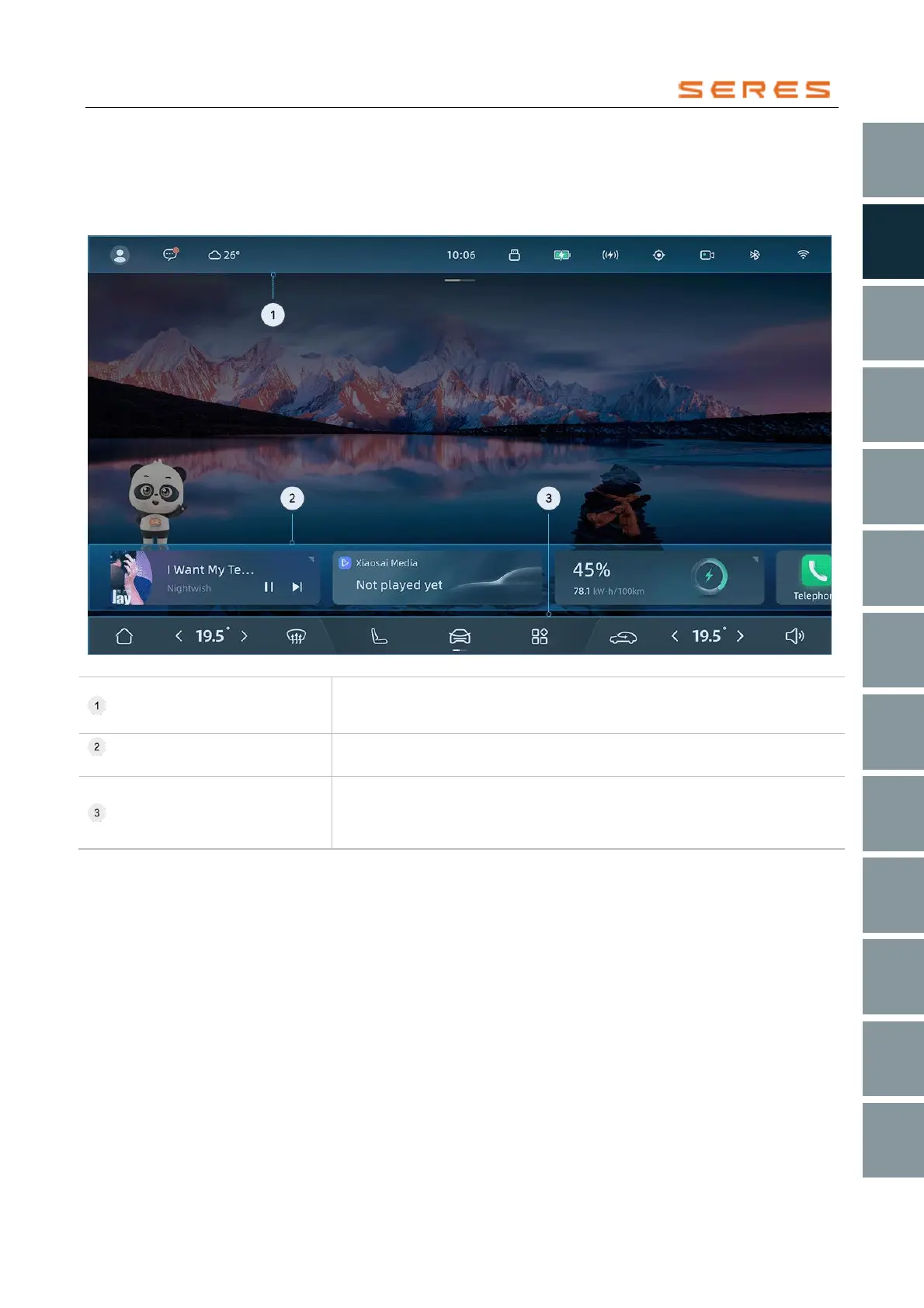
* The image is for reference only; please refer to the actual product
Status Bar (Refer to page 27)
Displays personal account login information, vehicle system information, status
information of built-in or external devices, and application service-related
information.
Desktop Widgets (Refer to page
28)
Click to directly access applications or services, swipe left or right to view, and
customize by adding frequently used application or service cards.
Toolbar (Refer to page 29)
Home key, main and co-driver air conditioning temperature adjustment, front
defrost, Front and Rear Seats adjustment, vehicle setting, app center, interior
and exterior air circulation, volume control; the central area can be swiped left or
right to switch DOCK scene modes, quickly activating vehicle scene modes.



 To Next Page