28 丨 Vehicle Overview
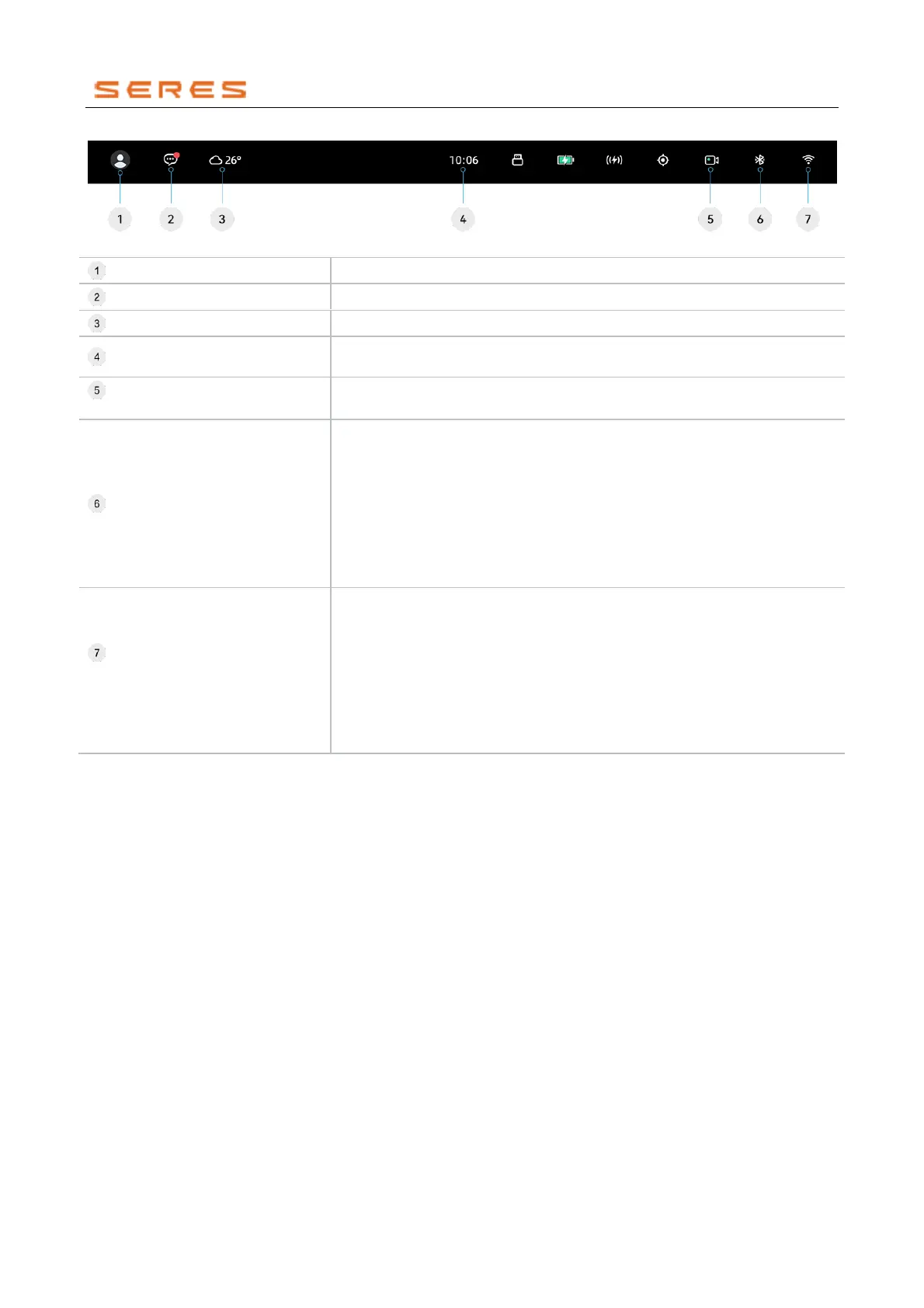
Status Bar
* The image is for reference only; please refer to the actual product
User Account (Refer to page 127)
Enter the user center, log in to the account, and manage the account.
View messages or reminders pushed by the vehicle system or applications.
Displays the weather and temperature for the day.
Displays the time; long-press to select date display in the pop-up window, and
the time supports switching between 12/24-hour formats.
Driving Recorder (Refer to page
102)
Displays the working status of the Driving Recorder.
Bluetooth (Refer to page 136)
Display Bluetooth in the states of Off, On, On and Connected, or On and
Disconnected. Click to expand the Bluetooth settings popup:
● Displays the Bluetooth switch card. Clicking on the card allows editing of
the in-Vehicle Bluetooth name.
● Displays paired Bluetooth devices.
● Displays available nearby Bluetooth devices.
● Clicking on more settings allows managing Bluetooth devices in the pop-
up, including: phone Bluetooth device access permissions, CarPlay or
Android Auto connection, non-phone Bluetooth devices.
WLAN
(
WIRELESS LOCAL
AREA NETWORK
)
(Refer to page
136)
Displays WLAN( WIRELESS LOCAL AREA NETWORK) status: off, on,
connected, or disconnected, along with signal strength. Click to expand WLAN
(WIRELESS LOCAL AREA NETWORK) settings pop-up:
● Displays WLAN(WIRELESS LOCAL AREA NETWORK) switch.
● Displays connected WLAN ( WIRELESS LOCAL AREA NETWORK )
networks.
● Displays available nearby WLAN ( WIRELESS LOCAL AREA
NETWORK) networks.



 To Next Page