Desktop Widgets
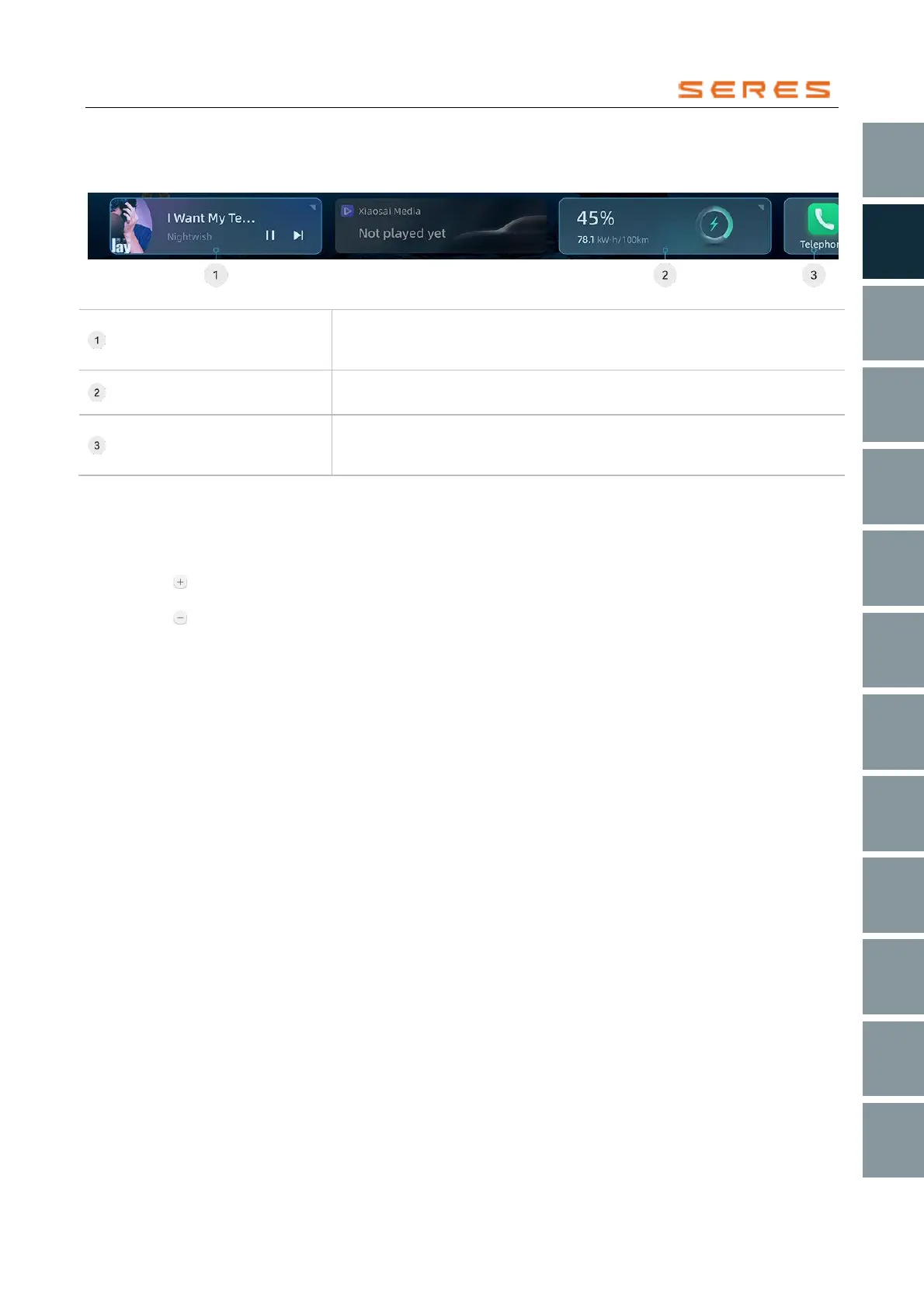
You can swipe left or right above the bottom DOCK bar to view desktop widget cards. Click the expand icon in the top
right corner of the card to show more information within the card. Clicking on the card provides quick access to recently
used applications or services.
* The image is for reference only; please refer to the actual product
Quickly access the current playback source application.
● Click the expand icon to unfold the card, enabling you to switch audio
media playback sources and display the current list.
Display the current vehicle battery level and energy consumption information.
● Click the expand icon to display the energy consumption curve for this trip.
Display up to 3 recently used applications.
● Click on the application icon within the card to quickly navigate to the
corresponding application interface.
Toggle visibility:
Click the HOME key on the DOCK bar to hide the desktop components, click again to show.
Customize desktop components: You can customize the commonly used service cards in desktop components in the
following ways:
● Long-press any card in the desktop component to enter edit mode.
● Click the button above the card in the component library or drag the card to the desktop component bar to add the
component.
● Click the button above the desktop component card to delete the card.
● Click the restore default button to restore the cards in the desktop component bar to their default state.
● Click save to complete custom editing, click cancel to exit the custom interface.



 To Next Page