30 丨 Vehicle Overview
Toolbar
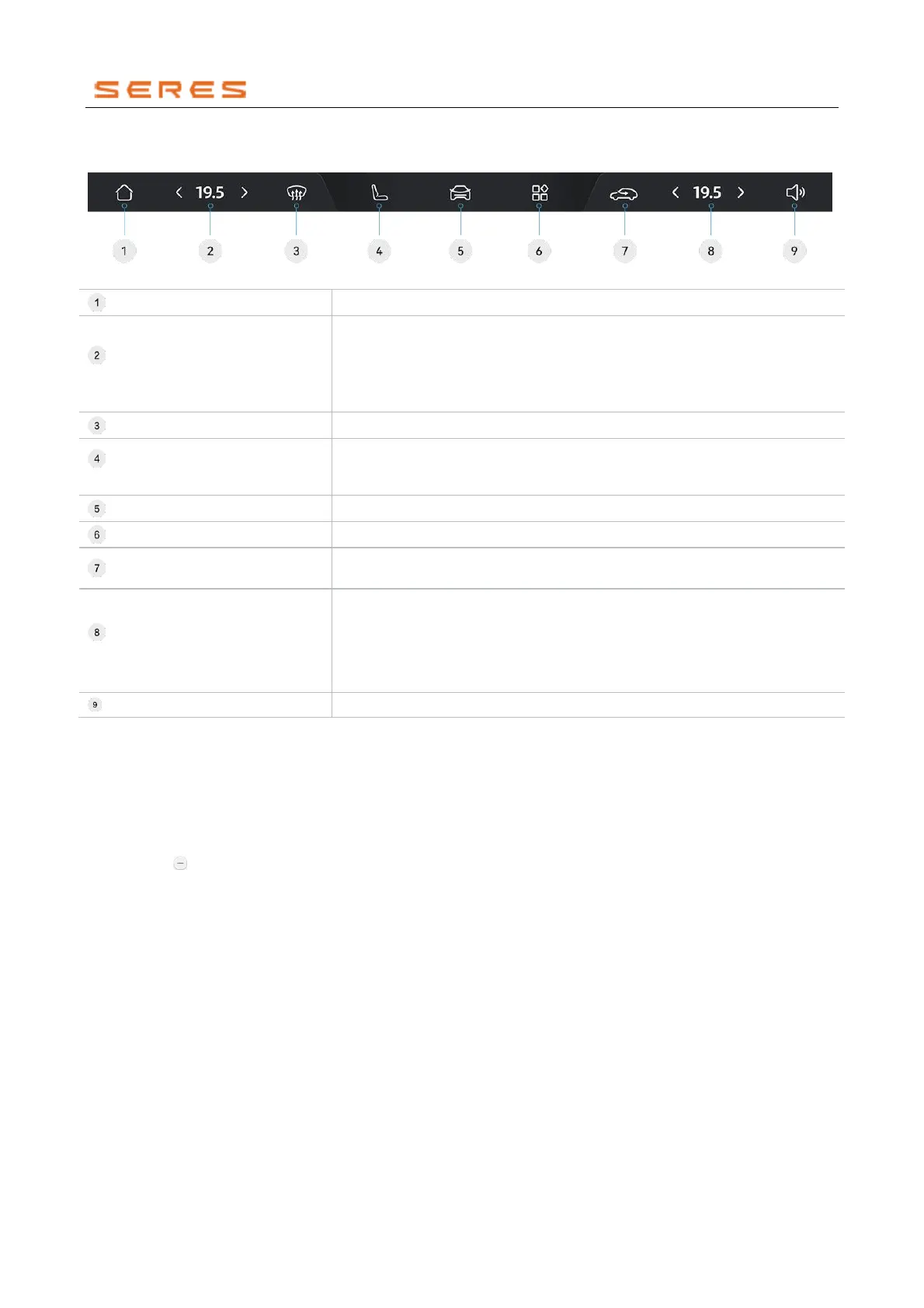
You can conveniently adjust the air conditioning temperature, Front and Rear Seats, volume, etc., at the bottom of the
central control screen in the DOCK bar.
* The image is for reference only; please refer to the actual product
Click to return to the central control screen desktop.
Driver's Climate controls
Temperature (Refer to page 71)
Adjust the temperature of the driver's side Climate controls.
● Slide left or right to adjust the temperature. Click the sync button on the
temperature adjustment bar to synchronize the temperature to the
passenger's side.
● Click the arrows on either side of the temperature to adjust.
Click to activate the front windshield defrost function, click again to deactivate.
Front and Rear Seats Adjustment
(Refer to page 63)
Click to enter the Front and Rear Seats adjustment interface, and turn on or
adjust Front and Rear Seats heating, ventilation, and massage functions (if
equipped).
Click to enter the vehicle settings interface.
Click to open the app center, click again to close.
Click to switch the Vehicle's air circulation mode, cycling through outside
circulation, inside circulation, and automatic mode.
Passenger's Air Conditioning
Temperature(Refer to page 71)
Adjust the temperature of the passenger-side Climate controls.
● Slide left or right to adjust the temperature. Click the sync button on the
temperature adjustment bar to synchronize the temperature with the
driver's side.
● Click the arrows on either side of the temperature to adjust.
Click to display the volume adjustment popup, long-press for mute.
DOCK Scene Mode:
Slide left or right on the central area of the DOCK bar to switch to DOCK Scene Mode, supporting up to 3 quick access
icons for different vehicle scene modes. Click the icon to enter the corresponding vehicle scene mode.
Custom Scene Mode DOCK:
You can customize the Scene Mode DOCK bar in the following way:
● Long-press any scene mode to enter edit mode.
● Click buttons in the editing library or drag mode cards to the Scene Mode DOCK to add them.
● Click the button on a scene mode to remove it from the Scene Mode DOCK.
● Click save to finish the customization, and click Cancel to exit the customization editing interface.



 To Next Page