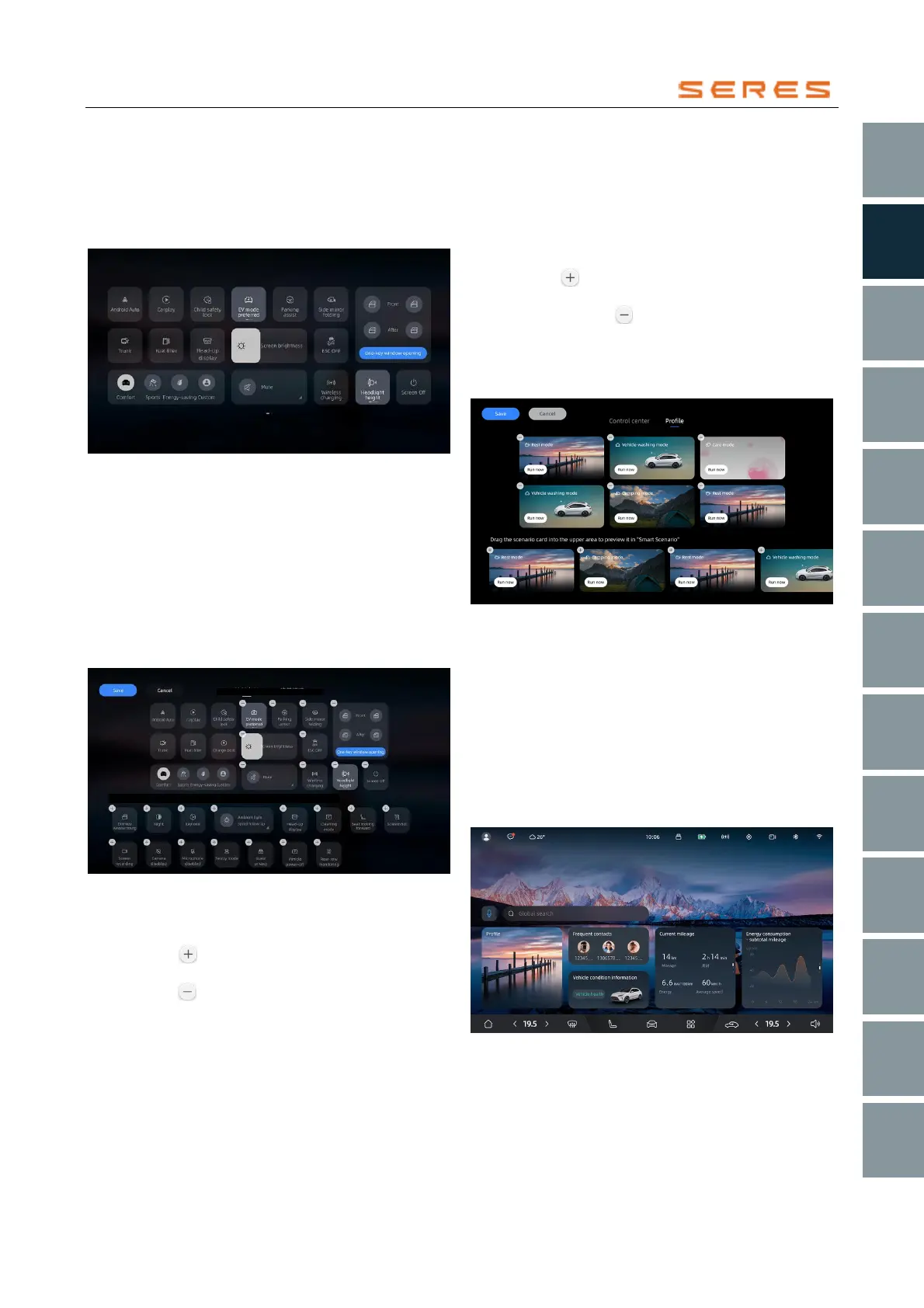
Quick Menu
Integrate frequently used vehicle control switches, driving
mode toggles, scene modes, etc., into the drop-down quick
menu for more convenient vehicle operation and quick
selection of the most comfortable cabin mode.
Vehicle Control
* The image is for reference only; please refer to the actual
product
Open the drop-down quick menu
by swiping down from the top edge of the central control
screen:
● Click the Driving Mode card to switch between
Comfort, Sport, Eco, and Personalized modes.
● Click or slide the quick toggle switches to turn on,
adjust, or turn off vehicle functions (some functions
need to be turned off outside the Vehicle, such as the
Charging port/Fuel filler).
Customize Quick Toggles
* The image is for reference only; please refer to the actual
product
Long-press any quick toggle in the drop-down quick menu
to enter edit mode:
● Click the button or drag quick toggles from the
component library to add them.
● Click the button to remove quick toggles (some
quick toggles are fixed and cannot be removed).
● Click save to return to the main drop-down quick
menu interface, completing the custom edit.
● Click cancel to exit custom edit mode.
Scene Modes
Swipe left on the drop-down quick menu interface to switch
to the Scene Modes interface. Click to enter the
corresponding vehicle scene.
Customize Scene Modes:
Long-press any mode card in the Scene Modes to enter
the edit interface:
● Click the button or drag scene modes from the
component library to add them.
● Click the button to remove the corresponding
scene mode.
● Click save to return to the main Scene Modes
interface, completing the custom edit.
● Click cancel to exit custom edit.
* The image is for reference only; please refer to the actual
product
Humanistic Desktop
The Humanistic Desktop focuses on information display
and human care. You can swipe from the left edge of the
screen to the right to switch to the Humanistic Desktop.
This interface provides various service cards displaying
vehicle-related service information, including vehicle
condition, frequently used contacts, energy consumption
information, mileage information, and scene modes.
You can also use global search to query vehicle
information, functions, and applications and access them
directly.
* The image is for reference only; please refer to the actual
product



 To Next Page