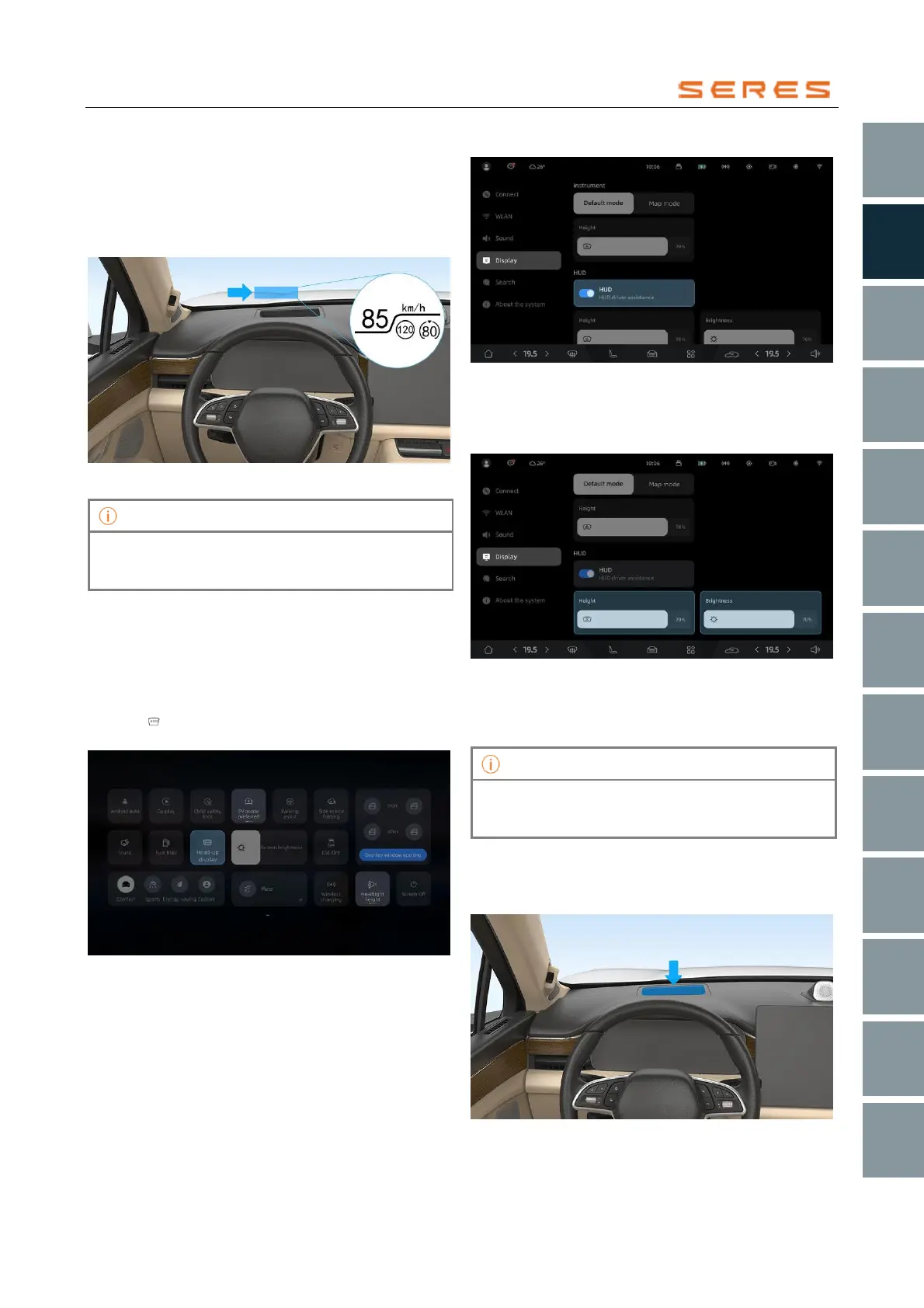
If your vehicle is equipped with Head-Up Display (Head-Up
Display, abbreviated as HUD), the system is located on the
instrument panel in front of the driver. After enabling the
function, the driver can see current vehicle speed and
other information on the front windshield without having to
look down.
* The image is for reference only; please refer to the actual
product
Before driving, please check and ensure that the
position and brightness of the Head-Up Display image
will not interfere with safe driving.
Activate or deactivate the header display
Head-Up Display (HUD) is enabled by default. You can
activate or deactivate the HUD using the following
methods:
● Swipe down the quick menu from the top of the central
control screen, click on Edit, long-press and drag the
Head-Up Display switch to the upper display area, and
click to activate or deactivate the Head-Up Display
after saving.
* The image is for reference only; please refer to the actual
product
● In the central control screen, go to system settings >
display > HUD, and enable or disable the Head-Up
Display.
* The image is for reference only; please refer to the actual
product
Adjust HUD brightness or height
In the central control screen, go to system settings >
display, and adjust HUD brightness or height.
* The image is for reference only; please refer to the actual
product
You can improve the clarity of the Head-Up Display by
synchronously adjusting the Front and Rear Seats height
and HUD height.
Sunglasses with polarization may cause the HUD to
appear unclear. Please adjust the HUD brightness or
remove the sunglasses.
Cleaning and Usage Guidelines
Use a clean, dry microfiber cloth to gently wipe the HUD
projection area. If there are stubborn stains, slightly
dampen the microfiber cloth before wiping.
* The image is for reference only; please refer to the actual
product



 To Next Page