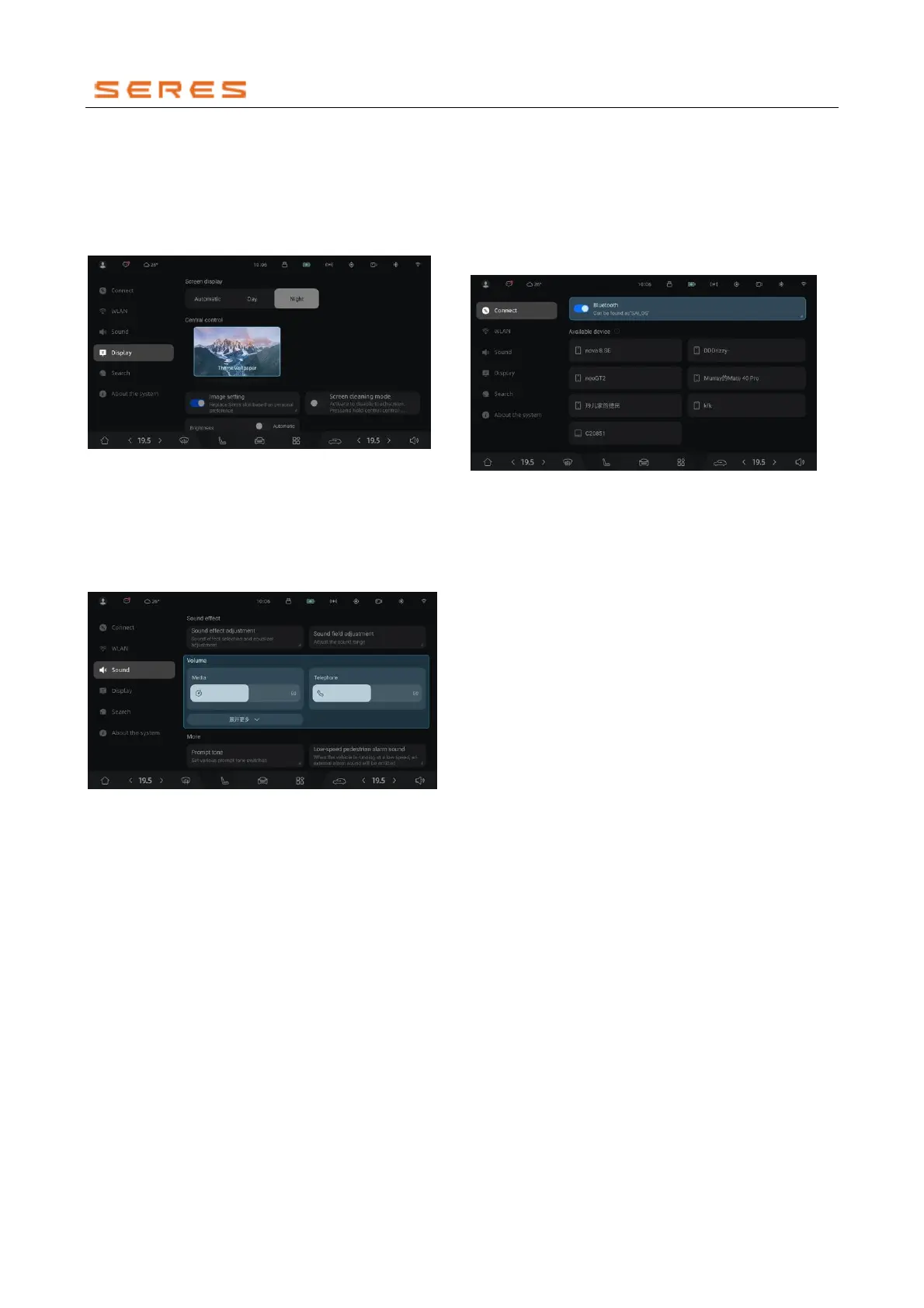
Display
In the display interface, you can change wallpapers,
display modes, and personalize your central control
screen. You can also adjust the brightness of the central
control screen and instrument display screen according to
your needs.
* The image is for reference only; please refer to the actual
product
Sound
Sound Settings
In the sound interface, you can choose sound effects and
select the location for sound playback. You can also adjust
the volumes for media, phone, and incoming call ringtone
according to your preferences.
* The image is for reference only; please refer to the actual
product
Sound Effect Modes
You can choose sound effect modes and adjust the
equalizer for media music based on your preferences:
there are three preset modes and one custom mode. You
can also manually drag the sound field position for media
music according to your needs.
Low-Speed Alert Sound
Due to the relatively low noise of electric vehicles at low
speeds, it can be challenging for pedestrians to notice
them. To enhance driving safety, this feature emits a
warning sound when the vehicle speed is below 20 km/h,
making pedestrians more aware. You can choose the
sound effect for the low-speed pedestrian alert on the
current interface based on your preference.
Bluetooth
After pairing and successfully connecting your phone with
the vehicle via Bluetooth, you can make and receive phone
calls in the Vehicle and access information such as your
phone's contacts and recent calls.
Pairing Your Phone with the Vehicle via Bluetooth
1. Go to Settings > Bluetooth on your phone, enable
Bluetooth, and set it to be discoverable by nearby
Bluetooth devices.
2. On the central control screen, go to System
Settings > Connections, turn on the Bluetooth
switch.
* The image is for reference only; please refer to the actual
product
3. On the central control screen, click on Bluetooth,
open the pairing interface, select the phone you want
to pair with, and follow the on-screen prompts to
complete the pairing.
Syncing Phone Contacts and Call Records
After enabling this feature, when your phone is connected
to the vehicle via Bluetooth, the central control screen will
sync and display your phone's contacts and call records.
● When pairing your phone with the vehicle via
Bluetooth, agree to the vehicle's access permissions
on your phone and click "Pair" to complete the
synchronization.
● If your phone is connected to the vehicle via
Bluetooth, but the central control screen does not
display your phone's contacts and call records, follow
these steps:
1. On the central control screen, go to System
Settings > Connections > Bluetooth.
2. Open the Bluetooth settings interface, click on the
settings for the paired device (your phone), and turn
on the switch to sync contacts and call records.
3. On your phone, agree to the vehicle's request for
access to the phonebook.
Unpairing Phone and Vehicle Bluetooth Connection
On the central control screen or in the phone's Bluetooth
settings interface, select the device you want to unpair,
click on settings, and choose to remove the device.
WLAN(WIRELESS LOCAL AREA NETWORK)
Connecting to a Wireless Local Area Network (Wireless
Local AreaNetwork,abbreviated as WLAN(WIRELESS
LOCAL AREA NETWORK)) helps save data usage and
ensures fast and reliable updates for the vehicle's
software. To smoothly watch videos, listen to online music,
and efficiently update the vehicle, it is recommended to
keep the vehicle connected to a WLAN ( WIRELESS
LOCAL AREA NETWORK) network at all times.



 To Next Page