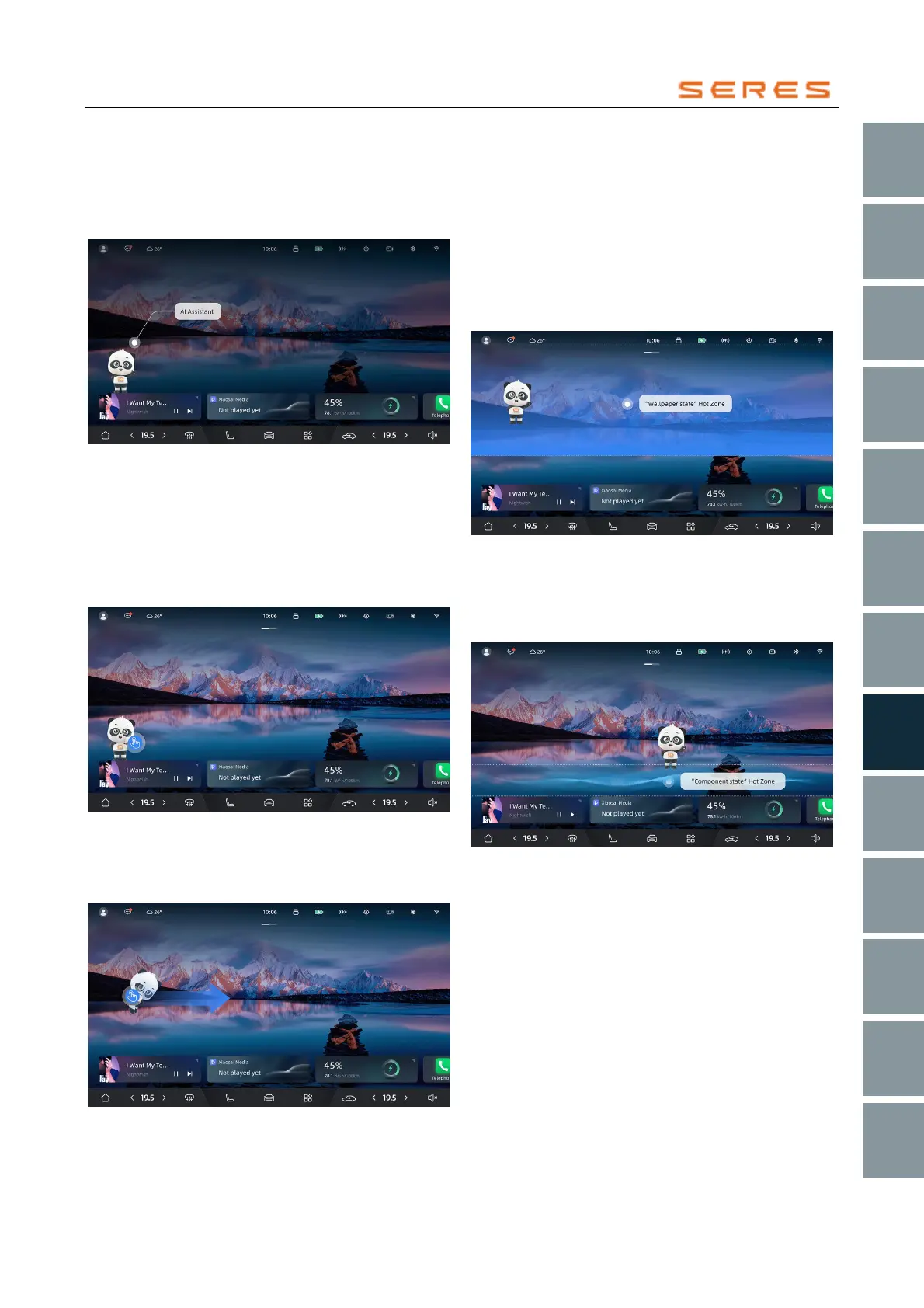
Virtual Assistant
In the Central Control screen, there is your Virtual
Assistant. You can actively interact with it, and the Virtual
Assistant will also bring surprises to your driving journey as
scheduled.
* The image is for reference only; please refer to the actual
product
Basic Interaction
Touch Interaction
● When the Virtual Assistant is displayed, a short press
on the Virtual Assistant can trigger specific interactive
actions.
● The effective operation area includes the head and
body of the Virtual Assistant.
* The image is for reference only; please refer to the actual
product
Drag Interaction
● When the Virtual Assistant is displayed, dragging the
Virtual Assistant can move it to a different location.
* The image is for reference only; please refer to the actual
product
Display Forms
When dragging and moving the Virtual Assistant, its
display forms are differentiated based on the final location:
Wallpaper Form, Component Form, and Icon Form.
Wallpaper Form
● Drag the Virtual Assistant to the "Wallpaper Form" hot
zone and release your finger to switch to the desktop
wallpaper form.
● The status and position of the Virtual Assistant do not
change with the switching of the desktop.
* The image is for reference only; please refer to the actual
product
Component Form
● Drag the Virtual Assistant to the "Component Form"
hot zone and release your finger to switch to the
desktop component form.
* The image is for reference only; please refer to the actual
product
● In the component form, the Virtual Assistant closely
adheres to the component and can interact with the
component.



 To Next Page