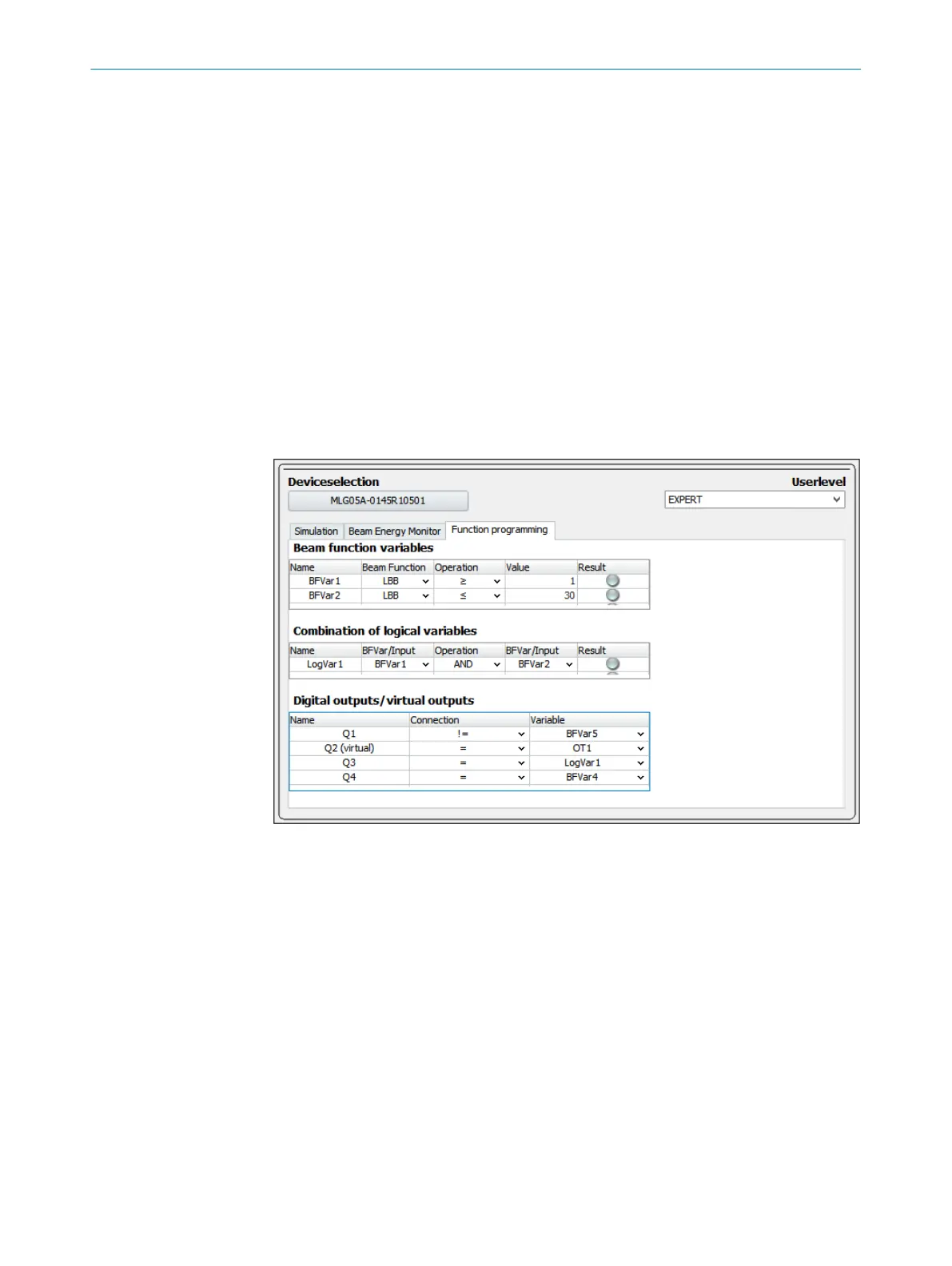
Configuring output Q2 (example)
On the MLG-1, output Q2 may (for example) be configured with function
“LBB >= 1 AND LBB <= 30”. To configure this function in SOPAS ET, proceed as follows:
1. In SOPAS ET, go to the right-hand window and select (for example) the “Digital out‐
put 2” menu.
2. Configure function “LBB >= 1 AND LBB <= 30” as follows:
■
In SOPAS ET, go to the middle window and select the “Function programming”
tab.
■
Select the “Expert” user level.
■
In the “Beam function variables” area, select beam function variables BFVar1
and BFVar2.
■
Go to the “Logic functions” area for the LogVar1 logic function variable and
logically link the BFVar1 and BFVar2 beam function variables.
■
In the “Digital outputs/Virtual outputs” area, assign the LogVar1 logic func‐
tion variable to output Q2. Please note that if you use the “Function program‐
ming” tab to configure a user-defined application, you will not be able to
make any further settings in the “Output” menu.
Figure 20: SOPAS ET – Function programming; used here (for example) to configure output Q2
with function “LBB >= 1 AND LBB <= 30”
Configuring output Q3 – Contamination output (Alarm) (example)
1. In SOPAS ET, go to the right-hand window and select (for example) the “Digital out‐
put 3” menu.
2. In the “Applications” area, select the “Diagnostics” application.
3. In the “Configuration” area, activate the “Contamination” option.
7 CONFIGURATION
30
T E C H N I C A L I N F O R M A T I O N | The MLG-2 as a replacement product for the MLG-1 and XLG 8020351.ZLW3/2017-05-03 | SICK
Subject to change without notice




 To Next Page