EasyManua.ls Logo

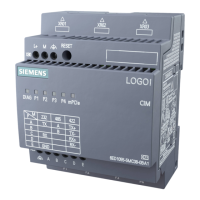
Siemens CIM - User Manual

Siemens CIM
125 pages
Print Icon
To Next Page IconTo Next Page
Loading...
CIM
CIM
Operating Manual
11/2022
A5E51250518
-AC
Preface
Application and functions
1
Structure of the device
2
Security
3
Mounting and connecting
the device
4
Web-based configuration
5
CIM SGLAN Connector
6
Practical example
7
Dimension drawing
8
Technical specifications
9
Technical support
A

Table of Contents

Questions and Answers

  • B
    Brandi AdamsAug 15, 2025
    What to do if Siemens CIM Recording Equipment is not operational?
    • J
      Jocelyn MendozaAug 15, 2025
      If your Siemens Recording Equipment isn't working, start by checking the power supply, power cord, and power plug to ensure they are properly connected and functioning. Also, verify that the device is being operated within the specified ambient conditions. If the device was transported in cold weather, allow it to sit for about 12 hours before turning it on.
  • K
    Karen FieldsAug 18, 2025
    What to do if Siemens Recording Equipment CIM cannot send/receive SMS?
    • W
      William NguyenAug 18, 2025
      If your Siemens Recording Equipment CIM is unable to send or receive SMS messages, there are several possible reasons: * The SIM card account may be in arrears. In this case, top up the account and restart the cellular module on the Cellular status page. * The SIM card may be locked by your telecom provider. Contact them to unlock it. * The SMSC number may be incorrect. Obtain the correct SMSC number from your telecom provider and enter it in the Cellular Settings under SMS Center Number. * The SIM card may not be compatible with the cellular module. Try changing the SIM card.
  • M
    Margaret LewisAug 22, 2025
    How to fix slow loading or load failure of Siemens Recording Equipment web-based configuration pages?
    • C
      Christopher HernandezAug 22, 2025
      If you're experiencing slow loading or load failures with the web-based configuration pages of your Siemens Recording Equipment, it might be due to a missing certificate on your operating system or browser. Install the certificate to resolve this. Alternatively, too many cache files in your browser can cause this issue. Try clearing the browser's cache files and then close and reopen the browser.
  • O
    osbornejasonAug 26, 2025
    How to enable cellular data on Siemens Recording Equipment?
    • M
      Melissa RothAug 26, 2025
      To enable cellular data on your Siemens Recording Equipment, go to the Cellular Settings page and turn on the Cellular data option.
  • D
    davisjamesAug 28, 2025
    Why Siemens Recording Equipment CIM cannot access the Internet?
    • K
      Kristina WilsonAug 28, 2025
      If your Siemens Recording Equipment CIM cannot access the internet, the advanced settings such as APN or dial-number may be incorrect. Contact your telecom provider to verify these settings and enter the correct APN on the Cellular Settings -> Advanced Settings page.
  • M
    murphymarissaAug 31, 2025
    What to do if Siemens Recording Equipment requires a SIM card PIN code?
    • J
      jameskaiserSep 1, 2025
      If your Siemens Recording Equipment indicates that the SIM card needs a PIN code, this means the SIM card is set to require a personal identification number. Contact the carrier of the SIM card to get the PIN. Then, navigate to Cellular & GNSS -> Cellular Status and enter the correct PIN. Note that entering wrong PIN codes may block the SIM card; if this happens, contact your provider to unlock it.
  • R
    Roger JohnstonSep 4, 2025
    Why Siemens Recording Equipment LOGO! V8.3 BM cannot connect to AWS Cloud through CIM?
    • M
      Marcus HansenSep 4, 2025
      If your Siemens Recording Equipment LOGO! V8.3 BM cannot connect to AWS Cloud through CIM, it may be because the CIM cannot access the Internet or S7 is disabled for BM. Enable S7 connection when LOGO! V8.3 BM connects to AWS Cloud through CIM.
  • C
    Courtney OconnellSep 7, 2025
    Why is the time and/or date wrong on my Siemens Recording Equipment CIM?
    • J
      Juan LeeSep 7, 2025
      The time and/or date on your Siemens Recording Equipment CIM may be incorrect if the sync time source is not set or the selected sync source is unavailable. To fix this, set the sync time source and ensure that the source is available. If you're using GNSS, verify that the GNSS antenna is working correctly. If you're using an NTP server, confirm that the NTP server is available and the network is functioning properly.
  • A
    Ashley ClarkSep 12, 2025
    Why Siemens Recording Equipment LOGO! V8.3 BM cannot connect to CIM with Modbus?
    • C
      codygomezSep 12, 2025
      If your Siemens Recording Equipment LOGO! V8.3 BM cannot connect to CIM with Modbus, it might be because S7 is disabled for BM. Enable S7 connection for BM when you build Modbus TCP with CIM.

Summary

Application and functions

Functions

Details the CIM's internet connection capabilities and communication protocols.

Security

Security information

General industrial security recommendations and best practices.

Mounting and connecting the device

Mounting the device

Details installation requirements, position, and methods.

Connecting the device

General notes and safety precautions for connecting the device.

Web-based configuration

Security recommendations

Advice for secure system access and operation via web interface.

Accessing web-based configuration from PC

Steps to connect to and log into the CIM's web interface.

CIM SGLAN Connector

Practical example

Technical specifications

Technical specification

Detailed technical specifications including electrical, environmental, and EMC data.

Technical support

Troubleshooting

Tips for identifying and resolving common operational problems.

Siemens CIM Specifications

General IconGeneral
BrandSiemens
ModelCIM
CategoryRecording Equipment
LanguageEnglish

Related product manuals