Additional Functions
8-32
8
3
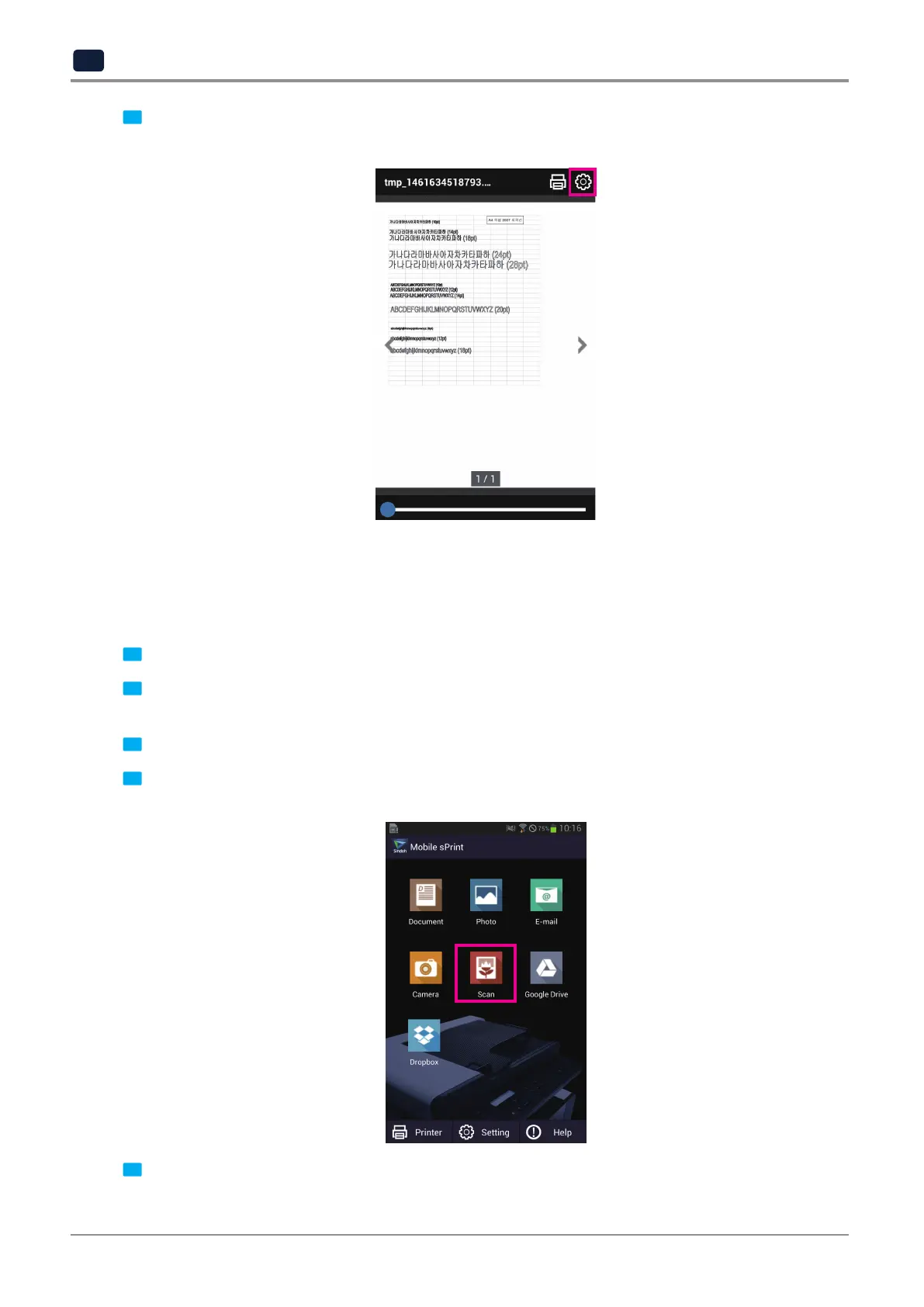
Check the preview screen. When needed, select the setting icon to change options such as a number of print
copies or paper size. Then select the print icon to print.
7.2 Scan with sPrint App
User can receive scan data with user’s smart device by using the sPrint App.
1
User can receive scan data with user’s smart device by using the sPrint App.
2
If there is a document on ARDF, this document will get scanned. If there is no document on ARDF, a document
on flatbet glass will get scanned.
3
Select desired options in the Scan Home screen of the sPrint app. (resolution, file type, and more)
4
When user selects the Scan button of the sPrint app, the device scans document and creates a file in the format
set by user. Then the file is sent to smart device.
5
When smart device receives the file, the status bar on top displays an icon and the app shows the list of
received files.



 To Next Page