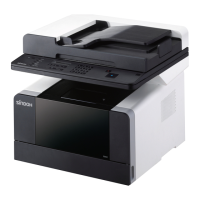
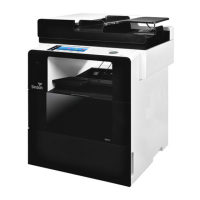
1-37
Preparation for using MFP
1
11. Install MFP Driver
MFP driver makes communication between computer and MFP possible.
MFP drivers include the scanner driver and the printer driver.
This MFP software is usually installed at initial configuration of MFP. If the software needs to be installed after
configuration, follow the guideline below.
1 Close all open software programs.
2 Insert the CD for the software and the manual.
3
Click on [Install] in the basic installation dialogue window.
4
Follow the instructions on the screen.
11.1 Update options available for printer driver
After installing software and options, you may need to install additional options manually to perform print jobs.
Window users
1 Click Start on Windows.
- For Window XP/2003, select Printers and Faxes.
-ForWindow2008/Vista,selectControlPanel→HardwareandSound→Printers.
-ForWindow7.8/8.1,selectControlPanel→HardwareandSound→DevicesandPrinters.
-ForWindow10,SelectSettings→Devices→PrintersandScanners→DevicesandPrinters.
-ForWindowServer2008R2,selectControlPanel→Hardware→DevicesandPrinters.
Or follow the below to open the Printer folder.
- Click Start and enter control printers in the Run Dialog Box.
(You can also press “Windows+R” together to open the Run Dialog Box and enter “control printers”.)
- Press Enter or select OK to open the Printer folder.
2 Select Sindoh N610_410 MF4000 Series.
3 Right click the mouse on Sindoh N610_410 MF4000 Series.
4 For Windows 7, 8/8.1, 10, Windows Server 2008 R2, and 2012, select [Printer Default Settings] from a
corresponding menu.
5 Click
[Device setting]
tab.
6 Add a device option to install from [Available options]
7 Click [Apply].



 To Next Page