Chapter 5: Sonos Controller for PC
5-7
Downloading software updates
1. From the Help menu, select Check for Updates.
2. If there are updates available, click Update Now to download.
• Your ZonePlayers, as well as your Sonos Controller for PC, will be updated as
Sonos components must carry the same software version number. This pro-
cess may take several minutes per device, depending upon your network con-
nection. The Sonos Controller for PC will automatically close and then re-
open during the update process.
• Software updates to a handheld Sonos Controller must be initiated from that
Controller, so if you have recently updated the Sonos Controller for PC soft-
ware, you will be prompted to update your other Sonos Controllers the next
time you use them. Simply follow the Controller’s on-screen prompts.
• If your software is up to date, the message “Your Sonos Multi-Room Music
System is up to date. No updates are required” will appear instead.
ZonePlayer software updates
One or more ZonePlayers may need to be updated when you purchase a new
ZonePlayer with a later software version, or if you plug in a ZonePlayer that was not
in use when you performed your last software update. If a ZonePlayer’s software
version gets out of sync from the rest of your Sonos Multi-Room Music System
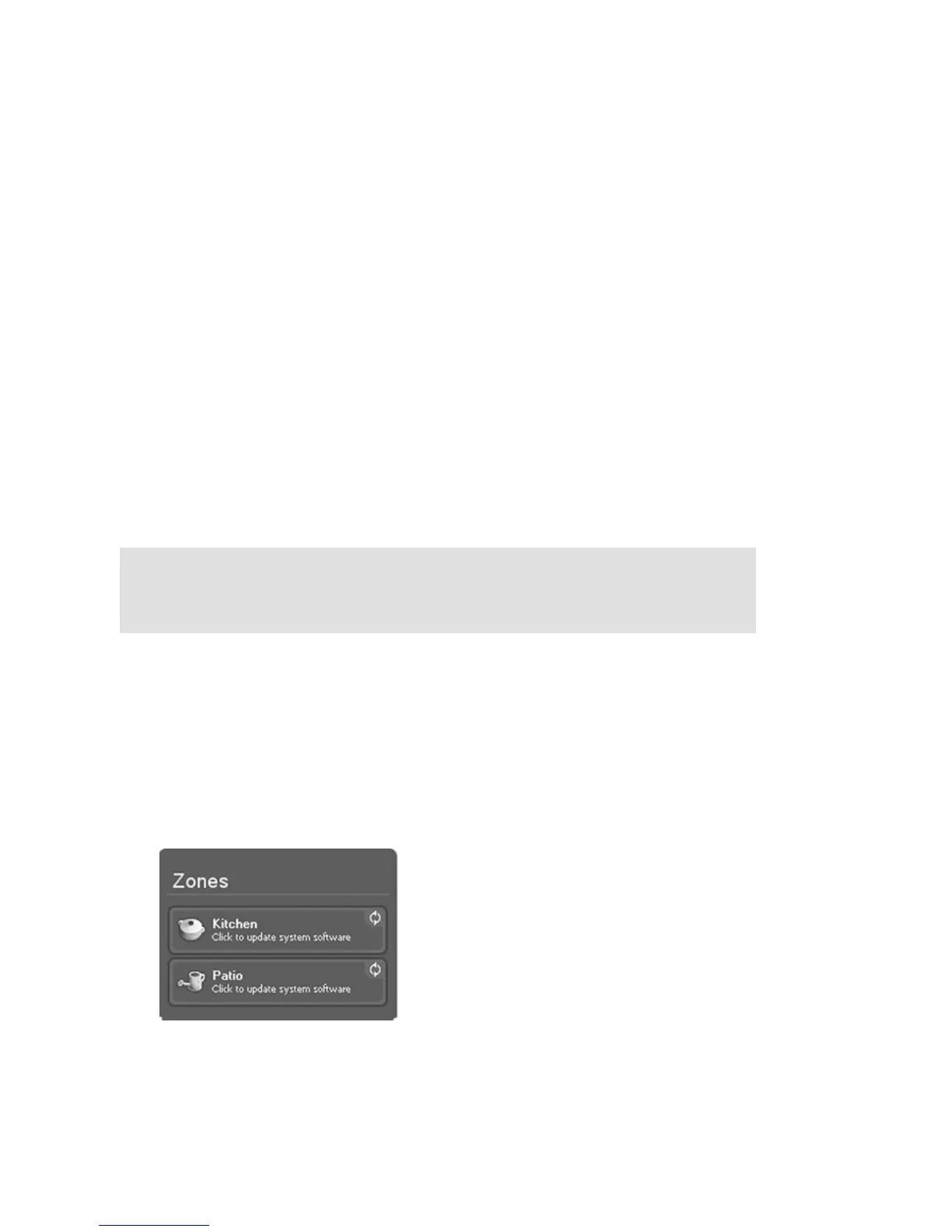
components, you will see the following message displayed in the Zones pane:
Click the outdated zone to begin the software update process.
Caution: Do not disconnect power from your ZonePlayer(s), or in any way
disable your Sonos Multi-Room Music System while this process is running.
Contact Sonos Customer Support if an error occurs.



 To Next Page