Chapter 4: Managing and Playing Music
4-39
Napster music selection choices include:
• Search (by artist, album or track)
• Browse Napster content, including top 100 lists, New Releases and Napster
Playlists
• My Napster Library
• All Tracks
•Genres
• Artists
• My Playlists
Using the Sonos Controller for PC
If you’re new to Napster
1. From the Music Library, click the Music Services tab.
2. Select More Music.
3. Click Start on the Napster selection.
4. Select I’m new to Napster.
5. Accept the Napster terms and conditions, and then click Next.
6. Click Finish.
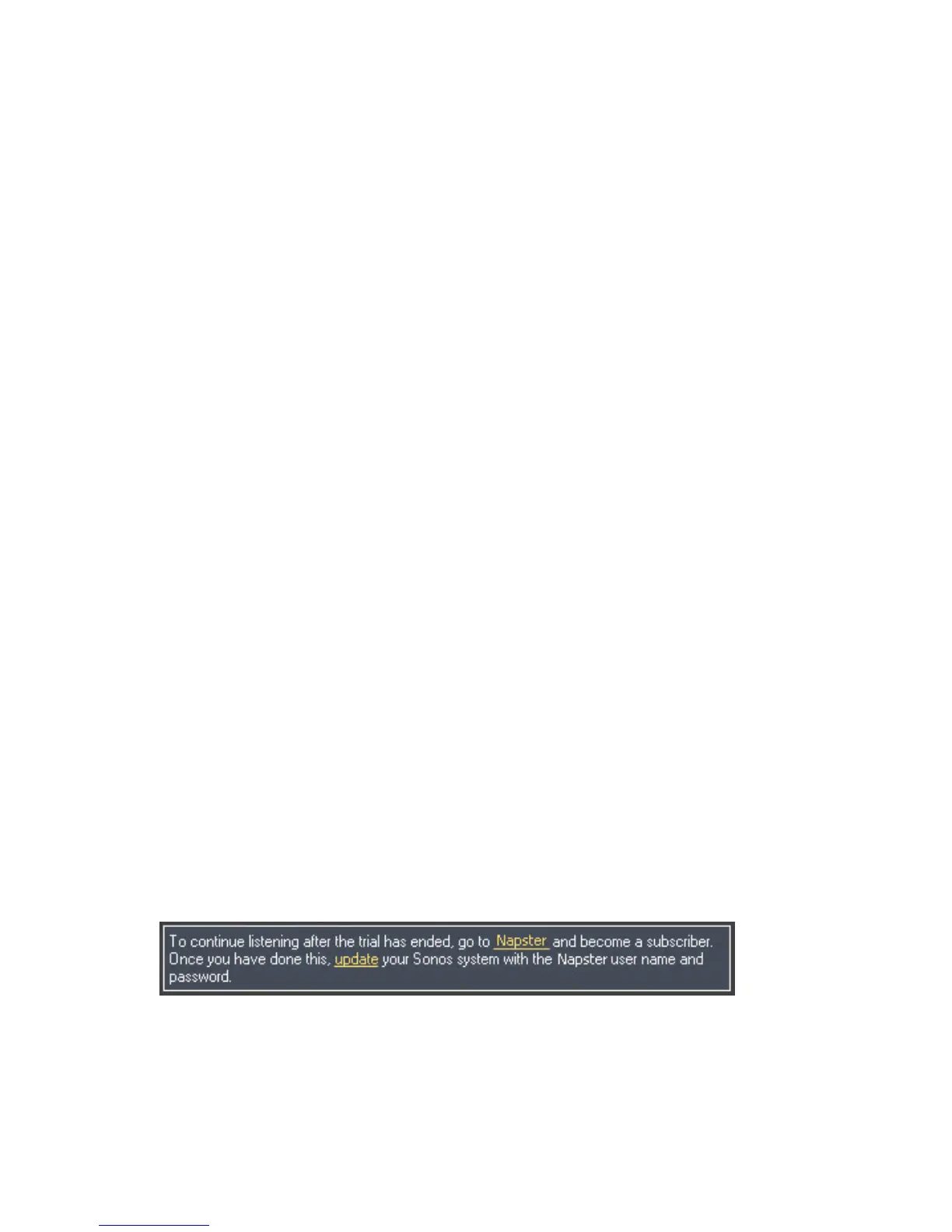
After the trial expires
After the free trial expires, if you wish to continue using Napster with Sonos, you can
become a Napster subscriber. Go to www.sonos.com/napster/subscribe and click
Join Napster Now. Once you become a subscriber, simply follow the steps below to
add your Napster account information to Sonos in order to have instant access to
Napster from your Sonos Multi-Room Music System.
1. From the Music Services tab, select Napster Trial.
2. Click the Update link.
3. Click Next.



 To Next Page