Sonos Multi-Room Music System User Guide
C-10
• Install the Sonos Controller for Mac or PC software—you will be prompted
to add music folders during the setup process. If you already have the
Sonos Controller for Mac or PC installed, select Music from the menu bar,
and then select Set Up Music Library>Add a Share.
System Setup for NAS Device (no router)
Step 1: Apply power to a Sonos component
Attach the power cord to a ZonePlayer or ZoneBridge and plug into a wall outlet.
Step 2: Set up your Sonos system using the Sonos Controller 200
3. If your Sonos Controller 200 is new, place it momentarily into the charging
cradle to wake it up.
4. Touch to select your language preference.
5. From the Welcome screen, touch Next.
6. Follow the Controller’s on-screen prompts to connect your ZonePlayer or
ZoneBridge.
ZoneBridge Setup
•You will be prompted to press and release the Connect button on
top of the ZoneBridge. The indicator lights will flash green and white
while the ZoneBridge is connecting.
ZonePlayer Setup
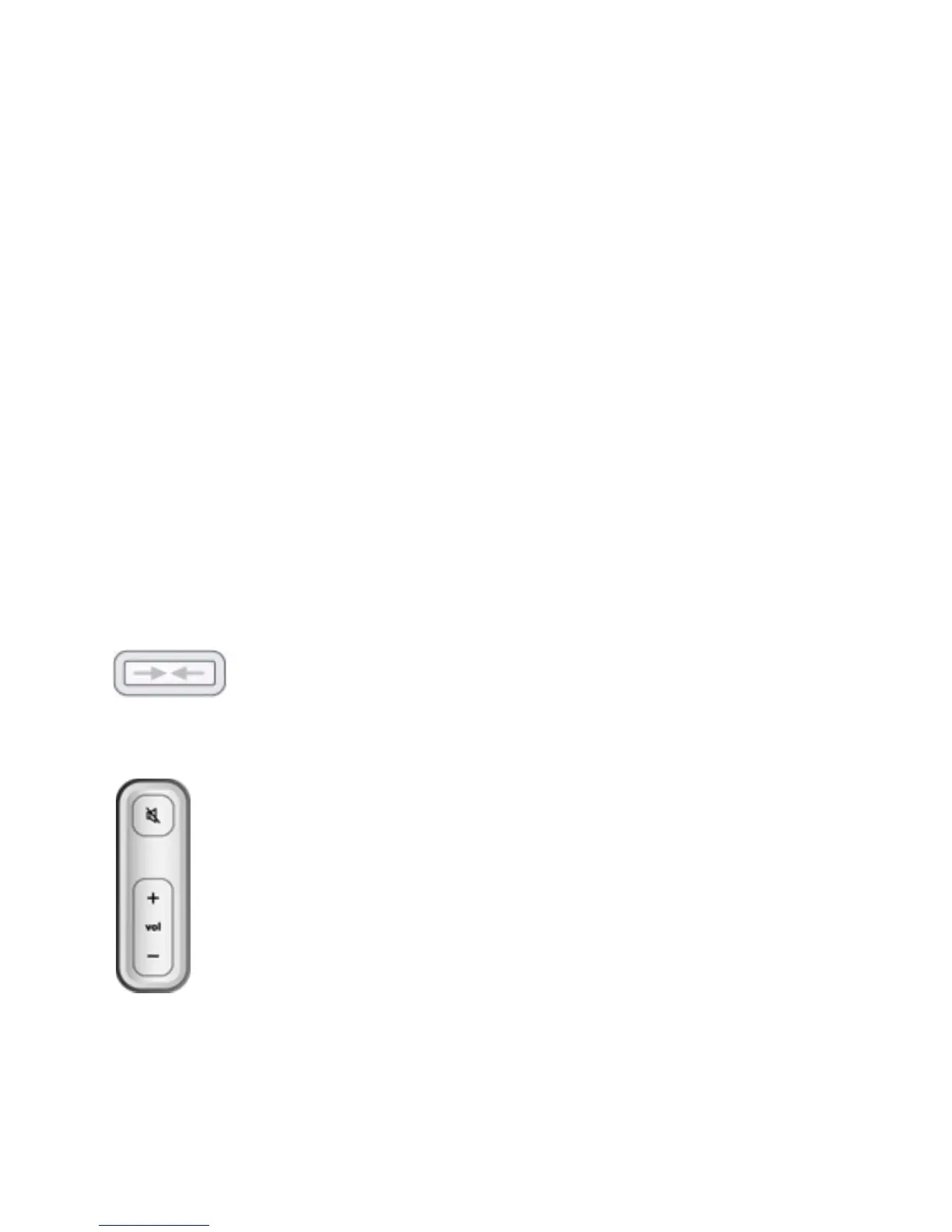
•You will be prompted to press and release the Mute and Volume
Up buttons simultaneously on the ZonePlayer.
•The Mute and ZonePlayer Status indicator lights will flash green
and white while the ZonePlayer is connecting. You can release the
buttons as soon as they start to blink (approximately 1 second.)
•When the ZonePlayer has been successfully added to your music
system, the Mute indicator will go out and the ZonePlayer Status
indicator will change to solid white.



 To Next Page