Chapter 2: System Setup
2-19
play the keyboard. Tap the Delete button to erase the current name and then
type a different name. Tap Done when you are finished typing. Tap Done to
accept the new name, or tap Cancel to leave the screen without making the
change.
Turning Off White Status Indicator
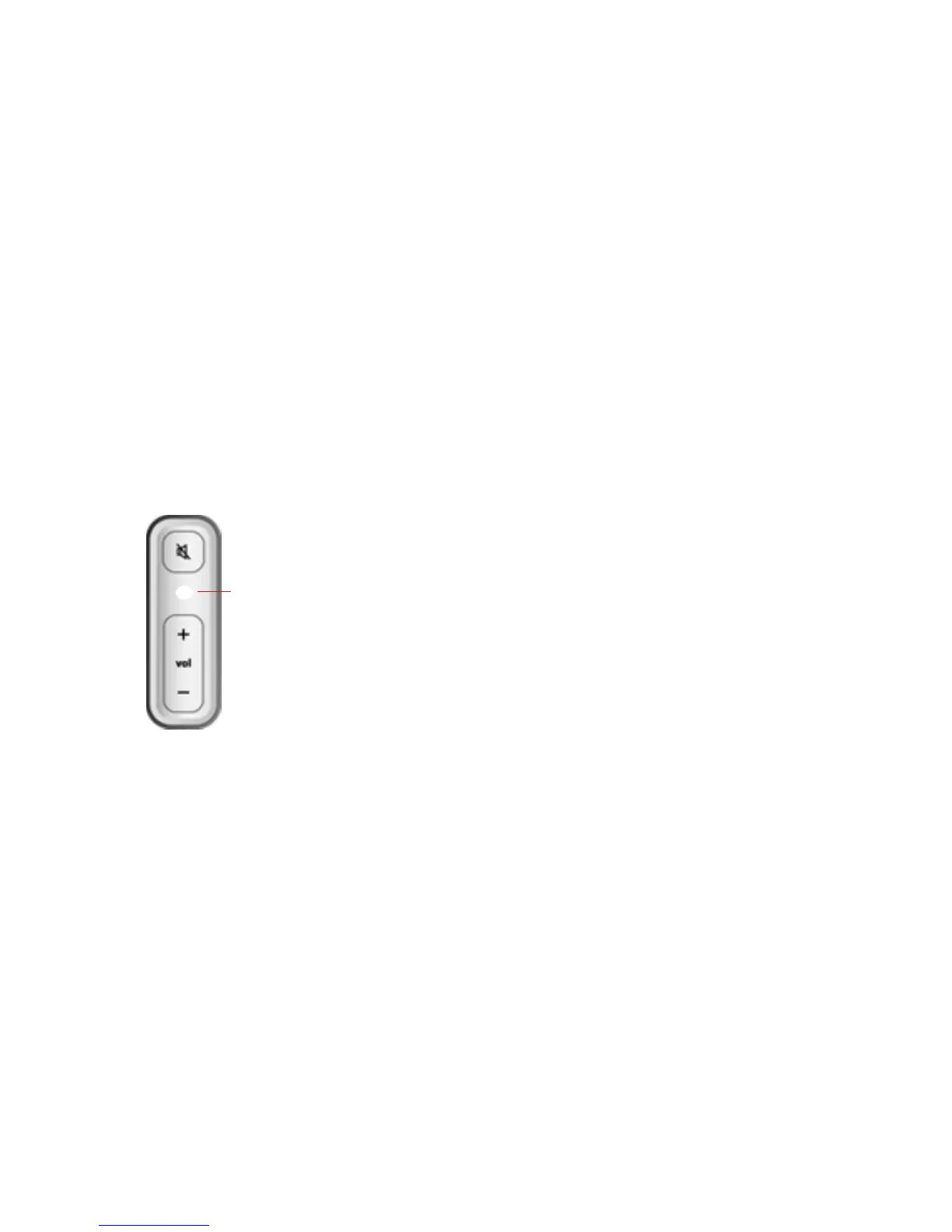
A constant white light displays on the front of a ZonePlayer or ZoneBridge to indicate
that the unit is functioning in normal operation. If you have a ZonePlayer located in a
bedroom, you may want to turn this Status Indicator Light off so that when the unit is
in normal operation, the white light does not display. However, if the ZonePlayer
status indicator begins to flash amber, see "ZonePlayer Status Indicator Explanations"
on page A-11 for additional information.
Using the Sonos Controller for Mac or PC
1. From the Zones menu, click ZonePlayer Settings. If you wish to turn off a
ZoneBridge status indicator light, select ZoneBridge Settings instead.
2. Highlight the ZonePlayer/ZoneBridge you wish to adjust, and click Settings.
3. From the Status Indicator Light tab, select On or Off and click OK.
ZonePlayer Status Indicator Light;
white when in normal operation



 To Next Page