Chapter 6: Sonos Controller for Mac
6-7
Setting software update preferences
1. From the Sonos menu, select Preferences.
2. Select the Updates tab.
3. Choose the desired setting from the Software Update Notifications section.
Downloading software updates
1. From the Sonos menu, select Check for Updates.
2. If there are updates available, select Update Now to download.
•Your ZonePlayers as well as your Sonos Controller for Mac software will be
updated, as all Sonos components must carry the same software version num-
ber. This process may take several minutes per device, depending upon your
network connection. Your Sonos Controller for Mac software will automatical-
ly quit and then re-open during the update process.
• Software updates to your handheld Sonos Controller must be initiated from the
Controller, so if you have recently updated the Sonos Controller for Mac soft-
ware, you will be prompted to update the handheld Controller the next time
you use it. Simply follow the on-screen prompts.
• If your software is up to date, the message “Your Sonos Multi-Room Music
System is up to date. No updates are required” will appear instead.
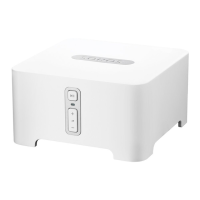
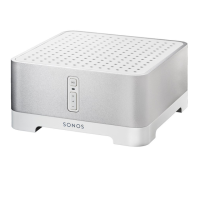
ZonePlayer software updates
One or more ZonePlayers may need to be updated when you purchase a new
ZonePlayer with a later software version, or if you plug in a ZonePlayer that was not
in use when you performed your last software update. If a ZonePlayer’s software
version gets out of sync from the rest of your Sonos Multi-Room Music System
Caution: Do not disconnect power from your ZonePlayer(s), or in any way
disable your Sonos Multi-Room Music System while this process is running.
Contact Sonos Customer Support if an error occurs.


 To Next Page