Sonos Multi-Room Music System User Guide
9-12
The shared music folders that are currently accessible to your Sonos Multi-Room
Music System are displayed. (If a computer on your network is turned off or is in
sleep or standby mode, the music on that computer will be unavailable to the Sonos
Multi-Room Music System until the computer is turned back on.)
Adding a shared folder from the list
1. To make another shared folder available to your Sonos Multi-Room Music
System, select Add New from the Selected Shared Folders screen. Your network
will be scanned for shared folders that your music system is not currently
accessing.
2. To select a shared folder from the displayed list, use the scroll wheel to highlight
the folder, and press OK.
If this shared folder does not require a user name and password, press OK and
the selected folder is added to your music system.
If this shared folder requires a user name and password:
• Use the scroll wheel to highlight the Username field and press Typ e.
• Type the name of a user with permission to access this folder, and then press
Accept.
• Use the scroll wheel to highlight the Password field and press Type.
• Type the password associated with this user, and then press Accept.
Adding a shared folder not displayed
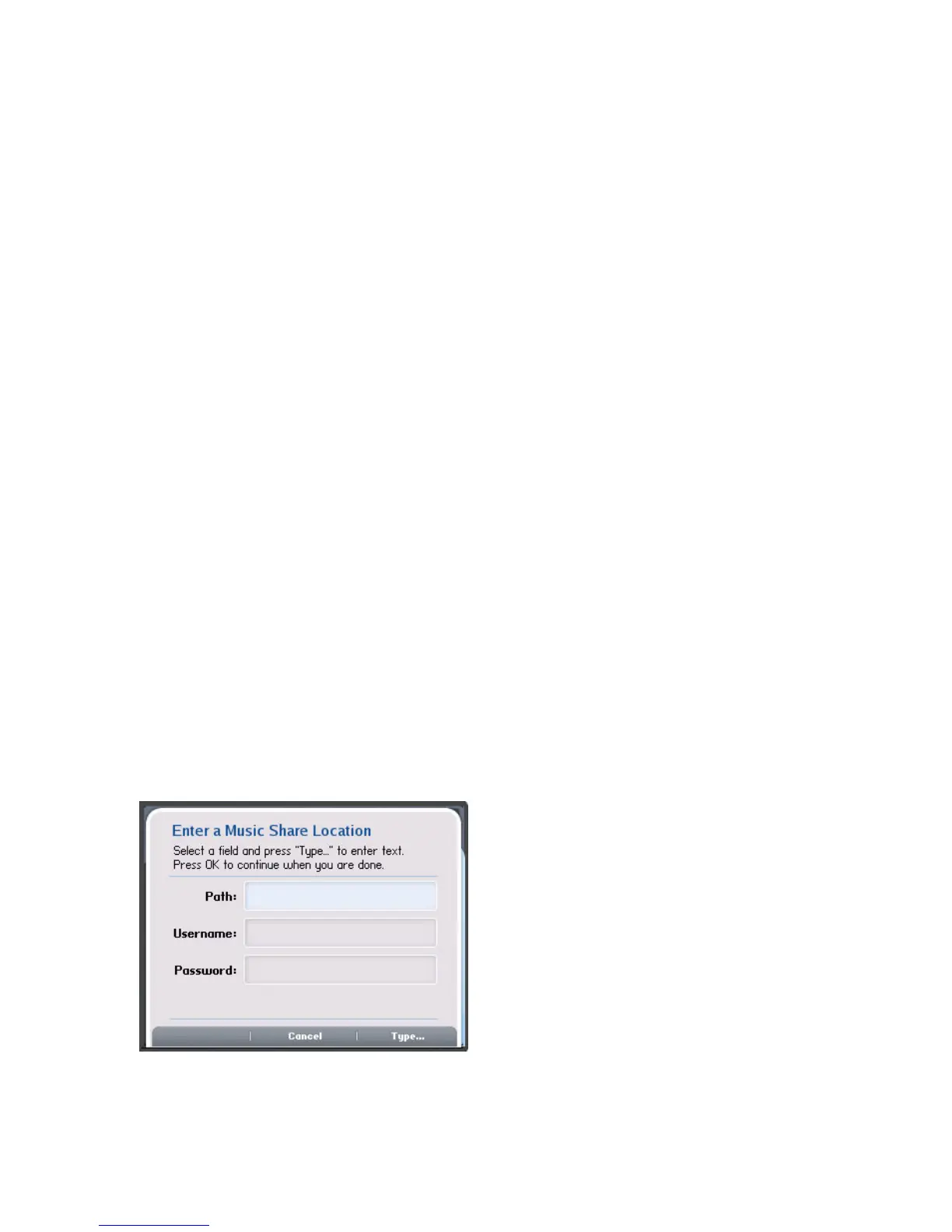
1. Select Add New>Enter New.



 To Next Page