26 Chapter 2: Getting Started
Getting Started
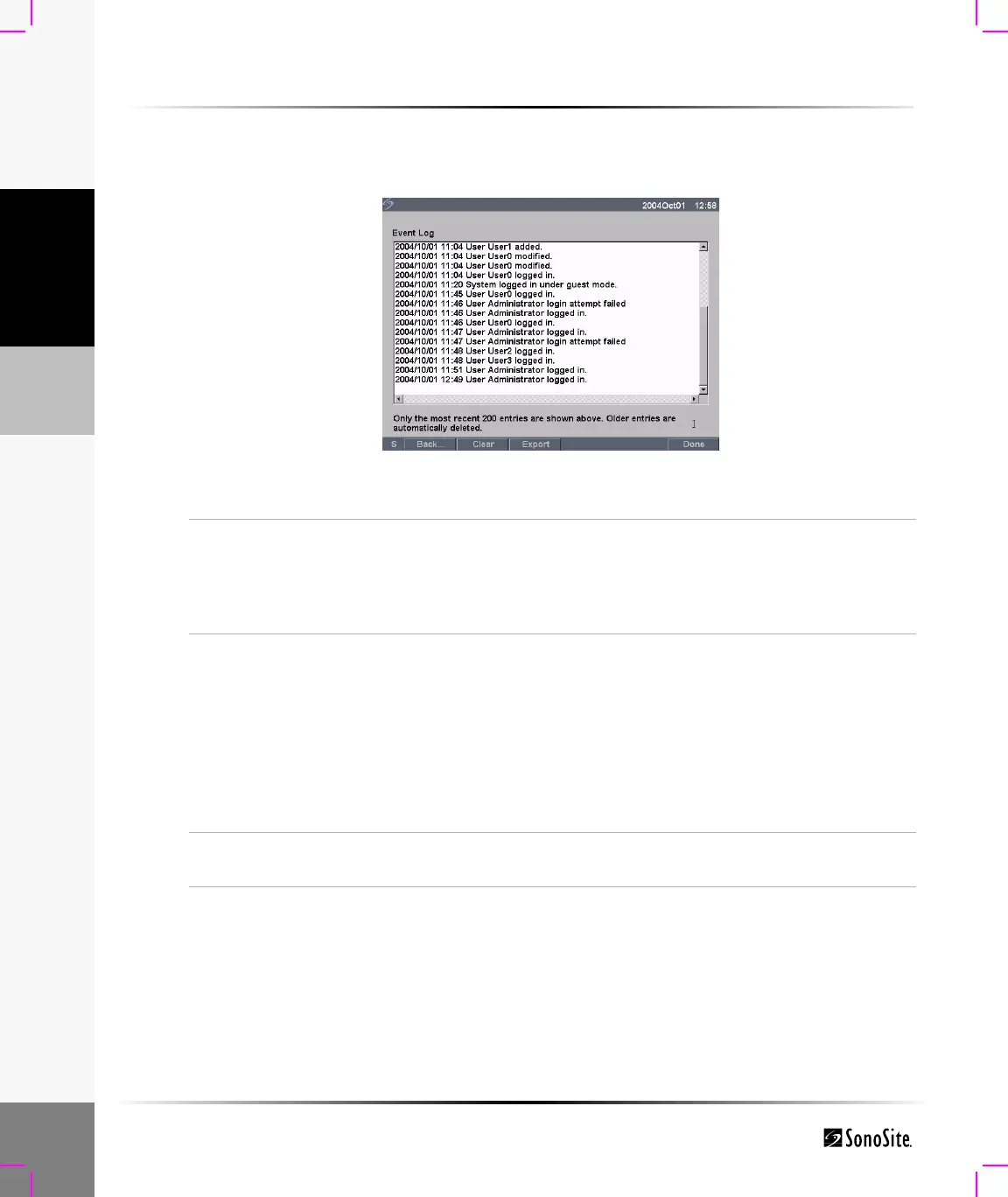
To view, export, and clear event log:
The Event Log collects errors and events and can be exported to a CompactFlash card and read by
a CompactFlash card reader.
Figure 9 Event Log
Event Log
1 Press the Setup key.
2 Select Administration.
3 Select Log from the on-screen menu.
The Event Log is displayed.
4 Select Back to return to the previous menu.
Export Event Log
Note: The Event log and the DICOM network log have the same filename
(log.txt). When you export either one to the same CF card, it will overwrite
the existing log.txt file.
1 Insert the CompactFlash card in the back slot of the TITAN
system.
2 Select Log and then Export from the on-screen menu.
3 View the files on a CompactFlash card reader.
The log is a text file that can be opened by a text file application,
e.g., Microsoft Word or Notepad. The log file is named log.txt.
Clear Event Log
1 Select Clear from the on-screen menu.
2 Select Yes to delete or No to cancel.



 To Next Page