EasyManua.ls Logo

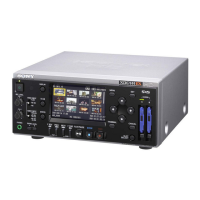
Sony PMW-EX30 - User Manual

Sony PMW-EX30
111 pages
Print Icon
To Next Page IconTo Next Page
Loading...
Sony Corporation
Printed in Japan
Printed on recycled paper.
3-879-701-13(1)
© 2008 Sony Corporation
Solid-State Memory
Recorder
Operating Instructions
Before operating the unit, please read this manual thoroughly
and retain it for future reference.
PMW-EX30
Printed in Japan
Printed on recycled paper.
3879701130

Table of Contents

Other manuals for Sony PMW-EX30

Questions and Answers

  • C
    Cynthia EvansAug 26, 2025
    What to do if recording does not start on my Sony Recording Equipment?
    • K
      Kristina BurchAug 26, 2025
      If recording doesn't start when you press the REC button on your Sony Recording Equipment, it could be due to several reasons. First, check if the SxS memory card is write-protected and release the write protection. If the card is full, replace it with one having sufficient space. The card may also need restoration. Additionally, ensure that the video format of the input signal matches the video format set on the unit. You can set the unit to the same video format as that of the input signal.
  • B
    buckmargaretAug 25, 2025
    Why won't my Sony DVR start recording when I press the REC button?
    • A
      Allen AndersonAug 26, 2025
      If your Sony DVR doesn't start recording, it could be due to several reasons: * The SxS memory card might be write-protected. In this case, release the write protection or use a non-protected card. * The SxS memory card might be full. Replace it with a card that has enough free space. * The SxS memory card may need restoration. * The video format of the input signal might not match the video format set on the unit. Ensure the unit is set to the same video format as the input signal.
  • J
    jenniferrollinsAug 25, 2025
    How to fix an error in the upgrade tool for Sony Measuring Instruments?
    • D
      Daniel JohnsonAug 25, 2025
      To fix an error in the upgrade tool, reinstall a complete Version Up Tool file.
  • S
    Shannon YoungAug 25, 2025
    What to do if an upgrade error occurred with Sony Measuring Instruments?
    • M
      Mary Patterson MDAug 25, 2025
      If an upgrade error occurs, turn off the power of the PMW-EX30 and repeat the procedure from the beginning.
  • T
    Tiffany BassSep 4, 2025
    Why does the recorded sound have a high noise level on my Sony DVR?
    • C
      Christian HerreraSep 4, 2025
      If the recorded sound has a high noise level on your Sony DVR, it's likely because the audio level is too low. Adjust the audio recording levels with the REC LEVEL controls and record again.
  • G
    Gary TaylorSep 8, 2025
    What does 'Backup Battery End Please Change' mean on my Sony DVR?
    • J
      johnnelsonSep 8, 2025
      The message 'Backup Battery End Please Change' on your Sony DVR indicates that the remaining power of the backup battery is insufficient. Replace the battery with a new one.
  • J
    Jason LewisSep 7, 2025
    What does 'Cannot Use Media(A) a)' mean on my Sony DVR?
    • R
      rortegaSep 8, 2025
      The message 'Cannot Use Media(A) a)' on your Sony DVR indicates that the memory card is defective. Replace it with another card.
  • R
    Robert WilsonSep 7, 2025
    What does 'Media Error Cannot Record to Media(A) a) Media Error' mean on my Sony DVR?
    • R
      Rebecca HoffmanSep 7, 2025
      The message 'Media Error Cannot Record to Media(A) a) Media Error' on your Sony DVR indicates that recording cannot be done because the memory card is defective. It is recommended to replace it with another card after copying the clips, as required.
  • S
    stephaniecarrilloSep 7, 2025
    What does 'Copy Protected Input Cannot Record' mean on my Sony DVR?
    • R
      Randy AliSep 7, 2025
      The message 'Copy Protected Input Cannot Record' on your Sony DVR indicates that the external signal input via the i.LINK connection cannot be recorded because the stream is copy-protected. Check the input signal.
  • J
    Jacob PhillipsSep 6, 2025
    What does 'Insufficient Voltage' mean on my Sony DVR?
    • T
      Tammy JohnsonSep 7, 2025
      The 'Insufficient Voltage' message on your Sony DVR means the DC IN voltage is too low (stage 2). Connect another power source.

Summary

Chapter 1 Overview

Key Features of the PMW-EX30

Highlights the PMW-EX30's features including HD recording, bit rates, long recording time, multiple formats, and audio.

Operational Features and Interfaces

Details operational aspects like down-conversion, various interfaces, repeat playback, and VCR-like front panel design.

Display and Physical Design

Describes the 16:9 color LCD monitor and the unit's compact, vertically installable body.

CD-ROM Usage and Software Management

Instructions for using the CD-ROM, reading manuals, and system requirements for software.

Front Panel Controls and Indicators

Identifies and explains the function of front panel buttons, indicators, and displays.

Rear Panel Connectors and Controls

Details the various connectors and switches located on the rear panel of the unit.

IR Remote Commander Controls

Explains the functions of the buttons on the supplied IR remote commander.

Chapter 2 Preparations

Initial Setup and Clock Settings

Covers connecting power, starting the unit, and setting the internal clock and time zone.

Display and Video Format Settings

Details adjusting the LCD display and configuring the video format for recording and output.

Time Data and Signal Handling

Explains how the unit handles timecode/user bit data and selects input/output signals.

SxS Memory Card Operations

Covers guidelines for using, inserting, formatting, and restoring SxS memory cards.

External Storage and Media Adaptors

Instructions for connecting external hard disks and using media adaptors.

IR Remote Commander and Unit Placement

Details on IR remote operation, battery replacement, and vertical unit placement.

Chapter 3 Recording and Playback

Recording Procedures

Covers settings and steps for starting and performing recording operations.

Playback Procedures

Details settings and steps for playing back recorded clips.

Recording Management and Shot Marks

Explains how to stop recording and use shot marks for editing.

Playback Control and Management

Covers playback modes, stopping, and using the clip operation menu.

Chapter 4 Clip Operations

Thumbnail Playback

How to play back clips using the thumbnail screen and index frames.

Clip Navigation and Selection

Selecting clips and navigating through them during playback.

Advanced Playback Features

Covers repeat playback, skipping clips, and cancelling playback.

Clip Operation Menu Overview

Introduces clip operation menus and their basic usage.

Clip Information and OK Mark

Viewing detailed clip information and adding OK marks to clips.

Clip Management Operations

Procedures for deleting clips and copying them to other memory cards.

Clip Visualisation and Editing

Displaying EXPAND CLIP and SHOT MARK screens for detailed views.

Shot Mark and Index Management

Adding/deleting shot marks and changing clip index frames.

Chapter 5 Setting and Recording Time Data

Timecode and User Bit Recording

Methods for recording timecode and user bit data, including preset modes.

Advanced Timecode Modes

Details on Regen mode and external synchronization for timecode.

External Timecode Synchronization Setup

Steps required to synchronize the internal timecode to an external source.

Chapter 6 Example Connections for Various Applications

Connecting External Video Monitors

How to connect video monitors to view output signals and superimposed text.

Operating Clips via Computer

Connecting the unit to a computer for clip management and editing.

Connecting via HD SDI Connector

Examples of connecting devices using the HD SDI interface for dubbing and live systems.

Connecting via i.LINK Connector

Using the i.LINK interface for dubbing clips and connecting to editing systems.

i.LINK Computer Interaction Notes

Notes regarding computer interaction, search times, and potential signal interruptions.

Chapter 7 Status Display

Status Display Overview

How to access, switch between, and clear different unit status screens.

Audio and Video Status Screens

Details displayed on the audio and video status screens.

Remote and Media Status

Information on IR remote status, battery levels, and media remaining space.

Chapter 8 Menu Configuration and Detailed Settings

Overview of Setup Menus

Introduction to the unit's setup menus and their hierarchical structure.

Basic Menu Operation Procedures

Step-by-step guide on how to navigate and set options within the menus.

AUDIO SET Menu Configuration

Settings related to audio inputs, outputs, and levels.

VIDEO SET Menu Configuration

Settings for video outputs, signal selection, and down-converter modes.

LCD SET Menu Configuration

Adjustments for LCD display properties like color, contrast, brightness, and backlight.

TC;UB SET Menu Configuration

Settings for timecode modes, user bits, and timecode format.

OTHERS Menu Configuration

Settings for factory reset, setup data storage/recall, and time zone.

General System Settings

Settings for clock, language, usage hours, remote control, and region.

Video Format and Clip Management

Configuring video formats and managing clip naming and deletion.

Clip Copying and Media Formatting

Procedures for copying clips between cards and formatting memory media.

Appendix

Important Operation and Handling Notes

General guidelines for operation, cleaning, storage, and shipping.

Periodic Maintenance

Information on the digital hours meter for tracking usage and maintenance.

Troubleshooting Recording;Playback

Solutions for common problems encountered during recording and playback.

Troubleshooting Time Data and Monitor

Solutions for issues with time data settings and external video monitor display.

Troubleshooting External Devices and Alarms

Solutions for i.LINK device issues and common alarm messages.

Troubleshooting Internal Errors

Steps to take when internal error messages are detected by the self-diagnostic function.

About i.LINK Technology

Explanation of i.LINK features, data transfer speed, and unit operation.

General Specifications

Lists the unit's general technical specifications including power, dimensions, and temperature.

Technical Specifications: Format and I;O

Details recording formats, display specifications, and input/output connectors.

Accessories and Liability Notes

Lists supplied and optional accessories, and important liability disclaimers.

MPEG-2 Video Licensing Information

Information regarding licensing terms for MPEG-2 video encoding and playback.

AVC and VC-1 Patent Licensing

Licensing terms for AVC and VC-1 video standards usage.

Sony PMW-EX30 Specifications

General IconGeneral
BrandSony
ModelPMW-EX30
CategoryCamcorder
LanguageEnglish

Related product manuals