GB
Page 48 of 58
INSTRUCTION, USE AND
MAINTENANCE MANUAL
20.1 Width measurement options setting
To enable the “automatic rim width measurement”,
optional devices, from the opening presentation page
(see Fig. 37), press the "F1 key" ; the pro-
gram will display the page in Fig. 86.
Enter password F1-F2-CENTR-F3 to access the “cus-
tomer configuration” screen page (see Fig. 87).
Press the “F2 key” .
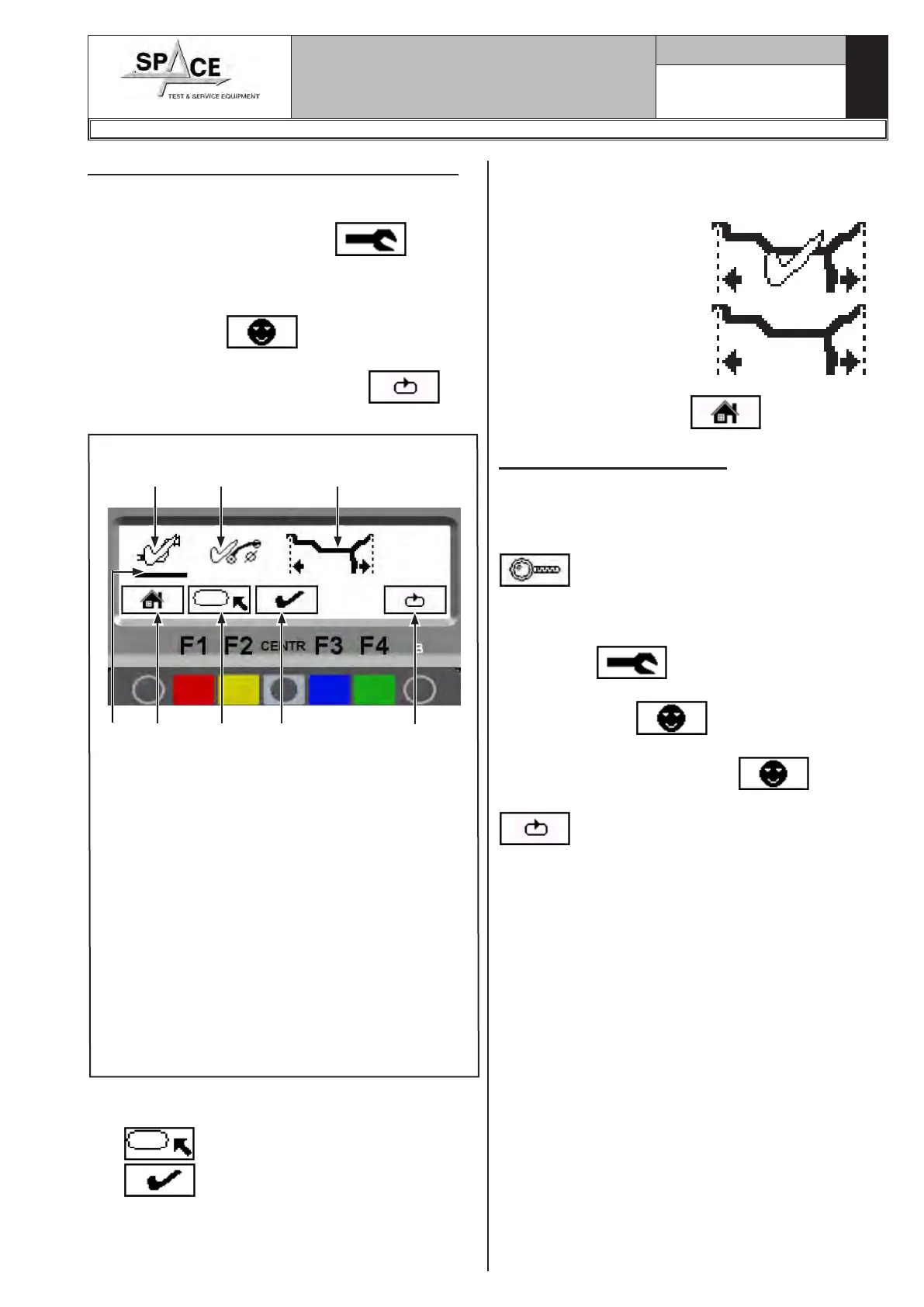
From the “client configuration” page (see Fig. 88),
press 4 times in succession “key F4”
. The
image will be displayed as in Fig. 90.
Fig. 90
5
KEY
1 – Automatic distance measurement DISEN-
GAGED (wheel balancer with manual distance
caliper)
2 – Automatic diameter measurement DISEN-
GAGED
3 – Automatic rim width measuring device (OP-
TIONAL) NON-ENGAGED
4 – Selection line
5 – Return to Fig. 87 configuration screen page
(RED) (F1)
6 – Move the selection line on the device to enable/
disable (YELLOW) (F2)
7 – Enable/disable the selected device (CENTRAL)
8 – Displays client configuration pages (GREEN)
(F4)
7
8
4
1 2 3
6
To enable the required device, move the selection line
under the symbol that represents it by means of the “F2
key”
and activate by means of the “CENTR
key” .
When the device is enabled, this is shown by a “mark
off”, see example below:
Rim width automatic
measuring device EN-
GAGED →
Rim width automatic
measuring device DIS-
ENGAGED →
At the end press key “F1” to exit.
20.2 Lower weight limit
Correction weight below a certain limit is normally
shown equal to zero.
In car way this limit can be set from 10 g to 1 g.
At the end of the spin however, by pressing the key
(see example Fig. 48), the weight can be
displayed with gram resolution.
To change the resolution and lower limit, from the
opening presentation page (see Figure Fig. 37), press
the “F1 key” ; the program will display the
image in Fig. 86.
Press the “F2 key”
. Enter password F1-F2-
CENTR-F3 to access the “customer configuration”
screen page (Fig. 87). Press the key
and then press 5 successive times the "F4 key"
, the program will show the following screen
page:
1296-M010-0_P
Space s.r.l.
ER232R - ER234R - ER236R - ER238R - ER238RFM - ER248R - ERP248R


 To Next Page