Objet350 User Guide 5 Using Objet Studio
DOC-17001 Rev.G 5-24
2. Withtheobjectselected:
❒ FromtheObjectmenu,selectSeparateintoShells.
or—
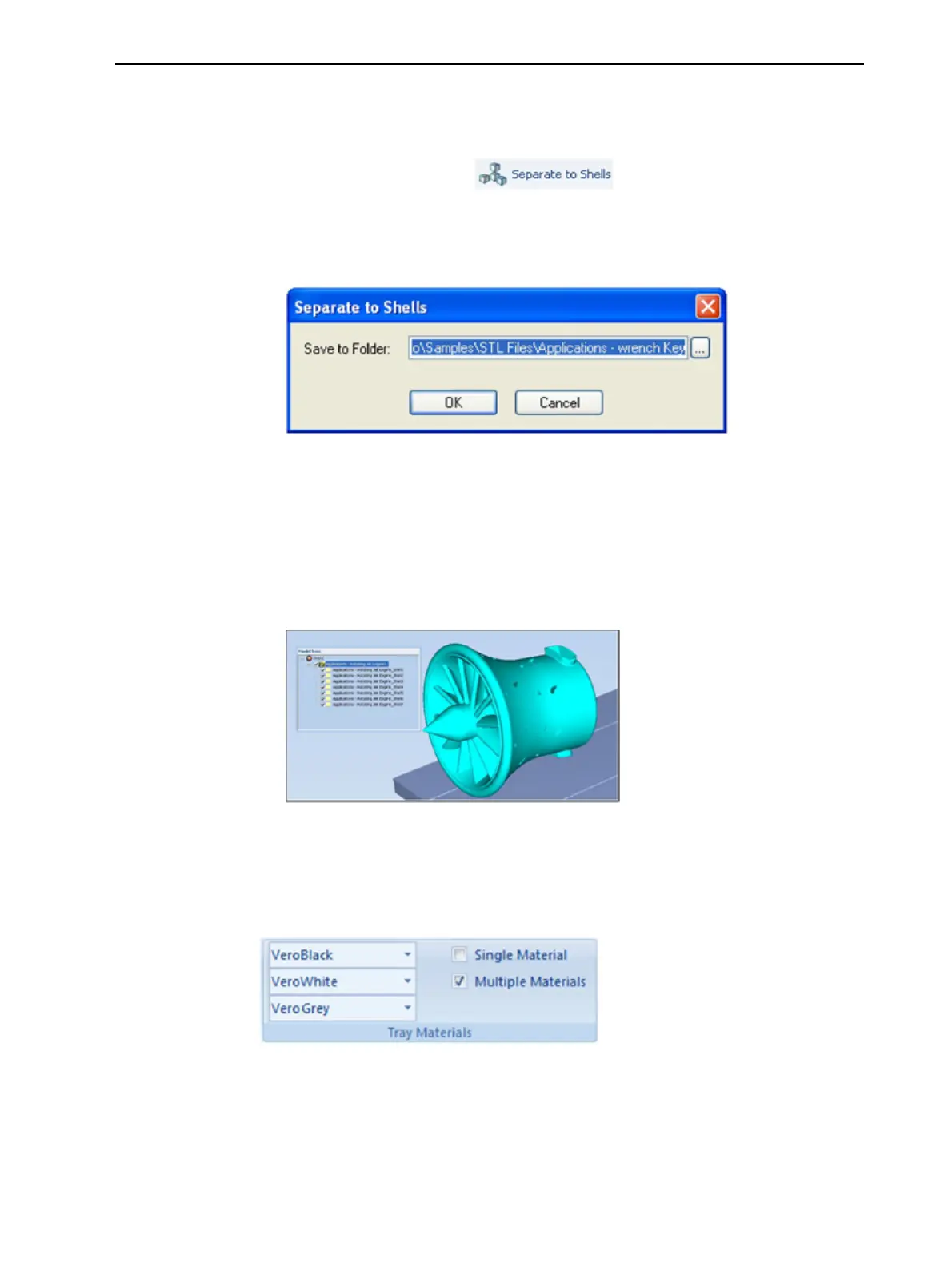
❒ Ontheribbon,click .
Adialogboxopensinwhichyoucanspecifywheretosavethecomponent
stlfiles.(Bydefault,ObjetStudioofferstosavethenewfilesinafolderin
thesamelocationastheoriginalstlfile.)
Figure5-23Folderselectionforsavingstlfilesaftersplittingintoshells
3. ClickOK.
ObjetStudiosplitstheobjectintoanassemblyofcomponentparts,eacha
separatestlfile(“shell”).
Theobjectappears—onthebuildtrayandinthemodeltree—asan
assemblyofparts(“shells”).Youcanassigneachpartadifferentmodel
material(Thisisexplainedin"Model-MaterialSettings"below).
Figure5-24Objectafterbeingconvertedtoanassemblyofcomponent
parts
Model-Material
Settings
BeforeplacingobjectsonthebuildtrayinObjetStudio,youshouldpay
attentiontothematerialselectionsettingsontheTray Settings ribbon.
Figure5-25Materialselectionsettings
•Bydefault,thematerialselectionsettingsontheribboncorrespondtothe
threemodelcartridgesloadedintheprinter.












 To Next Page