www.stryker.com 3006 -109-101 REV A 37
Return To Table of Contents
Footboard Operation Guide
3. Change Equipment
The change equipment feature allows the operator to add or remove item
from the product without affecting the patient weight.
To Change Equipment:
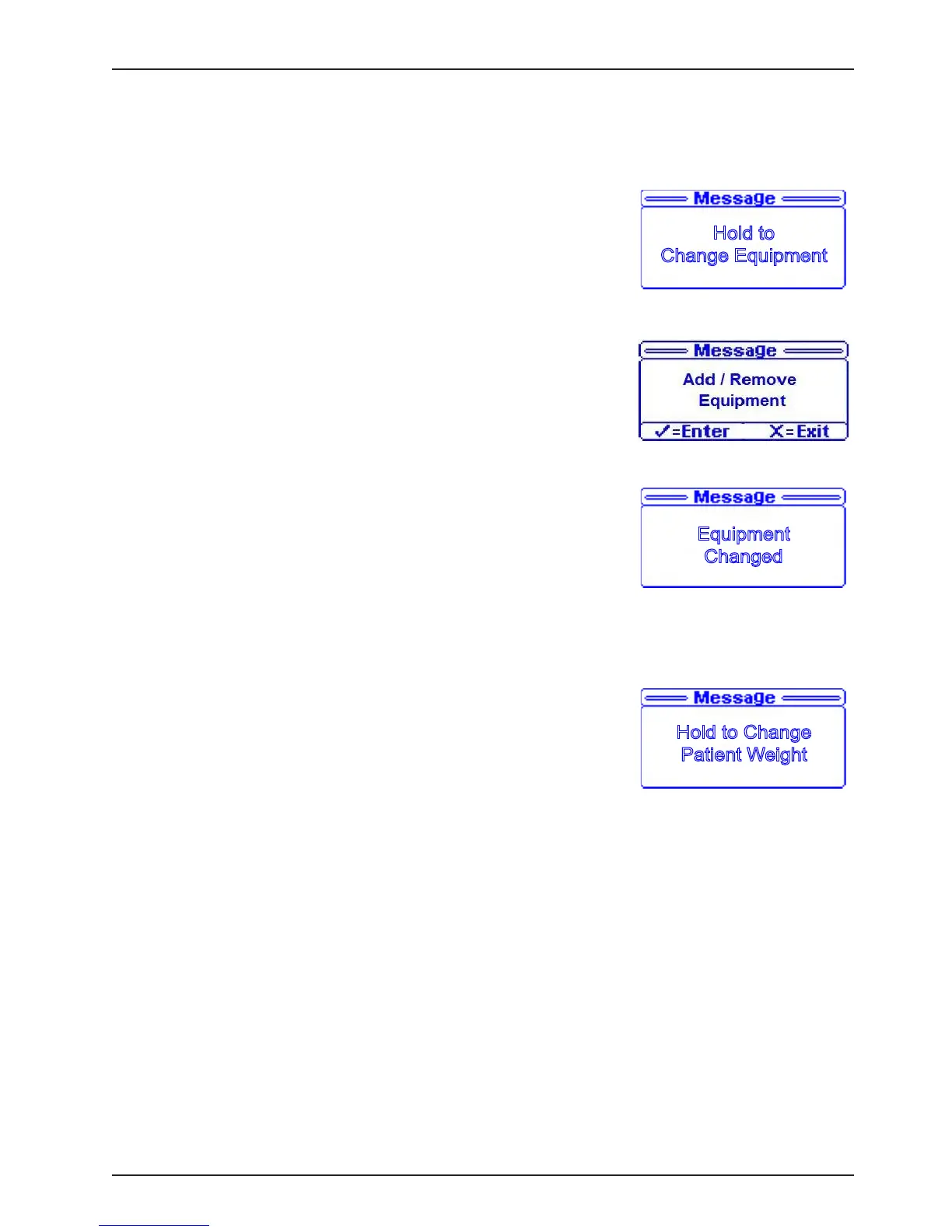
• Select “Change Equip.” in the menu then press the “Enter” button,
Figure 7 will be displayed or if the operator did not press the button
long enough the message “Hold Button Longer” will appear in the
message window.
• When “Release to Start” message displays on the screen, release
the “Enter” button; “Do Not Touch Bed” message will flash on
display.
• Figure 8 will display when the system is ready to change equipment.
• Press the “Enter” button to Add/Remove equipment or press the
“Exit” button to cancel operation.
• If “Enter” is pressed to Add/Remove Equipment then the
message “Do Not Touch Bed” will flash on the display.
• If “Exit” is pressed, “Operation Canceled” message will display.
• Figure 9 will be displayed when the system completes the change
equipment adjustment.
• The status screen will then display the weight of the patient only.
4. Change Patient Weight
The change patient feature allows the operator to add or remove weight from the patient weight.
To Change Patient Weight:
• Select “Change Pnt. Wgt.” in the menu.
• Press and hold the “Enter” button, Figure 10 will be displayed.
• When “Release Button” message displays on the screen, release
the “Enter” button; “Do Not Touch Bed” message will flash on
display.
• When the system is ready to change patient weight the following
information will be displayed:
- Allow user to Change patient Weight using arrow button;
- Display the new patient weight;
- Press” Enter” when done;
- Press “Exit” to cancel operation.
• If “Enter” is pressed, the message “Do Not Touch Bed” will flash on the display.
• If “Exit” is pressed, “Patient Weight Changed” message will display.
MENU (CONTINUED)
Figure 7
Figure 8
Figure 9
Hold to Change
Patient Weight
Figure 10






 To Next Page