PTIONAL SETTING
M
n M
n
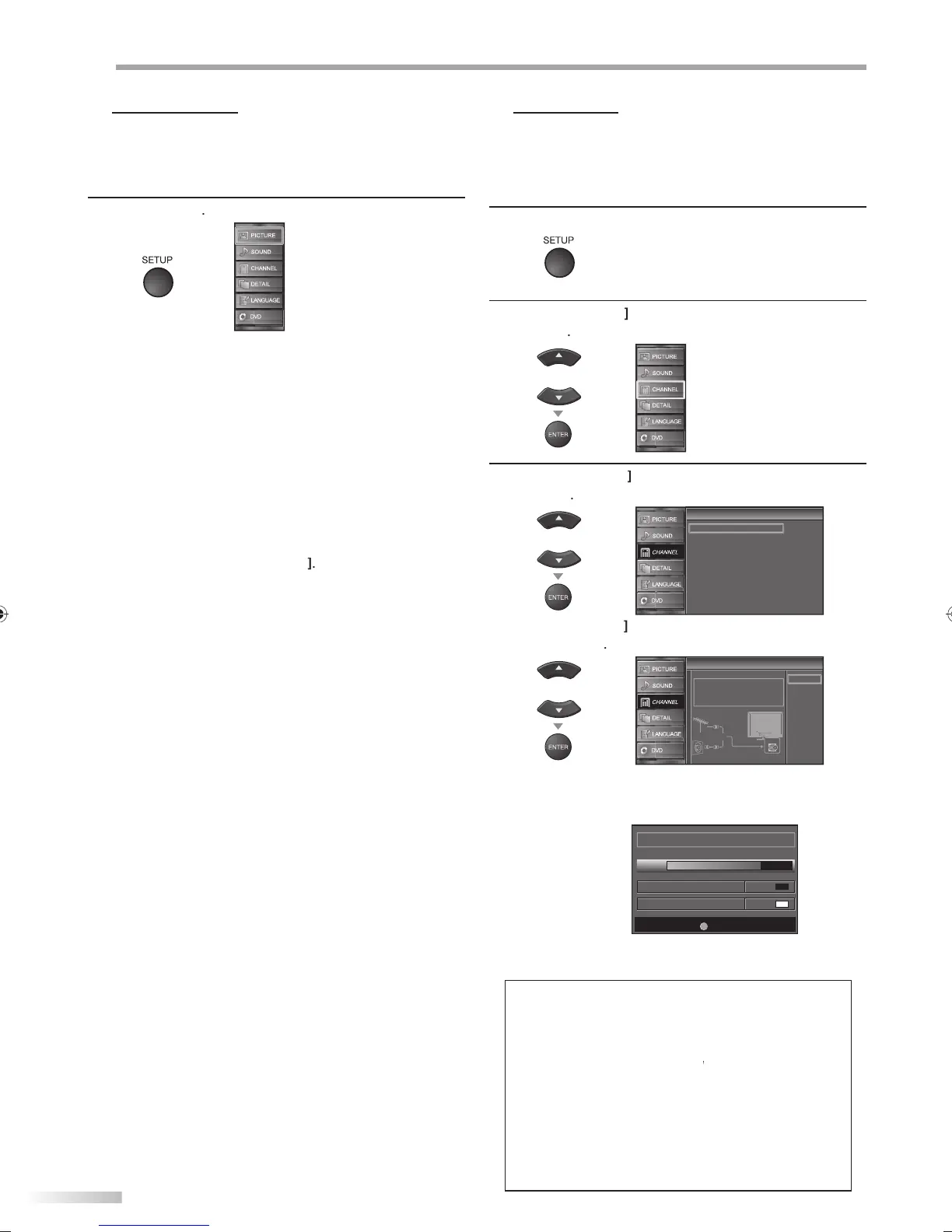
This section describes the overview of the main menu displayed when you
press [SETUP]. For more details, see the reference page for each item.
The main menu consists of the function setting items below.
ress
SETUP
PI
TUR
You can a
just t
e picture qua
ity
Re
er to “Picture Adjustment” on page 23
N
You can adjust the sound qualit
Refer to “Sound Ad
ustment” on page 24
HANNE
• You can automaticall
scan the viewable channels
Refer to “Autoscan” on pa
e 20
• You can skip the undesired channels when selectin
the channels usin
CH
Refer to “Channel List” on pa
e 21
• You can add the channels that were not scanned b
h
n
Refer to “Manual Re
ister” on pa
e 21.
ETAI
You can change the display
ormat
or closed
aption, which displays the dialogue o
a TV program
r
h
r in
rm
i
n
r
h
TV
r
n
Re
er to “Closed Caption” on page 25
You can set t
e viewing
imitations.
Re
er to ‘‘Child Lock” on page 28.
You can adjust the position, stability and clarity o
the
P
r
n
Re
er to “PC Settings” on page 32
You can se
ect t
e energy saving mo
e
Re
er to “Energ
Saving Mode” on page 33.
When
ou adjust the desired “PICTURE” and
SOUND” mode, you must switch the setting
rom
Retail” to “Home”. Re
er to “Location” on page 33
You can con
irm the version o
the so
tware currently
in
i
ni
Re
er to ”Current So
tware In
o” on page 34
LAN
UA
You can c
ange t
e
anguage (Eng
is
, Spanis
,
Frenc
)
isp
aye
on t
e main menu
Re
er to “Language Selection” on page 22
V
Y
n
miz
m
f
n
i
n
f
r
h
i
pla
back. Make sure the unit is in stop mode
Refer to “DVD SETTING“ section on pa
e 44
A
If you switch wires (e.g., between antenna and CATV) or if you move the
unit to a different area after the initial setting, or if you restore the DTV
channel you deleted, you will need to perform autoscan.
Before you begin: Make sure the unit is connected to antenna or cable.
1
Press [SETUP] to display the main menu.
2
Cursor
to se
ect “CHANNEL”, t
en
ress
ENTER
3
Cursor
to se
ect “Autoscan”, t
en press
ENTER
Channel
Channel
Autoscan
Channel List
Manual Register
Antenna
Cursor
to select an a
ro
riate o
tion, then
ress
ENTER
Autoscan
Autoscan
Autoscan will rescan all channels.
Autoscan will take up to 20 minutes to
complete.
Select the destination of "ANT.IN" jack.
Back
Antenna
Cable
Antenna
Cable
Or
ANT.IN
W
en aeria
antenna is connecte
, se
ect “Antenna”
W
en connecte
to CATV, se
ect “Ca
e”
“Autoscan” wi
egin
Now the system is scanning for Channels,please wait
Autoscan will take up to 20 minutes to complete.
Exit
SETUP
75%
Analog channels 10ch
Digital channels 6ch
W
en t
e scanning an
memorizing are comp
ete
,
t
e
owest memorize
c
anne
wi
e
isp
aye
Note:
After settin
“Autoscan”, usin
C
n
h
r
m
control skips unavailable programs automaticall
If
ou are not receiving a signal from
our cable service,
contact the Cable
rovider
If
ou press
r
SETUP
settin
will be canceled
Even if “Autoscan“ is completed, the channel settin
will be
lost if the AC power cord is unplu
ed before turnin
of
the unit b
pressing
POWER
The PIN Code will be required once
ou set a PIN Code in
the “Child Lock”. Refer to pa
e 28.
If
ou want to change
our PIN Code, follow the instruction
of “New Password”. Refer to pa
e 31.
A9DF1UH_LD320SS1_EN_v1.indd 20A9DF1UH_LD320SS1_EN_v1.indd 20 2010/01/22 17:12:362010/01/22 17:12:36




 To Next Page