PERATING DVD
FF
no su
tit
es
EN
English subtitles
French subtitles
3
r
[BACK
xi
ote
•T
n
l the subtitle, select “OFF” at ste
2
•If
our language is not shown after pressin
Curso
several times, the disc may not have that
anguage. However, some
iscs a
ow
ou to c
ange su
tit
e
lan
ua
es settin
in the disc menu. (Operation varies
dependin
on the disc, so refer to the manual alon
with
the disc.
W
en “NOT AVAILABLE” a
ears on t
e TV screen, it means
i
l
i
r
r
n
h
n
•If
ou choose a language that has 3-letter-language code,
the code will be displa
ed ever
time
ou change the subtitle
language setting. If
ou choose an
other languages, “---
will be displa
ed instead. Refer to page 48
• Ejecting the disc will cancel
our subtitle setting
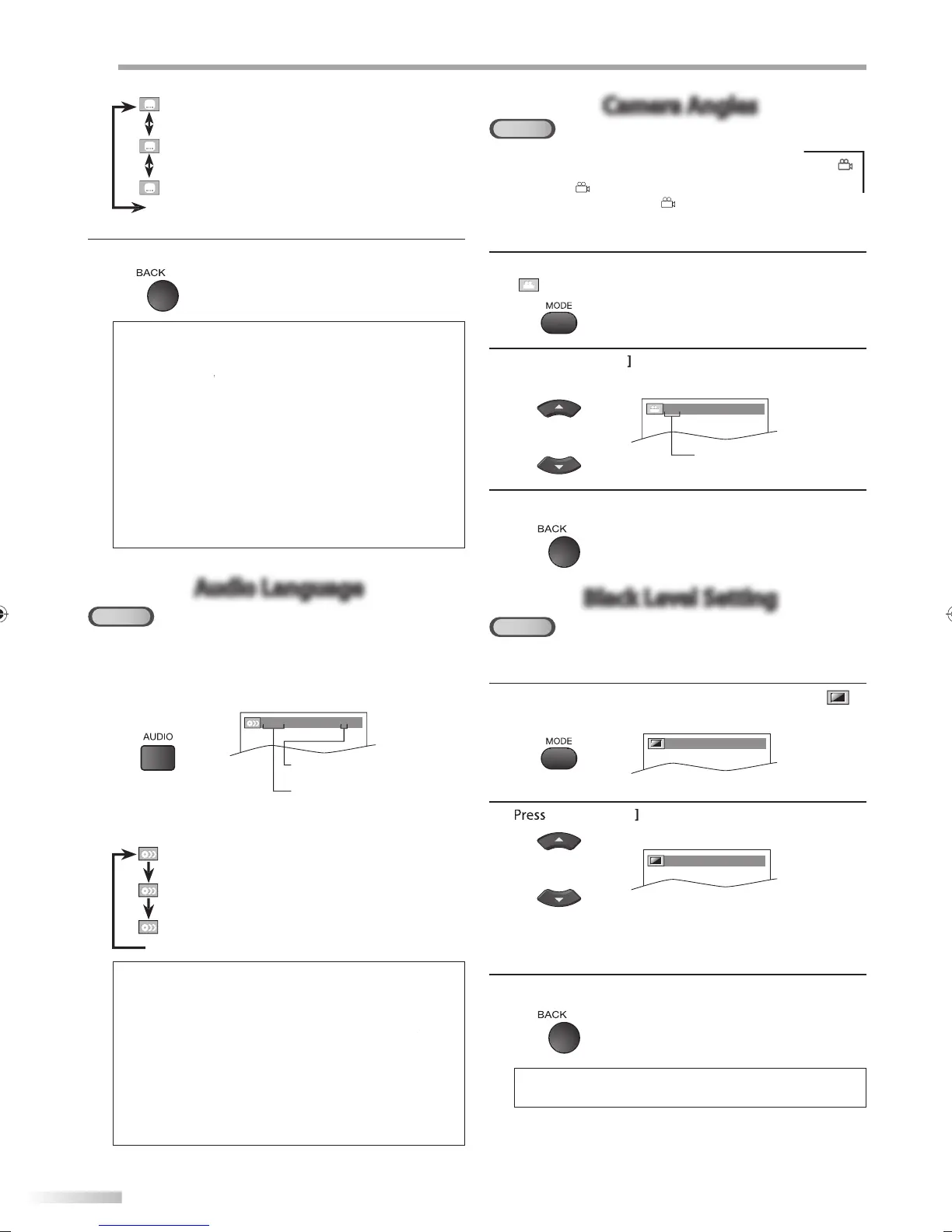
Audio Language
DVD
This unit allows you to select an audio language (if multiple languages are
available) during DVD playback.
During pla
back, press
AUDIO
repeatedl
until the
desired lan
ua
e appears
1.ENG
Dolby D
3/2.1ch 48k/3
• Each time
ou
r
AUDIO
the audio lan
ua
e
han
es as example below.
EN
Eng
is
au
io)
PA
S
anis
au
io)
F
E
French audio
Some
iscs wi
on
a
ow
ou to c
ange t
e au
io setting
rom the disc menu. Re
er to the manual accompanying the
i
r
il
I
your language is not shown a
ter pressing
times, t
e
isc ma
not
ave t
at
anguage
However, some
iscs a
ow
ou to c
ange mu
tip
e au
io
anguages setting in t
e
isc menu. (Operation varies
depending on the disc, so re
er to the manual along with
t
e
isc.
W
en “NOT AVAILABLE” appears on t
e TV screen, it means
au
io
an
ua
e is not avai
a
e.
Camera Angles
DVD
Some DVD may contain scenes which have been shot
simultaneously from various angles. You can change the
camera angle if “
” appears on the screen. If “ANGLE ICON”
is set to “OFF” in “OTHERS” menu, “ ” will not appear. Refer
to page 47.
1
During pla
back, press
MODE
repeatedl
until
a
ears
2
Cursor
repeatedl
until
our desired
camera an
le appears.
an
les can be varied on the
displa
ed number
1 / 8
(
ANGLE
)
3
Pr
BACK
xi
Black Level Setting
DVD
Adjust the black level to make the dark areas of the TV picture brighter.
1
During pla
back, press [MODE
repeatedl
until “
.
OFF
(
BLACK LEVEL
)
2
Cursor
to ad
ust the black level
ON
(
BLACK LEVEL
)
N : Makes the dark areas bri
hter.
F
: Shows the ori
inal picture as recorded
3
Pr
BACK
xi
he settin
will be kept even i
the unit is turned o
.
i
n
v
ri
n
isp
a
e
num
er
current au
io
anguage.
A9DF1UH_LD320SS1_EN_v1.indd 42A9DF1UH_LD320SS1_EN_v1.indd 42 2010/01/22 17:13:582010/01/22 17:13:58






 To Next Page