Using menus
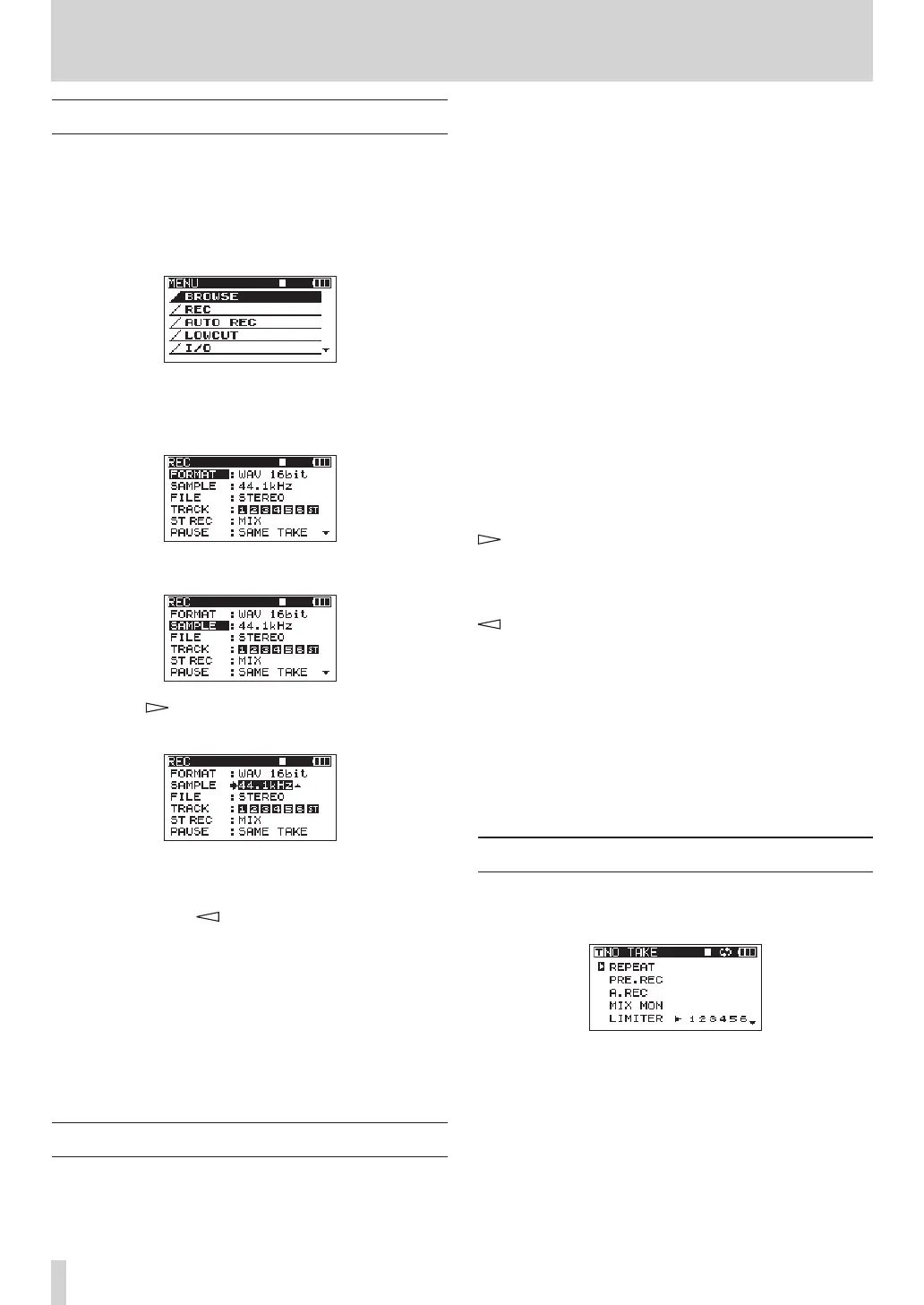
In this example, we show how to change the sampling
frequency.
1 Press the MENU key on the top panel or press
and hold the HOME/FUNC key on the front panel
to open the
MENU
screen.
2 Use the DATA wheel to select the desired menu
item, and press the ENTER key to open the menu
item screen.
3 Use the DATA wheel to select the desired item.
4 Press the key or ENTER key to move the
cursor to the setting value.
5 Use the DATA wheel to change the setting.
6 If you want to set another item within the same
menu, press the key to return to the selection
of setting items, and use the DATA wheel to select
the next item that you want to set.
7 Repeat steps 4–6 as necessary to set other items.
8 Press the MENU key to go back one level in the
menu.
Press the HOME/FUNC key to return to the Home
Screen.
Operation basics
Use the following controls to operate the various
settings screens.
MENU key
Press to open the
MENU
screen when it is not already
open.
When the
MENU
screen is open, press the MENU key to
go back one level in the menu.
You can also press and hold the HOME/FUNC key to
open the
MENU
screen.
DATA wheel
Use to select items and to change values.
You can also use the VALUE dial instead for the same
functions.
ENTER key
Presstoconrmtheselectionofasettingitem,andto
select“YES”onaconrmationpop-upmessage.
You can also press the VALUE dial instead for the same
function.
key
Press to move the cursor right in a settings screen and
to open a folder on the
BROWSE
screen.
key
Press to move the cursor left in a settings screen and to
close a folder on the
BROWSE
screen.
Presstoselect“NO”onaconrmationpop-up
message.
HOME/FUNC key
When a settings screen is open, press the HOME/
FUNC key to return to the Home Screen.
Functions Screen
When the Home Screen is open, press the HOME/
FUNC key to open the Functions Screen.
On the Functions Screen, you can view and activate
the following items.
Repeat
Pre-record
Auto-record
DIN/MIX monitor
Limiter
2 – Names and Functions of Parts


 To Next Page