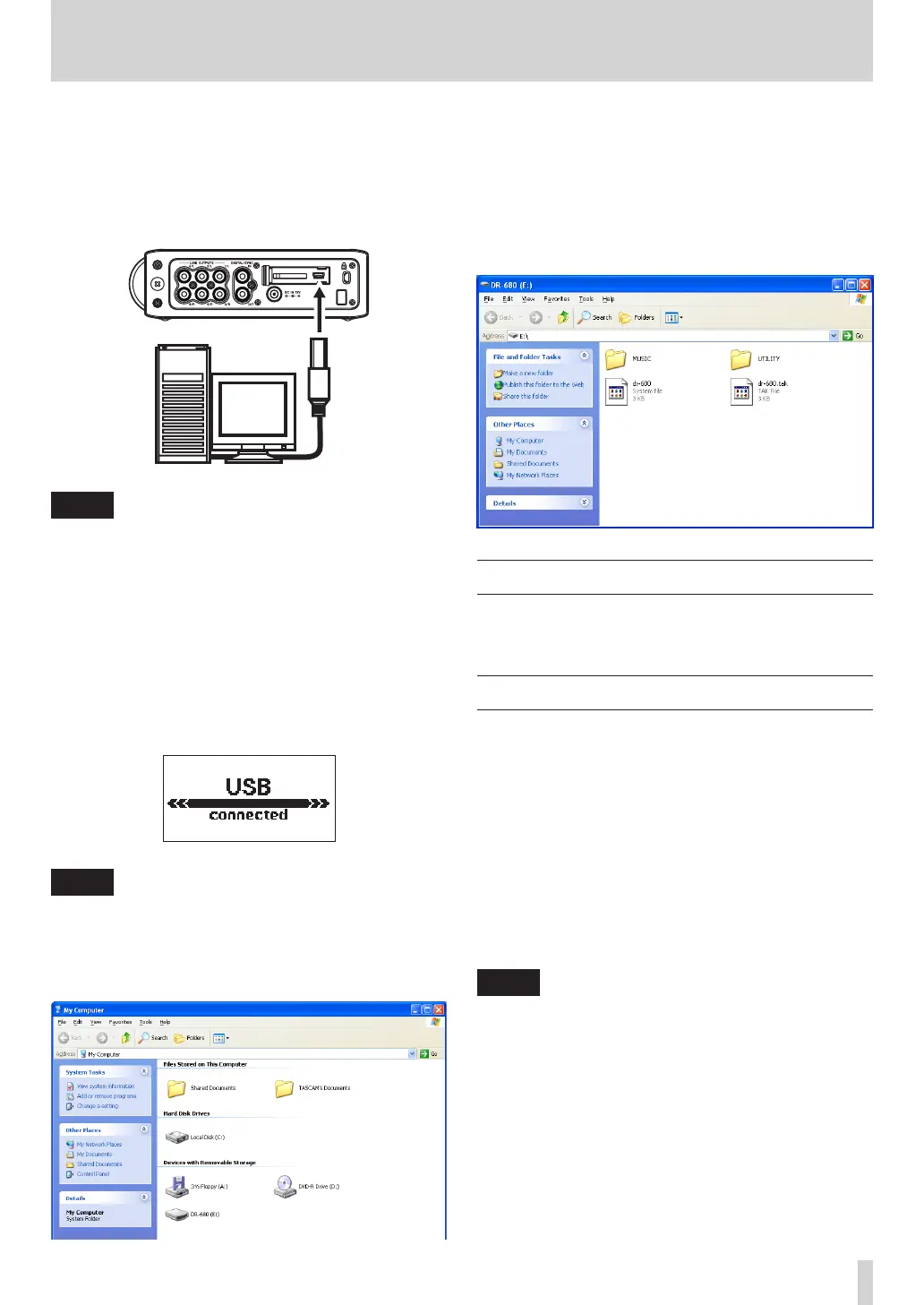
By connecting this unit with a computer using the
includedUSBcable,youcancopyaudiolesbetween
the SD card in the unit and the computer.
This unit can handle MP3 (96, 128, 192, 320 kbps,
44.1/48 kHz) and WAV/BWF (44.1/48/96/192 kHz,
16/24-bit)audioles.
NOTE
Instead of connecting this unit to a computer by USB, you
can also perform the same operations by removing the
SD card and connecting it directly to a computer using a
card reader, for example.
ConrmthatanSDcardisinsertedcorrectlyintothe
unit. If an SD card is not inserted correctly when the
unit is connected to a computer by USB, a “
C a n't
Save
Data
” pop-up message appears.
When connected, “
USB
connected
” appears on the
display of this unit.
NOTE
Other unit functions cannot be used when it is connected
to a computer by USB.
This unit appears on the computer as an external drive
named “
DR-680
”.
On Windows, open “
My computer
” to show the
“
DR-680
” drive.
On Mac OS X, the “
DR-680
” drive should appear on
the desktop or in the Finder sidebar, depending on the
system settings.
Click on the “
DR-680
” drive to show the “
MUSIC
” and
“
UTILITY
” folders.
Copying files to a computer
Open the “
MUSIC
”folder,anddrag-and-droptheles
that you want to copy to any location on the computer.
Copying files from a computer
Draganddroplesfromanywhereonthecomputerto
folders that you create as desired in the “
MUSIC
” folder.
AfteryouhavecopiedlestoanSDcardanddiscon-
nected from the computer, on the
BROWSE
screen,
selectthefolderthatyoucopiedthelesintoand
execute the REBUILD operation. Rebuilding the
folder makes it possible for this unit to play the copied
les.
Beforerebuilding,makesuretheleandfoldernames
contain only single-byte alphanumeric characters.
NOTE
If you use a computer to change the name of a file or
•
folder created by this unit, the unit will not recognize
the affected files as takes. Avoid changing names on a
computer if you want to use them again on this unit.
Files with formats that are not supported by this
•
unit will not be recognized even after rebuilding and
cannot be played back.
7 – Connection with a computer


 To Next Page