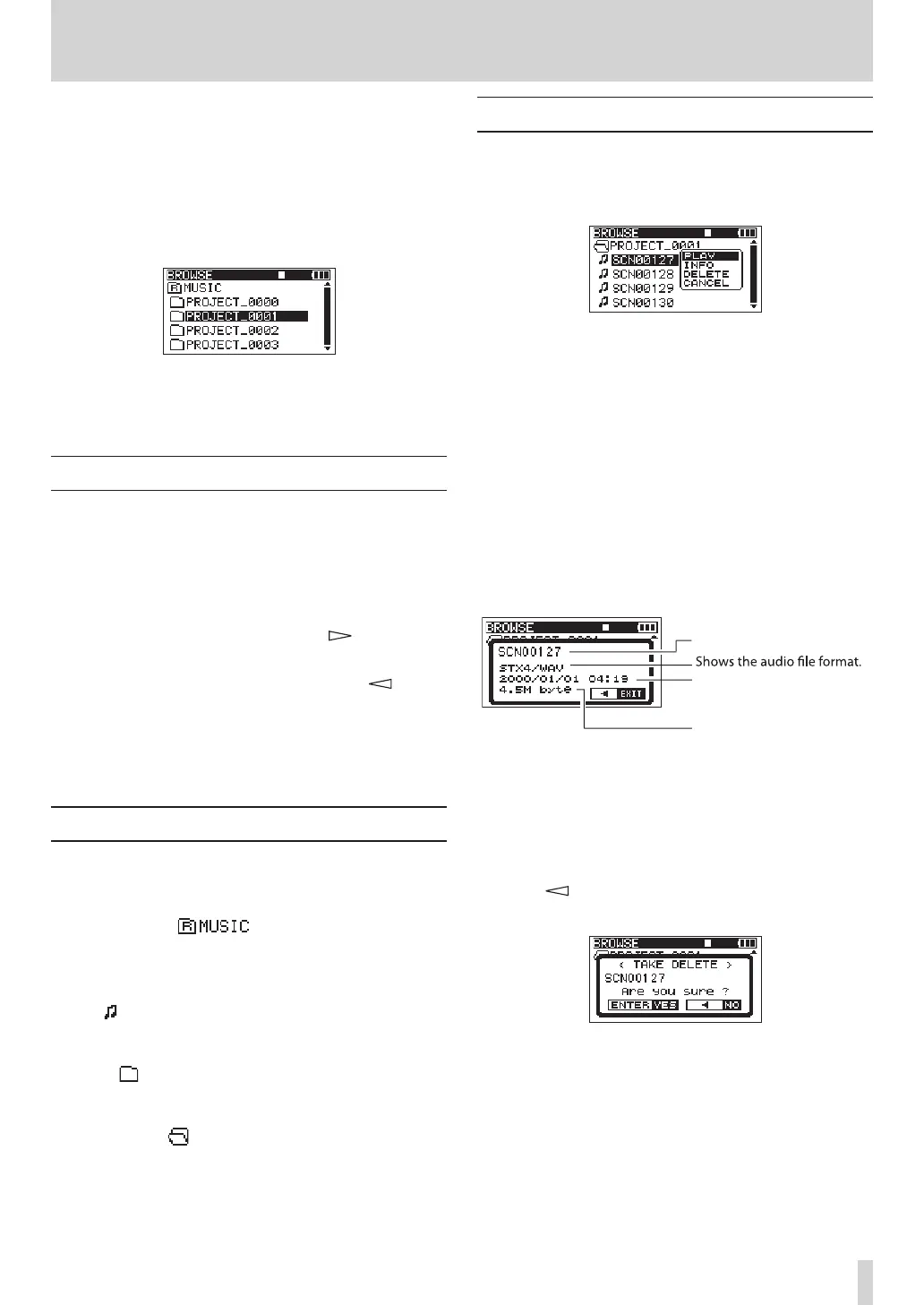
On the
BROWSE
screen, you can view the contents of
the
MUSIC
Folder,whichiswheretakelesarestored
on the SD card.
To open the
BROWSE
screen, press the MENU key to
open the
MENU
screen. Then, use the DATA wheel to
select the
BROWSE
menu item, and press the ENTER
key.
The contents of the folder that contains the take that
was selected on the Home Screen before the
BROWSE
screen was opened appears on the display.
Navigating the BROWSE screen
On the
BROWSE
screen, folders and takes appear in a
hierarchical structure much like they would appear on
a computer. On this unit, only one level of folders can
be created.
Use the • DATA wheel to select takes and folders.
When a folder is selected, press the • key to show
the contents of that folder.
When a taker folder is selected, press the • key to
close the currently open folder and show the higher-
level folder that contains it.
When a folder or take is selected, press the • ENTER
key to open the pop-up menu.
Icons on the BROWSE screen
The meanings of the icons that appear on the
BROWSE
screen are as follows.
MUSIC folder ( )
The
MUSIC
folder is the highest-level folder (root
folder) shown on the
BROWSE
screen.
Take ( )
This icon appears before the name of a recorded take.
Folder ( )
This icon shows a folder.
Open folder ( )
The contents of this folder are currently shown on the
screen.
Take operations
Select the desired take on the
BROWSE
screen and press
the ENTER key to open the pop-up window that is
shown below.
Use the DATA wheel to select the desired item from the
following options, and press the ENTER key to execute
it.
PLAY
Choose this to select the take, return to the Home
Screen and start playback of that take. If the playback
area is set to FOLDER, the folder that contains this
take becomes the playback area.
INFO
This shows information about the selected take. Press
the ENTER key again to return to the
BROWSE
screen.
Shows the take name.
Shows the date that the take
was created.
Shows the take size.
DELETE
If you choose this, a pop-up message appears to
conrmthatyouwanttodeletethetake.Pressthe
ENTER key to erase the take and return to the
BROWSE
screen.
Press the key to cancel deletion and reopen the
pop-up menu.
CANCEL
Press this to not conduct any operation on the selected
take.
5 – Take and folder operations (BROWSE screen)


 To Next Page