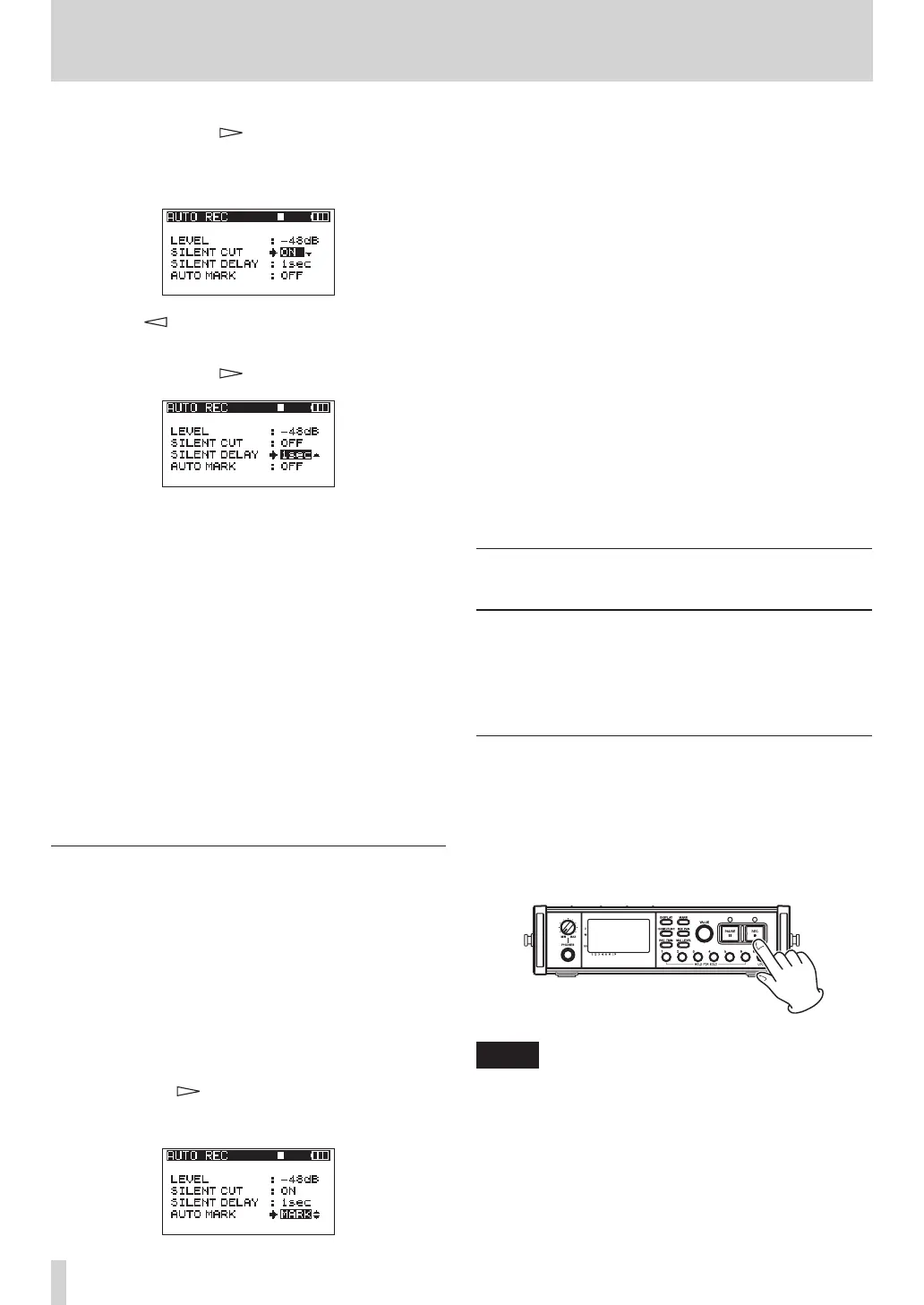
3 Use the DATA wheel to select the
SILENT
CUT
item, and press the key or ENTER key.
4 Use the DATA wheel to set it to
ON
(default value:
OFF
).
5 Press the key to return to selecting items.
6 Use the DATA wheel to select the
SILENT
DELAY
item, and press the key.
7 Use the DATA wheel to set the silence that must
be detected before recording is paused between
1–5 seconds (default value: 1 seconds).
8 When you have finished making the settings,
press the HOME/FUNC key to return to the Home
Screen.
9 Press the PAUSE key to start recording standby.
When the input sound exceeds the level set in the
LEVEL
item, recording starts automatically.
When the input sound level is below the level set
in the
LEVEL
item for a set number of seconds,
recording automatically pauses.
When the input sound exceeds the level set in the
LEVEL
item again, recording restarts automatically.
Automatically adding marks at the
position where recording restarts
You can set whether a mark is added or a new take is
created whenever input higher than the set auto rec
level is detected after the input level has been below
the auto rec level for one second or more.
1 Set the
AUTO
REC
and
LEVEL
as described above.
2 Open the
AUTO
REC
screen of selecting items.
3 Use the DATA wheel to select the
AUTO
MARK
item,
and press the key or ENTER key.
4 Use the DATA wheel to set it to
MARK
or
TAKE
.
OFF
(default): Auto mark function off
MARK
: After the input level has been below the set
auto rec level for one second or more, when
input higher than the auto rec level is detected
again, a mark is added at that position. Recording
continues in the same take.
TAKE
: After the input level has been below the set
auto rec level for one second or more, when
input higher than the auto rec level is detected
again, recording continues in a new take. After
pausing because of activation of the silent cut
function, recording restarts in a new take.
5 When you have finished making the settings,
press the HOME/FUNC key to return to the Home
Screen.
6 Press the PAUSE key to start recording standby.
Depending on the setting, a mark is added or
a new take is created when recording starts
automatically.
Starting a new take and continuing
to record
Withthisunit,themaximumrecordinglesizeis2
GB.Ifthelesizereaches2GBwhilerecording,the
unit automatically continues recording in a new take
and stops recording the current take.
Manually starting a new take during
recording
You can manually create a new take during recording
at any time.
Press the REC key during recording to create a
new take and continue recording.
NOTE
When a new take is created, the number at the end of
•
the take name is increased by one.
You should use a folder that contains as few takes as
•
possible when creating new takes while recording or
when expecting to do so.
The maximum number of takes in a folder is about
•
100.
4 – Recording


 To Next Page