Folder operations
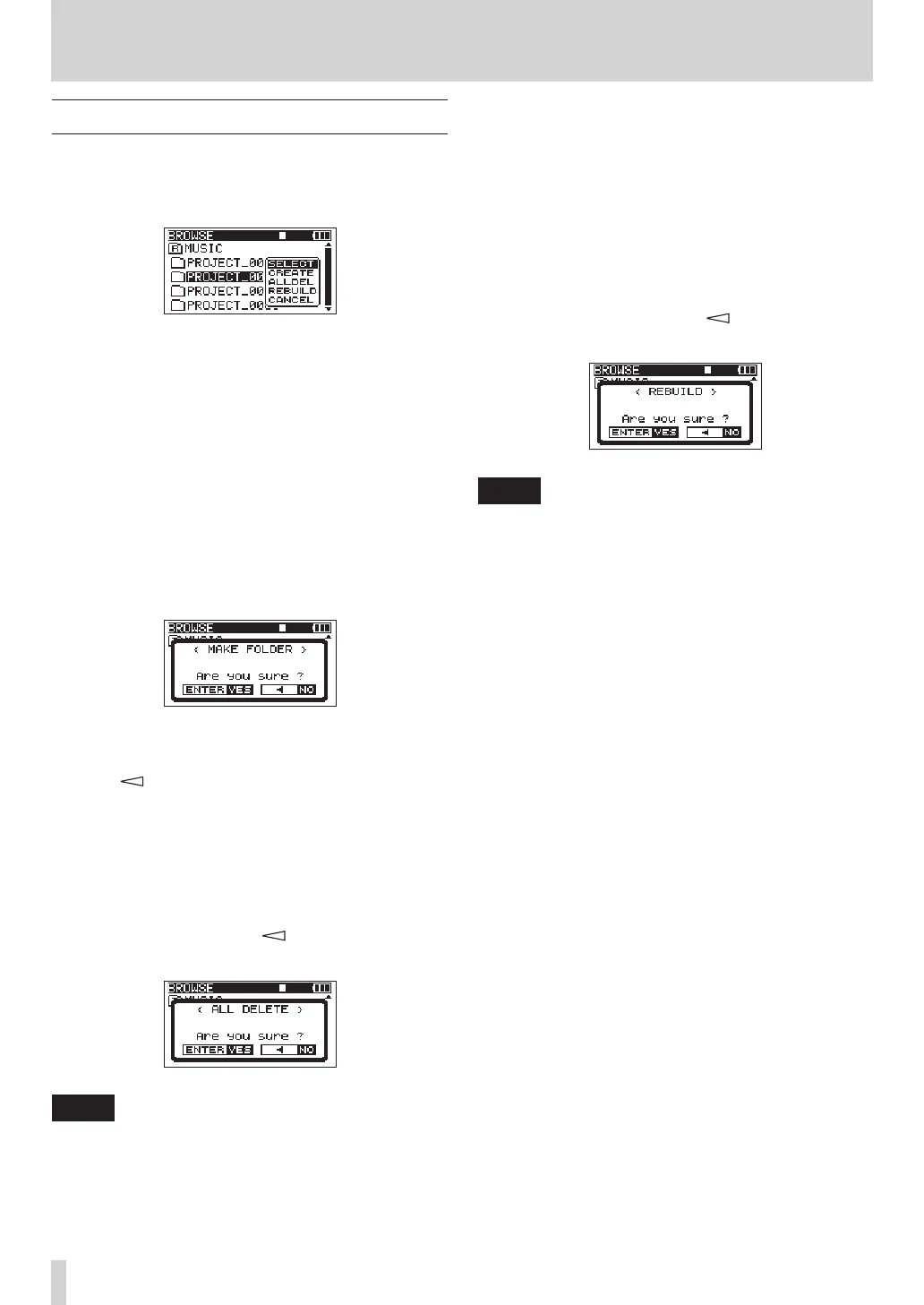
Select the desired folder on the
BROWSE
screen, and
press the ENTER key to open the following pop-up
menu.
Use the DATA wheel to select the desired item from the
following options, and press the ENTER key to execute
it.
SELECT
ReturnstotheHomeScreenandselectsthersttake
in the folder. This folder becomes the new playback
area regardless of the previous playback area setting.
New recorded takes are saved in this folder.
CREATE
Apop-upappearstoconrmthatyouwanttocreatea
new folder.
Press the ENTER key to create a new folder. New
recorded takes are saved in this folder.
Press the key to cancel folder creation and reopen
the pop-up menu.
ALLDEL
Apop-upappearstoconrmthatyouwanttodeleteall
the takes in the selected folder at once.
Press the ENTER key to erase the takes and return to
the
BROWSE
screen. Press the key to cancel deletion
and reopen the pop-up menu.
NOTE
This unit cannot delete write-protected files and files that
the unit does not recognize.
REBUILD
Apop-upappearstoconrmthatyouwanttorebuild
the selected folder. Rebuilding refreshes the take infor-
mationinsidetheselectedfolder,andrecognizesles
that are not contained in takes as independent takes,
making their playback possible. Use this function after
youhavecopiedlestotheSDcardfromacomputer,
for example.
Press the ENTER key to rebuild the folder and return
to the
BROWSE
screen. Press the key to cancel
rebuilding and reopen the pop-up menu.
NOTE
Files with formats that are not supported by this
•
unit will not be recognized even after rebuilding and
cannot be played back.
Files with file names that contain characters other than
•
standard single-byte alphanumeric characters cannot
be played back even after rebuilding.
CANCEL
Press this to not conduct any operation on the selected
folder.
5 – Take and folder operations (BROWSE screen)


 To Next Page