Adjusting the input levels
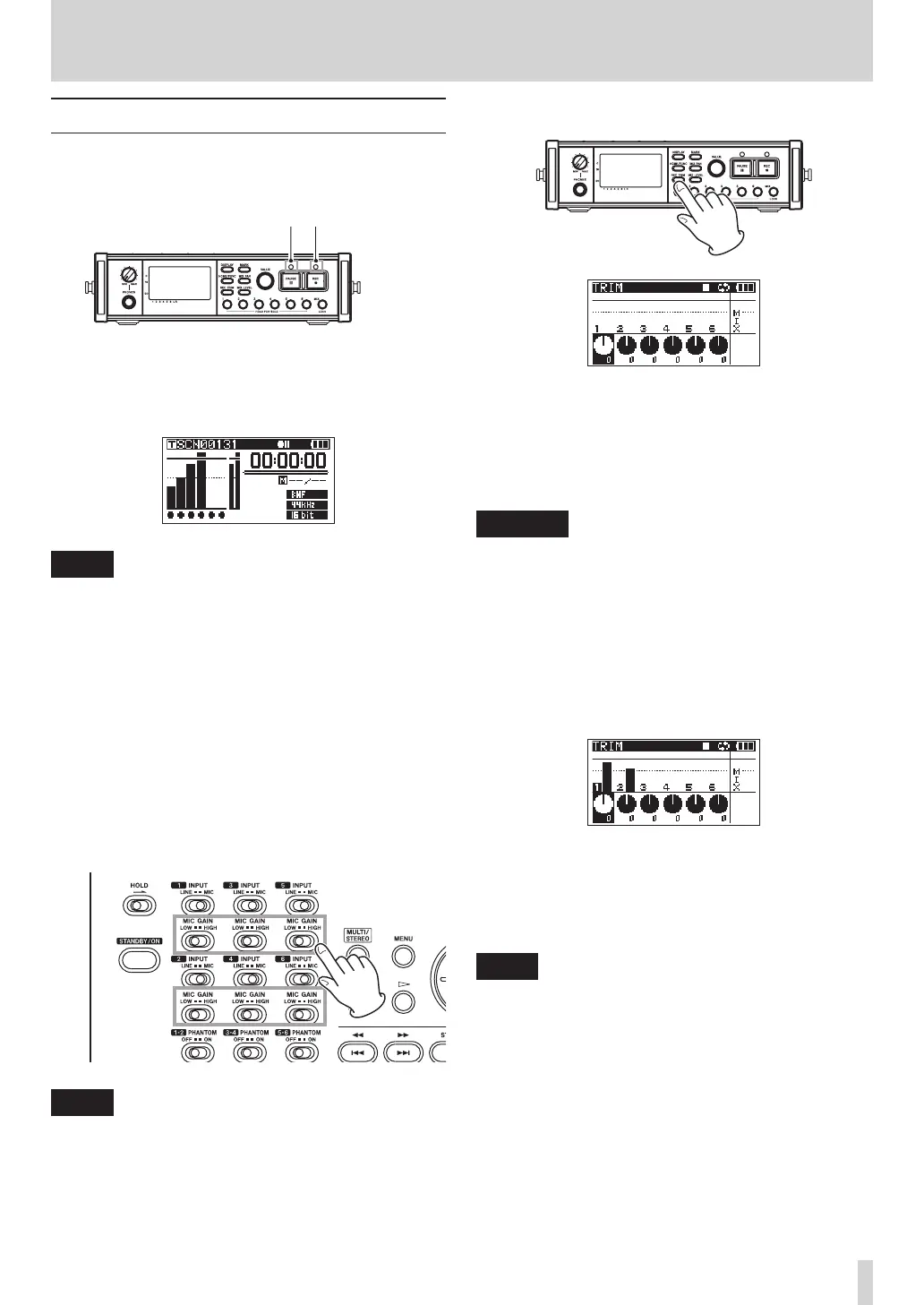
1 Press the PAUSE key to enable recording
standby. The PAUSE and REC indicators light.
PAUSE indicator
REC indicator
2 Use the 1-6 and MIX keys to turn the record
function ON for tracks that you want to record.
When the record function is ON for a track, an
º appears under its meter on the display.
NOTE
If the file recording mode is set to STEREO, the record
•
function is turned ON and OFF for channels in pairs.
If the file recording mode is set to 6ch, the record
function cannot be turned ON and OFF for individual
channels.
The record function can only be turned ON/OFF when
•
record standby is enabled when the unit is stopped
or during playback. It cannot be turned ON/OFF
when record standby is caused by use of the Auto
Rec function or record standby is enabled during
recording.
3 If a mic is connected, set the MIC GAIN switch for
that input to LOW.
NOTE
If an INPUT switch is set to LINE, the corresponding MIC
GAIN switch is disabled.
4 Press the REC TRIM key to open the
TRIM
screen.
5 Use this screen to set input levels. Use the 1–6
keys to select the input channels that you want to
adjust.
6 Use the VALUE knob to adjust the input levels in
a range of ±32 dB (default value: 0).
CAUTION
When recording with microphones, please pay attention
to the following points.
Adjust the input level so that distortion does not occur
•
at the input stage. If distortion does occur at the input
stage, the channel number to the left of the meter
on the TRIM screen is shown as a light number on a
dark background. In this case, the unit might record
distorted sound even if the overload indicator for the
meter has not appeared.
When adjusting the input level, at first, set the MIC
•
GAIN switch to LOW and adjust the input level on
the TRIM screen. If the input level is still too low even
when the trim is set to maximum, set the MIC GAIN
switch to HIGH.
TIP
In addition to using the TRIM screen to adjust the
•
recording levels, try changing the orientation of the
microphones and their distances from the sources
of the sound. The orientation and distance of a
microphone also changes the sound quality.
You can use the limiter function to prevent distortion
•
when recording even when loud sounds are input.
(See “Using the limiter” on page 33.)
7 Press the REC TRIM or HOME/FUNC key to
return to the Home Screen.
4 – Recording


 To Next Page