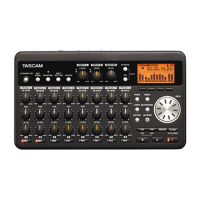
2. Use the DATA wheel on the top panel to select
(highlight) the
REC
menu item and press the
ENTER key on the top panel to open the
REC
screen.
3. Use the DATA wheel to select (highlight) the
TRACK
item.
4. Use the 1-6 keys on the front panel to arm/
disarm recording for the corresponding tracks.
When a track is armed for recording, its track
number appears light on a dark background.
Creation of new takes when restarting
recording
Set whether the unit continues recording to the same
take or begins a new take when restarting recording.
This setting determines the take recorded to when
you press the REC key again after having pressed the
PAUSE key to put the unit in recording standby.
1 Press the MENU key to open the
MENU
screen.
2 Use the DATA wheel to select the
REC
menu item,
and press the ENTER key to open the
REC
screen.
3 Use the DATA wheel to select the
PAUSE
item, and
press the key or ENTER key.
4 Use the DATA wheel to select one of the following
options.
SAME
TAKE
(default value):
Continue recording to the same
take.
NEW
TAKE
: Record to a new take.
5 Press the key to return to the selection of
items on the
REC
screen.
6 Press the MENU key to return to the
MENU
screen.
Press the HOME/FUNC key to return to the Home
Screen.
Setting the name given to recording takes
Set whether take names are based on the date or one of
three names that have been created on the
NAME
E DIT
screen.
1 Press the MENU key to open the
MENU
screen.
2 Use the DATA wheel to select the
REC
menu item,
and press the ENTER key to open the
REC
screen.
3 Use the DATA wheel to select the
NAME
item, and
press the key.
4 Use the DATA wheel to select one of the following
options.
DATE
(default
value):
The take name is based on the date.
USER
1
: The take name is based on a user word
denedonthe
USER
WORD
edit screen.
USER
2
: The take name is based on a user word
denedonthe
USER
WORD
edit screen.
USER
3
: The take name is based on a user word
denedonthe
USER
WORD
edit screen.
5 Press the key to return to the selection of
items on the
REC
screen.
6 Press the MENU key to return to the
MENU
screen.
Press the HOME/FUNC key to return to the Home
Screen.
Editing the user take names
You can edit the user words used for take names on the
NAME
E DIT
screen.
1 Press the MENU key to open the
MENU
screen.
2 Use the DATA wheel to select the
REC
menu item,
and press the ENTER key to open the
REC
screen.
3 Use the DATA wheel to select the
NAME
item, and
press the key.
4 – Recording


 To Next Page