q / (cursor) keys
Use these on various settings screens to move the
cursor left and right.
On the
BROWSE
screen, use these to move up and
down levels.
Use key to respond “NO” to confirmation
pop-up messages on various settings screens or to
cancel the current operation.
w Â/Ô key
Press this key during playback or when stopped in
the middle of a take to return to the beginning of
the current take.
Press when stopped at the beginning of the take to
skip to the beginning of the previous take.
Press and hold to search backwards.
Press this key while pressing the MARK key on the
front panel to move to the previous mark.
e /¯ key
Press this key during playback or when stopped to
skip to the beginning of the next take.
Press and hold to search forward.
Press this key while pressing the MARK key on the
front panel to move to the next mark.
r STOP (CLEAR) key
Press to stop recording and playback and locate the
transport to the beginning of the current take.
Press to end recording standby.
Press this key while pressing the MARK key on the
front panel to erase the current mark.
t PLAY/PAUSE key
Press when stopped or paused to start playback.
Press during playback to pause at that position.
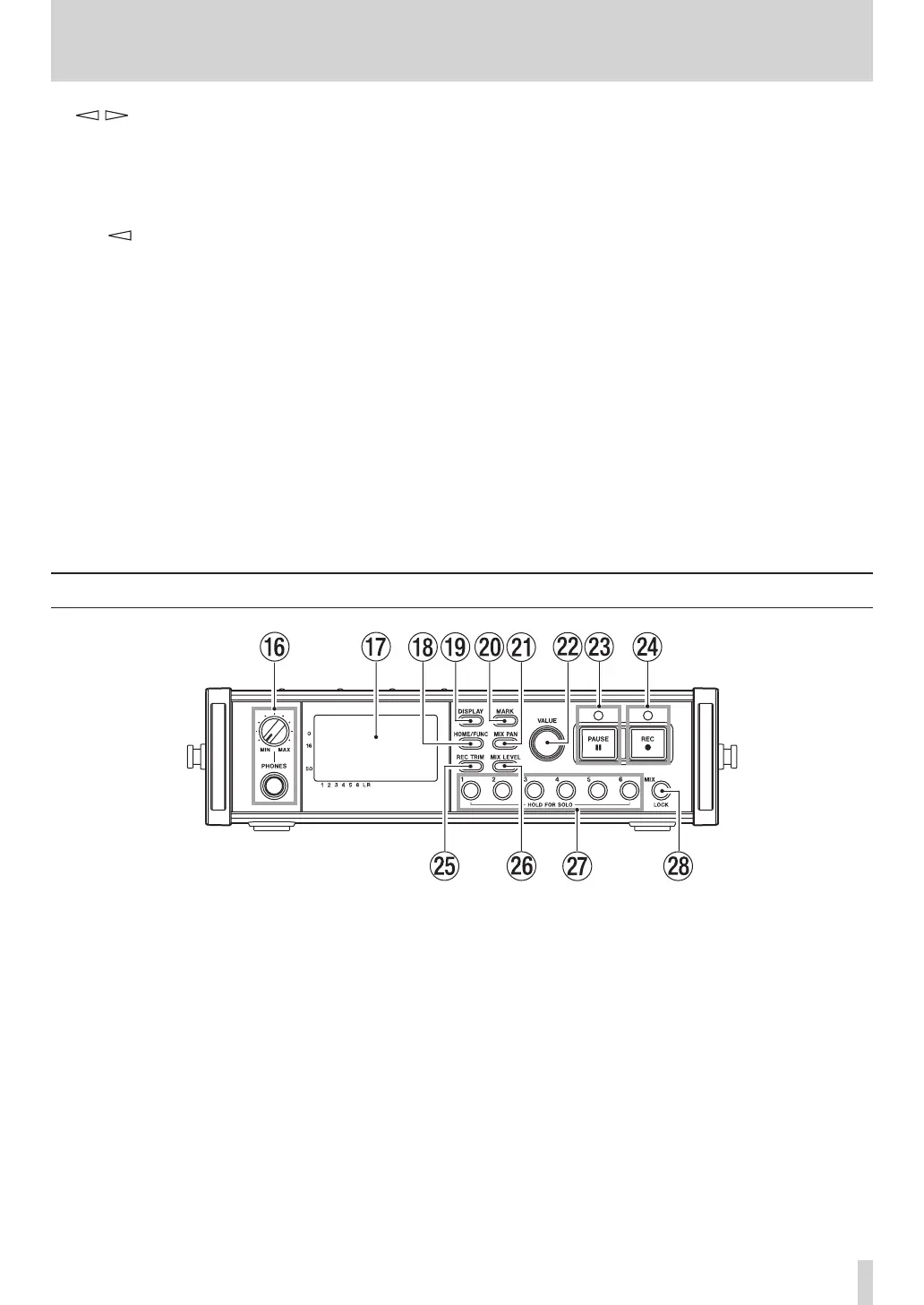
Front panel
y PHONES jack and knob
Use this standard stereo phone jack to connect
headphones. Use the PHONES knob to adjust the
headphones and speaker output level.
u Display
This shows a variety of information related to the
operation of the unit.
i HOME/FUNC key
Press when any screen other than the Home Screen
is open to return to the Home Screen.
Press when the Home Screen is open to open the
Functions Screen.
When the Home Screen is open, press and hold this
button to open the
MENU
screen.
o DISPLAY key
Press to switch the counter display mode.
Turn the VALUE knob on the front panel while
pressing this key to adjust the display contrast.
p MARK key
Press during playback or recording to add a mark
at that time.
Press the Â/Ô key on the top panel while
pressing this key to move to the previous mark.
Press the ¯/ key on the top panel while
pressing this key to move to the next mark.
Press the STOP key on the top panel while pressing
this key to erase the current mark.
2 – Names and Functions of Parts


 To Next Page