Tosetthesecuritychip,youhavetostartClientSecuritySolution,andfollowtheinstructionsonthescreen.
Note:ClientSecuritySolutionisnotpreinstalledonWindows7andWindows8models.Tocongure
thesecuritychip,youneedtodownloadthelatestversionofClientSecuritySolutionfromtheLenovo
Website.TodownloadClientSecuritySolution,gotohttp://www.lenovo.com/support.Thenfollowthe
instructionsonthescreen.
Usingthengerprintreader
Dependingontheoptionsyouordered,yourcomputermighthaveanintegratedngerprintreader.By
enrollingyourngerprintandassociatingitwithapower-onpassword,aharddiskpassword,orboth
passwordsbeforehand,youcanstartthecomputer,logontothesystem,andenterThinkPadSetupby
swipingyourngeroverthereader,withouttypingapassword.Thusngerprintauthenticationcanreplace
passwordsandenablesimpleandsecureuseraccess.
Enrollingyourngerprint
1.Turnonyourcomputer.
2.TostartLenovoFingerprintsoftware,referto“Lenovoprograms”onpage14.
3.Followtheinstructionsonthescreentoenrollyourngerprint.Fordetails,refertotheHelpforthe
program.
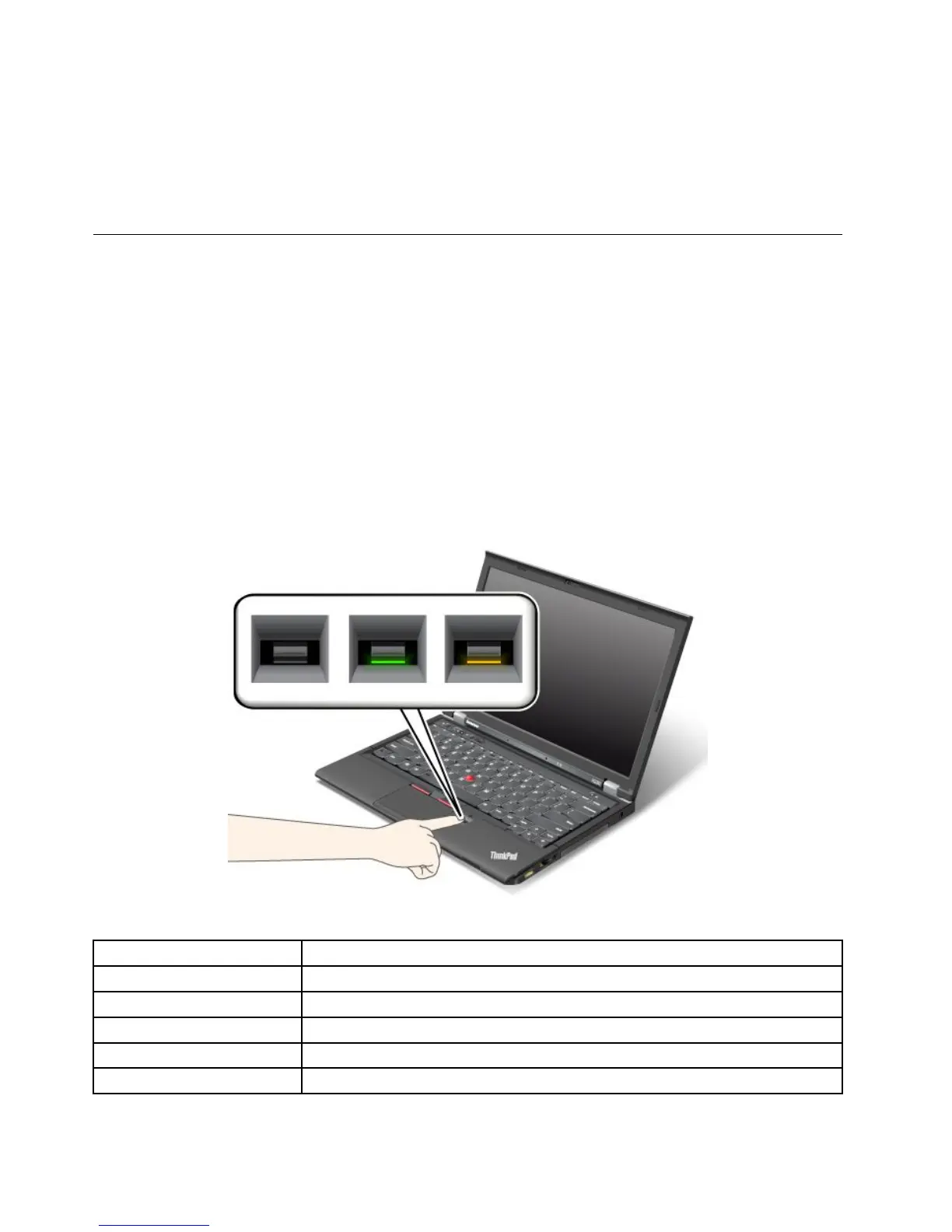
LEDbehaviorofthengerprintreader
Table4.LEDbehaviorlist_ngerprintreader
LEDbehaviorDescription
Steadygreen
Thengerprintreaderisreadytoswipe.
Blinkinggreenonce
Thengerprintisbeingauthenticatedorhasbeenauthenticated.
Blinkinggreen
Thengerprintreaderisreadytoswipeinpower-onauthenticationstate.
Blinkingamber
Thengerprintcouldnotbeauthenticated.
Steadyamberfor15seconds
Thepower-onauthenticationfeatureisdisabledafterthreebadngerprintswipes.
56UserGuide



 To Next Page