20 I
www.inavi.com
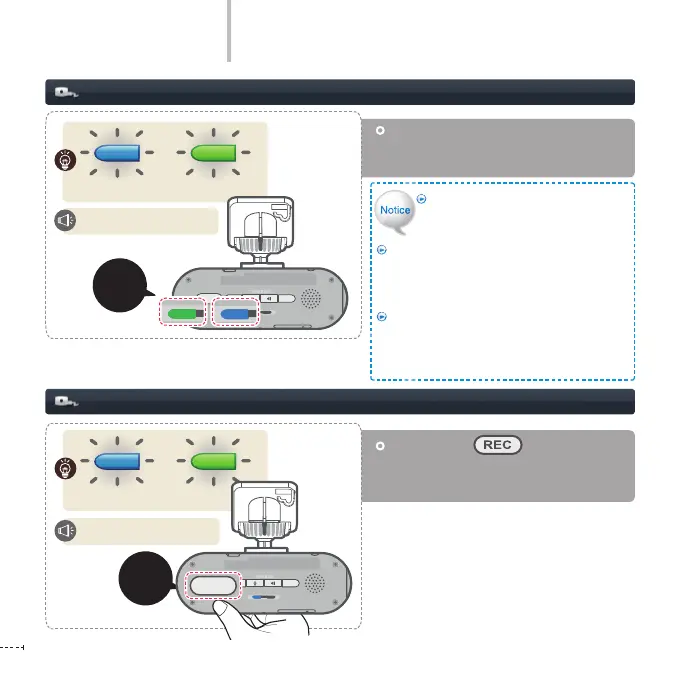
Auto parking mode setting (default setting)
Basic Operation
Press the REC ( ) button (for more
than 3 seconds) to change to the Parking
Mode with voice guidance.
Manual parking mode setting
Starts parking recording.
When the vehicle power is turned o, the
mode is automatically changed to the
ParkingMode with voice guidance.
Starts parking recording.
You need the PC Viewer and Live View
conguration. (The default setting is
the Auto Parking Mode)
To change to Auto Parking mode is available,
you should use our retail continuous power
cable. (If the cable is not our retail continuous
power cable, the product may malfunction.)
It takes about 30 seconds to switch to the Auto
Parking Mode, however, the mode may not be
switched to the Auto Parking Mode to prevent
discharge of the battery.
Long
(more than
3 seconds)
Cross blinking
+
Cross blinking
+
REC
GPS
SD FORM AT
STATE
micro SD
REC
GPS
SD FORM AT
STATE
micro SD
REC
GPS
SD FORM AT
STATE
micro SD
REC
GPS
SD FORMAT
STATE
micro SD
REC
GPS
SD FORM AT
STATE
micro SD
REC
GPS
SD FORM AT
STATE
micro SD
REC
GPS
SD FORM AT
STATE
micro SD
REC
GPS
SD FORM AT
STATE
micro SD
REC
GPS
SD FORM AT
STATE
micro SD
REC
GPS
SD FORM AT
STATE
micro SD
REC
GPS
SD FORM AT
STATE
micro SD
REC
GPS
SD FORM AT
STATE
micro SD
REC
GPS
SD FORM AT
STATE
micro SD
Cross
light on


 To Next Page