46
BASIC OPERATION
SPECIFICATION/CHANGE OF MASK AND INPUT OF VISUAL ACUITY
When the visual acuity chart is used, you can apply a mask and input the visual acuity.
(Sometimes a mask is not applied by the specified operation because of the chart device being
used.)
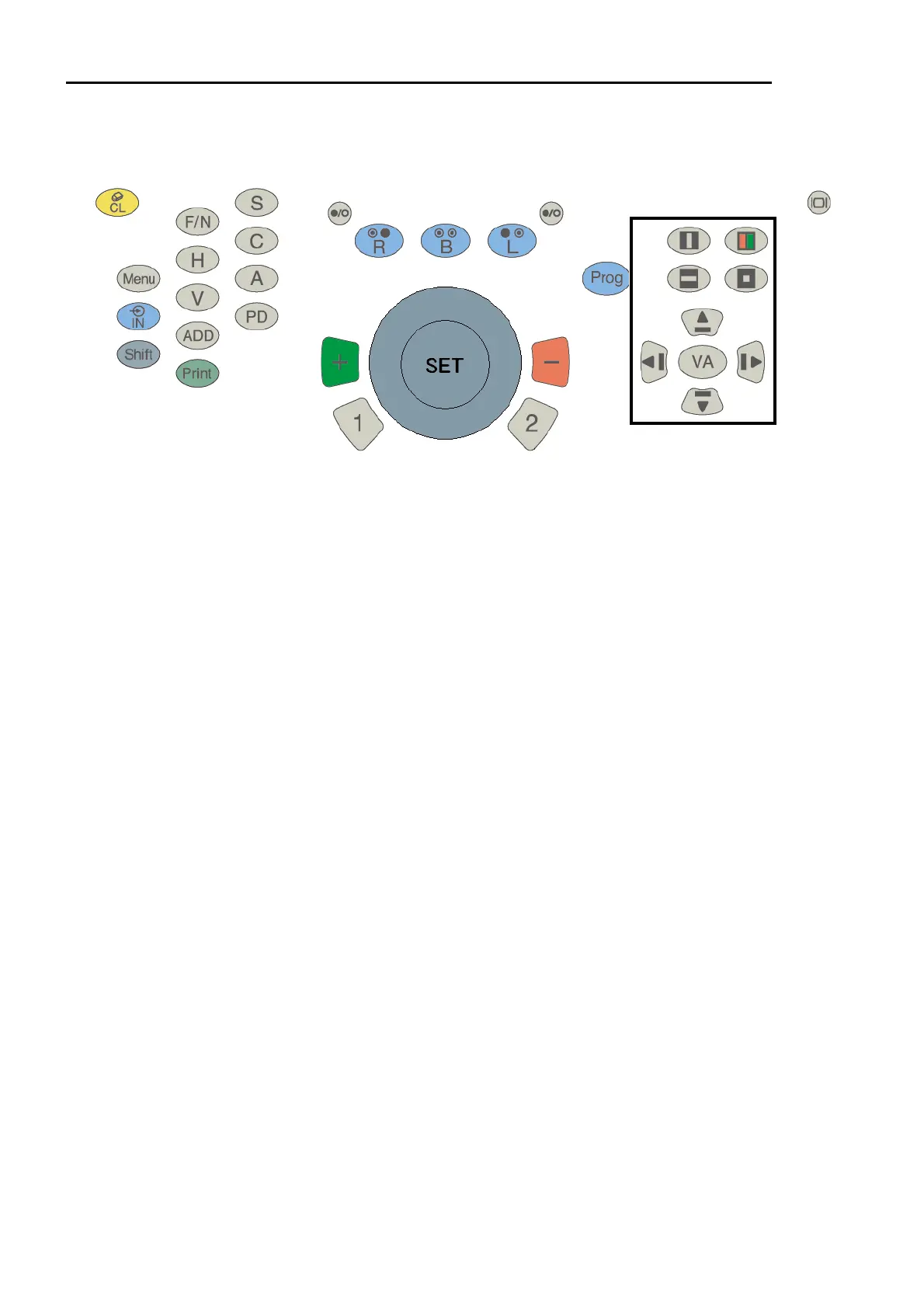
When applying the mask through keyboard:
• When applying the vertical mask
Press the [vertical mask] switch, or press the [left arrow] or [right arrow] switch.
• While the vertical mask is applied:
Press the [left arrow] or [right arrow] switch. → The mask is slid horizontally.
Press the [up arrow] or [down arrow] switch. → The mask is slid vertically.
Press the [vertical mask] switch again, and the mask is removed.
• When applying the horizontal mask
Press the [horizontal mask] switch, or press the [up arrow] or [down arrow] switch.
• While the horizontal mask is applied:
Press the [up arrow] or [down arrow] switch. → The mask is slid vertically.
Press the [horizontal mask] switch again, and the mask is removed.
• When applying the character mask
Press the [character mask] switch. → Only the left upper corner is seen.
• While the character mask is applied:
Press the [left arrow] or [right arrow] switch. → The mask is slid horizontally.
Press the [up arrow] or [down arrow] switch. → The mask is slid vertically.
Press the [character mask] switch again, and the mask is removed.
• When applying the red/green filter
Press the [red/green] switch. → The red/green filter is applied to the presented visual acuity
chart.
• While the red/green filter is applied:
Press the [up arrow] or [down arrow] switch. → The chart is slid vertically.
Press the [red/green] switch again, and the red/green filter is removed.
• When inputting the visual acuity
Press the [VA] switch. Select a visual acuity with the dial and then press the [SET] switch.
The visual acuity is displayed in the main data area.


 To Next Page