53
OTHER FUNCTIONS
Registration of program course
1 Press the [Shift] key and [Menu] key on the keyboard.
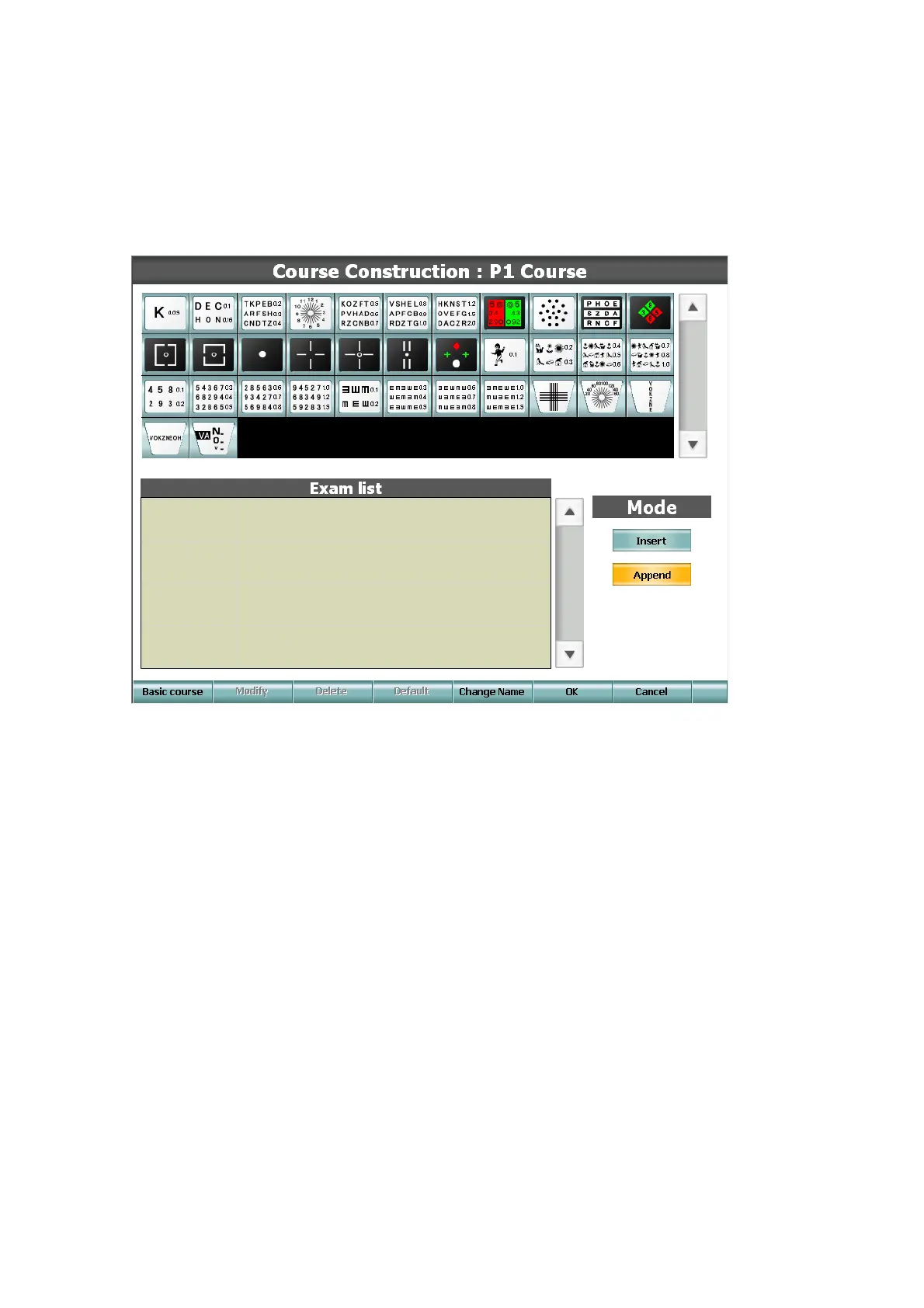
2 Touch the [Course Construction] button on the [Settings] screen.
3 Touch the course button to be changed.
4 The course registration screen appears.
5 Touch [Basic course].
Touch the course if you register the program course as referring to the standard course or the
already registered course.
The tests of the selected program course are displayed on "Exam list".
6 Select a chart from the chart list.
Select the chart, which should be set in the program, from the chart list. While a chart is
selected, perform the following procedure.
• Touch the [Append] button, and the chart is added to the last of "Exam list".
• Touch the [Insert] button, and the chart is inserted to above the chart selected in "Exam list".
7 Touch the [Default] button.
The standard test parameters related to each chart are read.
8 Select the chart registered in "Exam list" and touch the [Modify] button.
If you want to customize the test information of the registered chart, you can customize it with the
[Modify] button in the same way as the registration of Semi-Auto course.


 To Next Page