MC-X1 Connectivity and Configuration
Connecting to the MC-X Web Interface
4
X-52/X-72 2D Excavator Installation and Calibration Manual P/N: 1022461-01
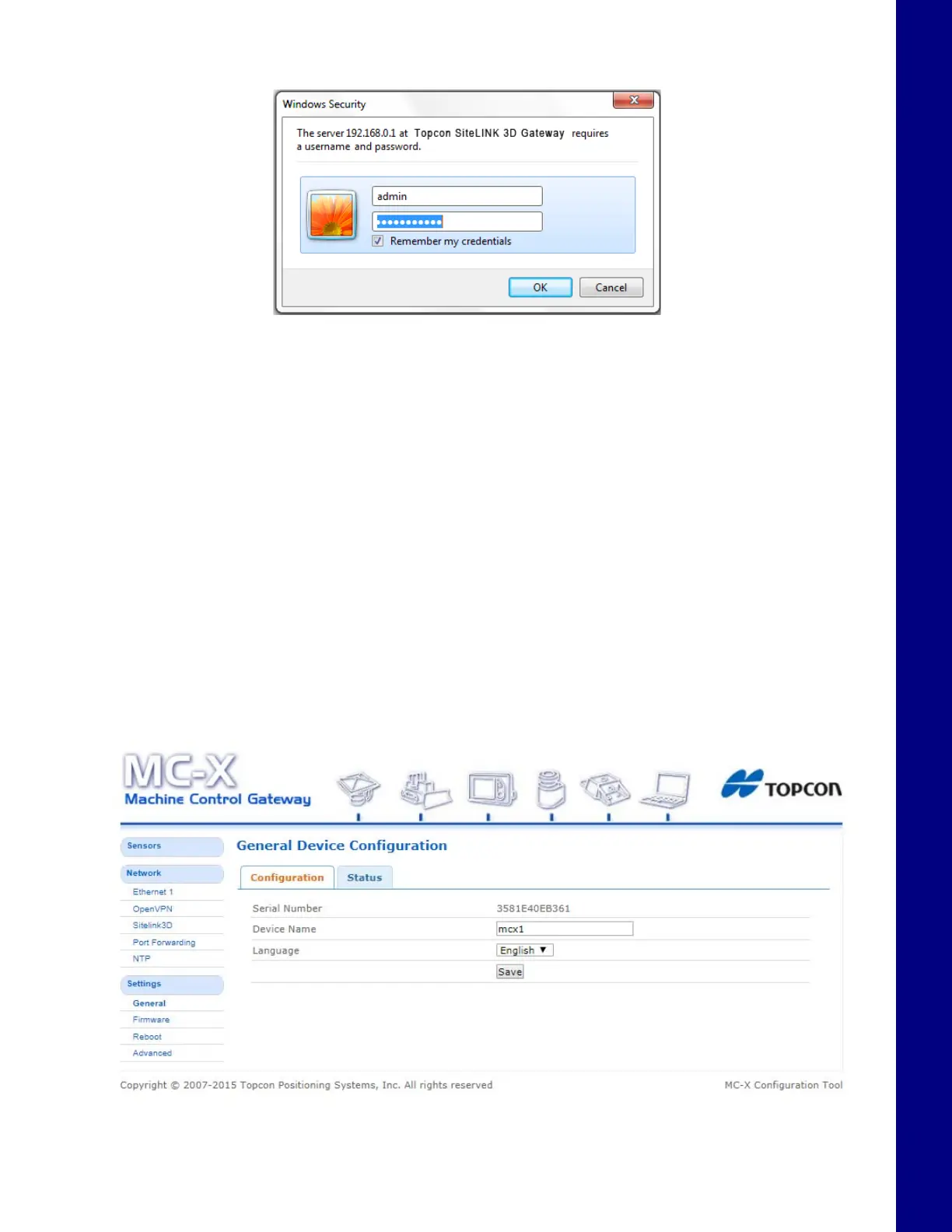
When prompted for the user name and password, enter admin for both (Figure 6).
Figure 6. Enter Sitelink3D User Name and Password
Connecting to the MC-X Web Interface
via MCXCONFIG
1. Download the MCXCONFIG installer file from myTopcon
(https://www.topconpositioning.com/support).
2. Double-tap on the MCXCONFIG program icon on the desktop of the GX Series display to open the
web interface.
3. When prompted for the user name and password, enter admin for both.
Viewing General Information and Firmware
From the left menu on the screen, click Settings General. The device information is listed in the
General Device Configuration screen (
Figure 7).
Figure 7. General Device Information


 To Next Page