12 Maintenance and Troubleshooting
Varec, Inc. 133
Using ViewRTU to Troubleshoot the 2920 FTT
For diagnostics and troubleshooting of the 2920 FTT, a laptop computer running the ViewRTU
software can be connected to the RS-232 port. The user can then use ViewRTU to run
diagnostics or perform other troubleshooting procedures on the transmitter.
Warning! Obtain a hot permit before removing the transmitter cover with power
applied.
Note For more detailed information regarding the ViewRTU program, refer to any Varec
RTU Installation and Operation manual.
1. Remove the 2920 FTT cover.
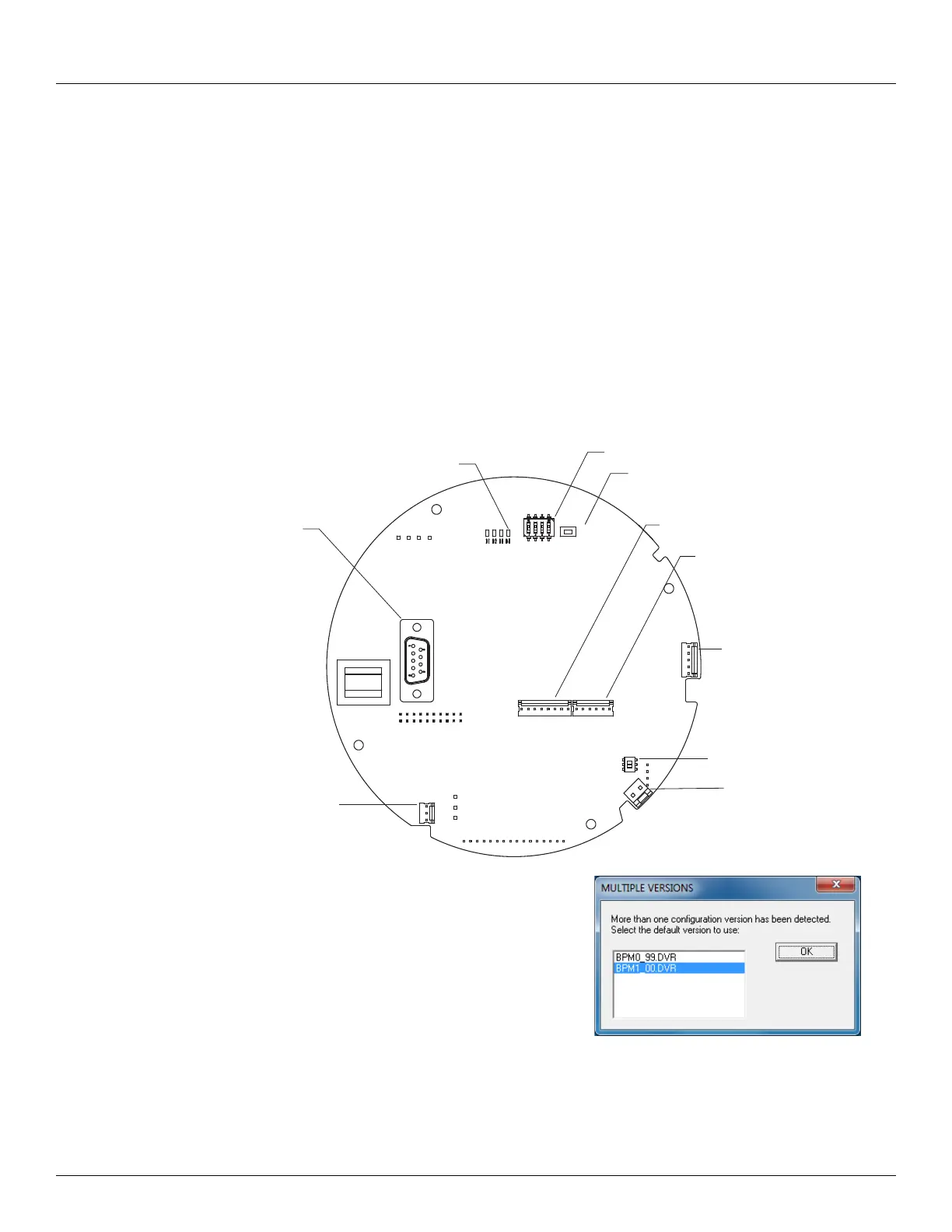
2. Connect the communications port of a laptop computer running ViewRTU software to the
RS-232 connector (J6) on the communications circuit board using a crossover (Null
MODEM) cable. The following figure shows the connector.
3. Start the ViewRTU application.
You are prompted to select a firmware
version file. Select the file that
matches the communications proto-
col used by the 2920 FTT, and then
click OK.
4. The main screen appears, as shown in
the following figure.
RESET
LED
SW1
J6
J8
SW6
J9
J7
J12
J11
SW2
J6
RS-232
J12
SW6
J11
J7
J9
J8
Reset SW2
SW1
LED D4



 To Next Page