Page 139 of 244
4.4. PANO Collimator Alignment
4.4.1. PANO Collimator Alignment
1. Run the C:\VCaptureSW\Acquisition\PANO\WidePANO\VACAP.exe file.
2. Send [SPM_PANO], [SPM_PSON], [SPM_FIPM_0004], [SPM_FISS_0001],
[SPM_FISM_0001], [SPM_COLM_0007] commands to the command window to set the
PANO sensor and collimator.
3. Send [SPM_HV___0740], [SPM_HA___1200], and [SPM_SSB_] commands in the VACAP’s
Command window, and acquire the image.
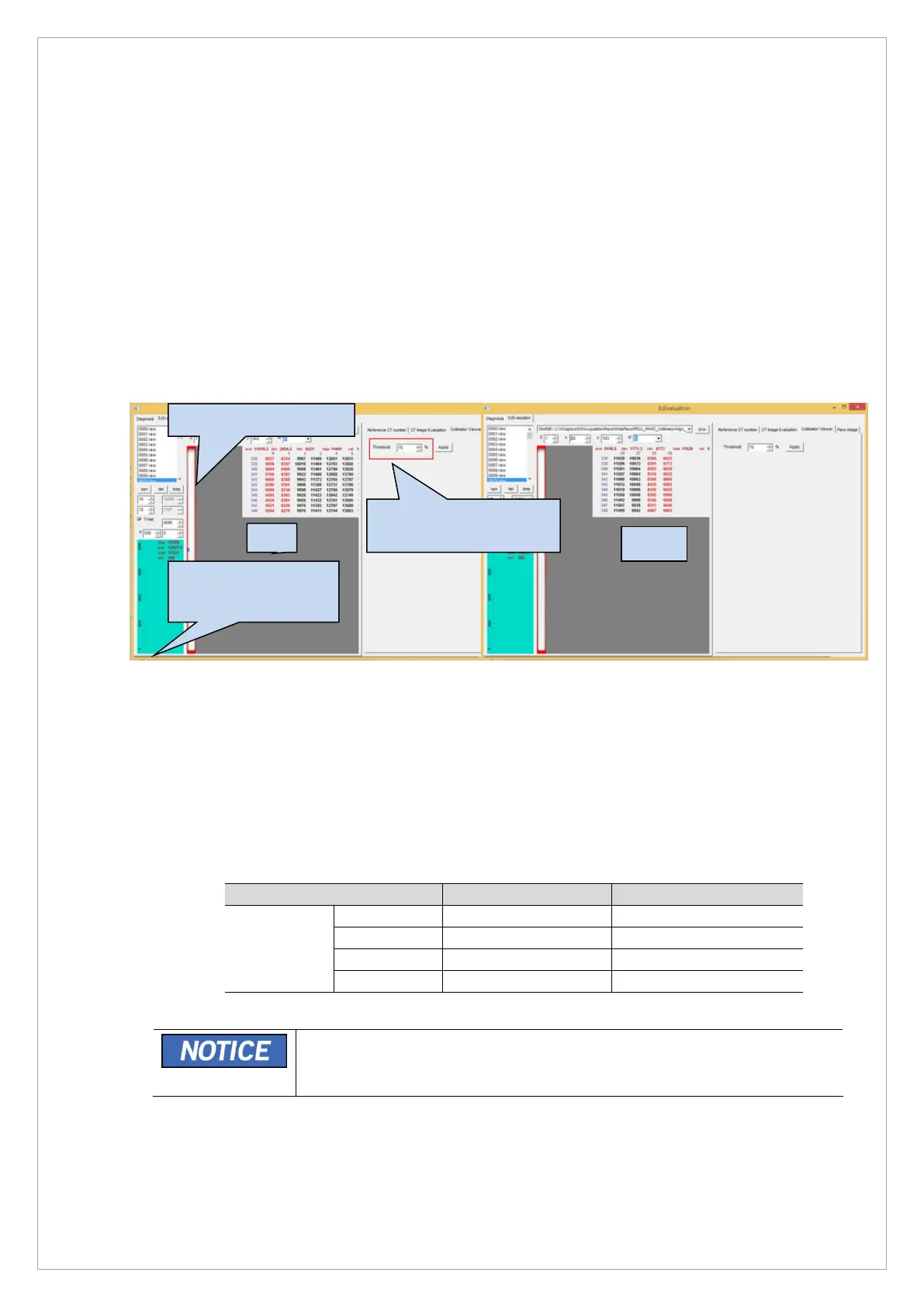
4. Run EzEval.exe file, choose EzEvaluation for the tap menu on the top left and choose
collimator viewer from the tap menu on the top right.
5. Set the threshold value concerning the following standard, and check 0010.raw to check if it
satisfies the collimator alignment standard below.
6. If the Left and Right do not meet the standards, adjust the [SPM_CCST_XXXX] command.
To check the current value, enter [SPM_CCS?] to the command window.
7. Top/Bottom should be 1~10 pixels. If it does not meet the standard, check the collimator
position and move it.
※ Collimator Alignment standard value
Threshold
70%
If values are changed after the collimator alignment, conduct the collimator
speed calibration. (See 4.5)
The threshold 70%
area is marked in red.
click the Apply button.


 To Next Page