VIVOTEK
User's Manual - 89
Edit Schedule List
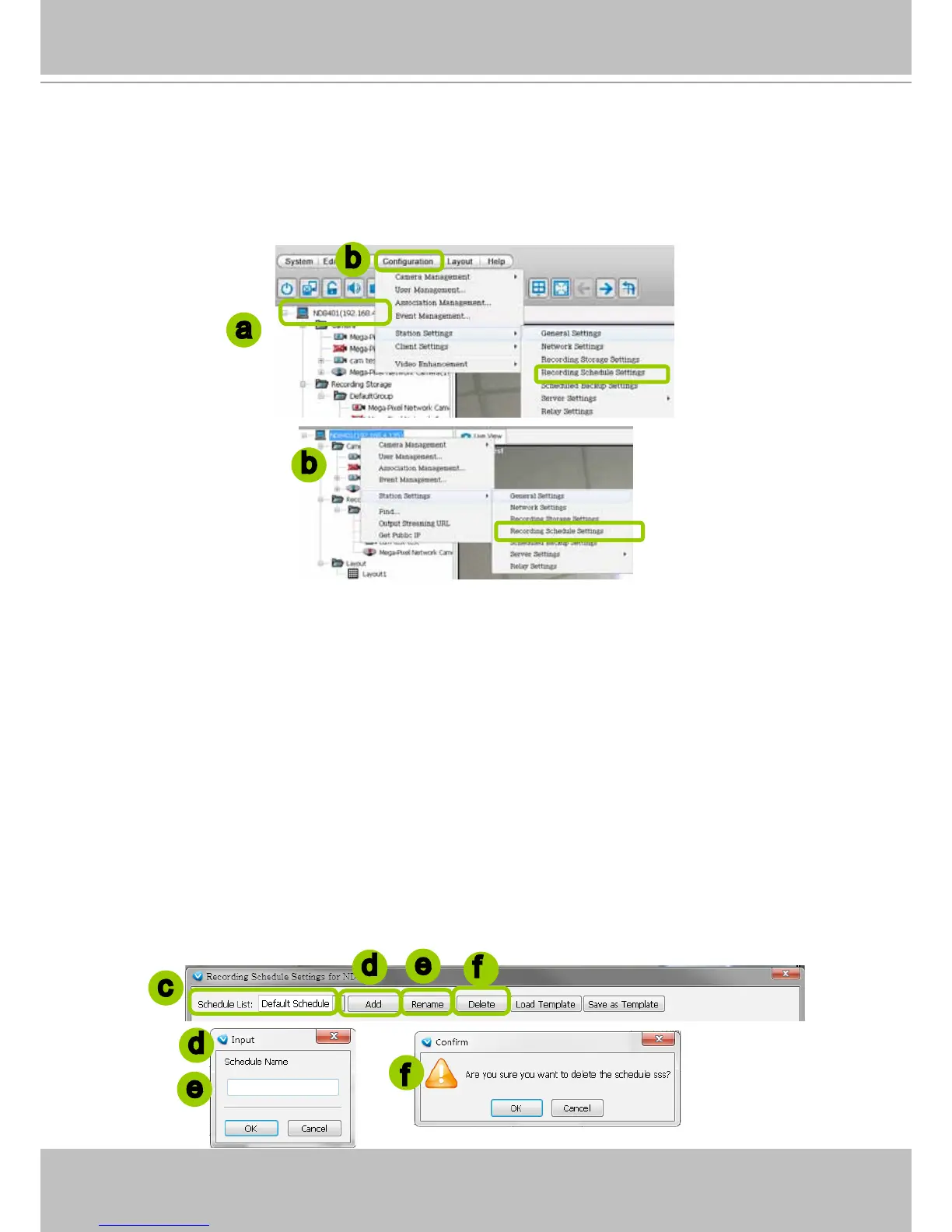
Please follow the steps below to set up the recording schedules:
a. Select the VAST station from the hierarchical device tree.
b. Click Conguration > Station Settings > Recording Schedule Settings on the menu bar (or right-
click the station and select Station Settings > Recording Schedule Settings).
c. The Recording Schedule Settings window will prompt. By default, all cameras managed by the
station will be assigned to Default Schedule, Default Time Frame, and Default Camera List.
Add Schedules
d. To add a new recording schedule, click Add to enter a name in the Schedule Name dialog box for the
new schedule. Click OK to conrm the settings or Cancel to discard the settings. The new recording
schedule will be displayed on the schedule drop-down list.
Rename Schedules
e. To rename an existing schedule, select the schedule from the schedule drop-down list and click
Rename. A Schedule Name dialog will pop up for you to ll in a name for the new schedule. Click OK
to conrm the settings or Cancel to discard the settings. The new recording schedule will be displayed
on the schedule drop-down list.
Delete Schedules
f. To delete an existing schedule, select the schedule from the schedule drop-down list and click Delete.
A Remove Schedule dialog box will pop up. Click OK to conrm or Cancel to discard the settings.
e
f
d
e
d
f
a
b
c
b



 To Next Page